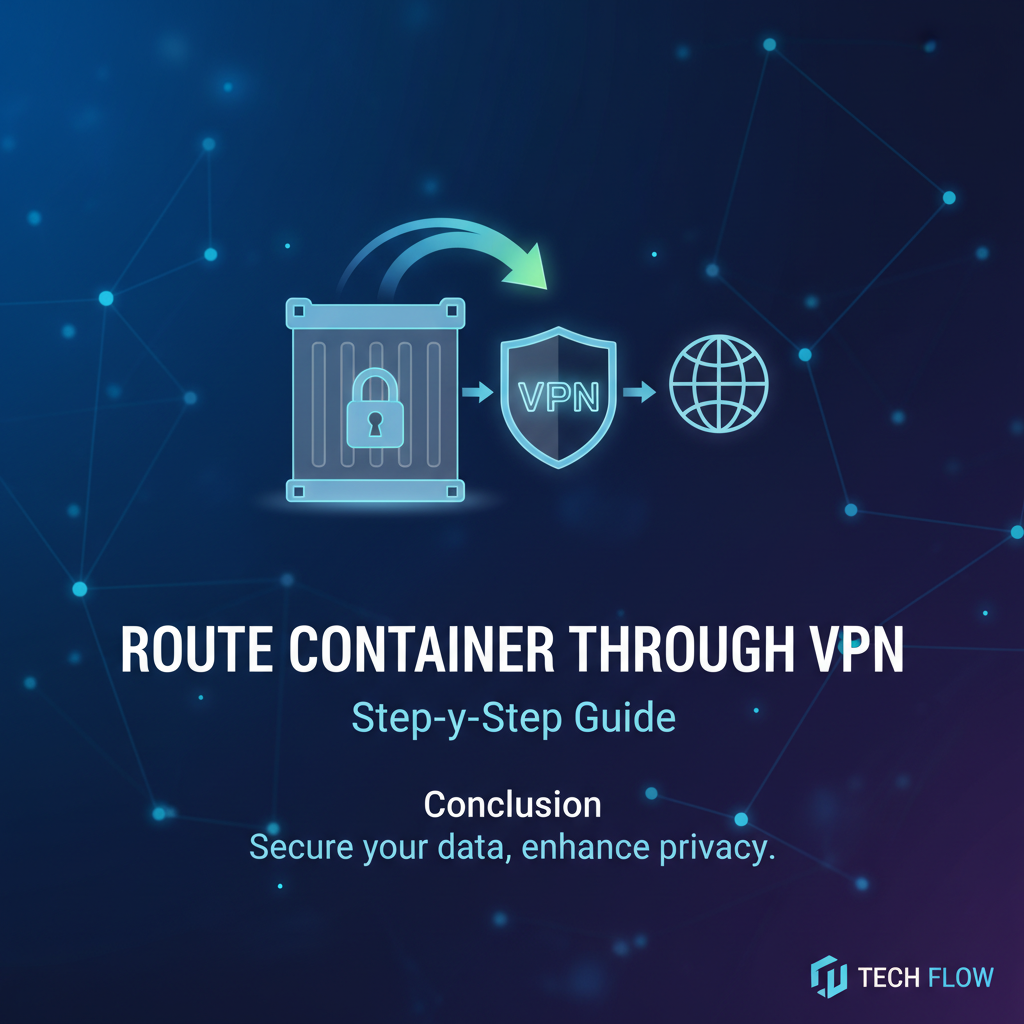
Route Container Through VPN: Step-by-Step Guide


Unveiling the Veil: Why Your Containers Need a VPN Tunnel
In the intricate tapestry of modern software architecture, containers have emerged as a cornerstone, offering unparalleled portability, efficiency, and scalability for applications. Docker, Kubernetes, and other containerization technologies have revolutionized how developers build, ship, and run software. However, as applications become increasingly distributed and interconnected, the underlying network infrastructure demands equally sophisticated attention, especially concerning security, privacy, and access to restricted resources. This is where the powerful combination of containerization and Virtual Private Networks (VPNs) enters the stage, offering a robust solution to a myriad of networking challenges.
Imagine a scenario where your containerized application needs to access a geo-restricted service, scrape data from a specific region, or securely communicate with a private database hosted on an internal network. Perhaps your microservice is consuming various external APIs, and you need to ensure all outbound traffic from that specific container is encrypted and routed through a secure channel, masking its true origin. Alternatively, an internal container might need to connect to a legacy system residing in an on-premises data center, accessible only via a corporate VPN. In all these instances, simply allowing a container to use the host's default network can expose it to vulnerabilities, reveal its identity, or prevent it from reaching its intended destination.
Routing container traffic through a VPN is not merely a technical exercise; it's a strategic decision that empowers developers and system administrators with enhanced control over network topology, security posture, and data privacy. It allows for the creation of isolated, secure conduits for container communications, effectively extending your private network's boundaries directly into your containerized workloads. This guide will embark on a detailed journey, dissecting the fundamental concepts, exploring various implementation strategies, and providing actionable step-by-step instructions to ensure your containers traverse the digital landscape securely and effectively through a VPN tunnel. We will delve into common challenges, troubleshoot potential pitfalls, and equip you with the knowledge to confidently integrate VPN capabilities into your containerized environments, ensuring your applications operate within a fortress of controlled connectivity.
The Foundations: Containers, VPNs, and Network Isolation
Before we plunge into the practicalities of routing container traffic, it's crucial to solidify our understanding of the core technologies involved. A clear grasp of these foundational elements will illuminate the "why" behind each technical decision we make.
Understanding Containers and Docker Networking
At its heart, a container is a standardized, executable package of software that bundles application code, libraries, and dependencies, capable of running consistently across different environments. Unlike virtual machines, containers share the host operating system's kernel, making them lightweight and fast. Docker is the most popular containerization platform, providing tools to build, run, and manage containers.
A critical aspect of container management is networking. Docker offers several networking drivers to connect containers to each other and to the outside world:
- Bridge Network (Default): When you create a container, it typically connects to a default bridge network. Docker creates an internal bridge (e.g.,
docker0) and assigns an IP address to each container on this network. Containers on the same bridge can communicate by IP address or container name. They access the external network via NAT (Network Address Translation) through the host's IP address. - Host Network: A container using the host network shares the host's network stack. This means the container does not get its own IP address; instead, it uses the host's IP address and port mapping. While this offers high performance and simplicity, it sacrifices network isolation, as the container is directly exposed to the host's network interfaces.
- None Network: Containers use a loopback interface and have no external network access. This is useful for batch jobs or containers that don't need network connectivity.
- Overlay Network: Used for multi-host container communication in Docker Swarm or Kubernetes clusters, enabling containers on different hosts to communicate as if they were on the same network.
- Macvlan Network: Allows you to assign a MAC address to a container, making it appear as a physical device on your network. This is useful when you need containers to have distinct MAC addresses or to be directly accessible from the physical network without NAT.
For our purpose of routing through a VPN, the default bridge network is often the starting point, as it provides a degree of isolation while still allowing outbound connectivity. The challenge then becomes how to direct that outbound traffic through a specific VPN tunnel rather than the host's default gateway.
Deconstructing Virtual Private Networks (VPNs)
A VPN creates a secure, encrypted tunnel over an insecure network, typically the internet. It works by establishing a direct connection between your device (or in our case, a container) and a VPN server. All network traffic flowing through this tunnel is encrypted, protecting it from eavesdropping, and appears to originate from the VPN server's IP address, masking your true location.
Common VPN protocols include:
- OpenVPN: An open-source, robust, and highly configurable VPN protocol. It uses SSL/TLS for encryption and can run over UDP or TCP. Its flexibility makes it a popular choice for custom setups.
- WireGuard: A modern, simpler, and faster VPN protocol designed for performance and ease of use. It uses state-of-the-art cryptography and is quickly gaining traction as a lightweight alternative to OpenVPN.
- IPsec/IKEv2: A suite of protocols used for securing IP communications, commonly deployed in enterprise environments.
When a VPN connection is established, it typically modifies the system's routing table. A new default route might be added, directing all traffic through the VPN tunnel, or specific routes might be added for certain destinations. Additionally, DNS queries are often routed through the VPN to prevent leaks. The magic behind routing through a VPN lies in manipulating these network routes and ensuring that desired traffic adheres to them.
The Nuance of Network Namespaces and iptables
To achieve the granular control necessary for routing specific container traffic, we leverage fundamental Linux networking concepts:
- Network Namespaces: Linux network namespaces provide network stack isolation. Each namespace has its own network interfaces, IP addresses, routing tables, and
iptablesrules. When Docker creates a container, it typically assigns it to its own network namespace, which is separate from the host's network namespace. This is crucial for isolating container networks. iptables: This Linux firewall utility allows you to manage the kernel's packet filtering rules.iptablescan inspect, modify, and route network packets based on various criteria (source/destination IP, port, protocol, interface). We will useiptablesto enforce routing rules, ensuring that traffic originating from specific containers or networks is directed into our VPN tunnel. It acts as a powerful traffic gateway for network packets, enabling sophisticated control over their flow.
Understanding how these components interact is key to successfully orchestrating container traffic through a VPN. The goal is to create a segregated network environment for our containers, where outbound requests are reliably shunted through the secure VPN connection, bypassing the host's default route.
Common Scenarios and the Imperative for VPN Routing
The decision to route container traffic through a VPN is driven by a variety of compelling use cases, each highlighting a specific benefit:
- Enhanced Security and Privacy:
- Data Encryption: All data transmitted from the container through the VPN tunnel is encrypted, protecting sensitive information from interception and surveillance, especially over public networks. This is paramount for applications handling personal data, financial transactions, or proprietary business logic.
- IP Masking: The container's real IP address is hidden behind the VPN server's IP. This is vital for privacy-conscious applications, anonymous browsing, or preventing services from tracking the origin of requests.
- Access Control: Some internal resources or partner networks might only be accessible via a specific VPN. Routing containers through this VPN grants them secure access to these restricted environments, making the VPN a critical gateway to internal systems.
- Bypassing Geo-Restrictions and Censorship:
- Many online services, content providers, or even public APIs impose geographical restrictions, limiting access based on the user's IP address. By routing a container through a VPN server located in a different country, the container can effectively bypass these restrictions and appear to originate from the chosen region. This is invaluable for data scraping, content access, or testing region-specific application behaviors.
- In environments with internet censorship, a VPN can provide a pathway around governmental firewalls, allowing containers to access otherwise blocked resources.
- Accessing Internal or On-Premises Resources:
- In hybrid cloud architectures, where some applications run in containers on cloud platforms while others remain on-premises, a VPN is often the bridge. Containers can route through a corporate VPN to securely access databases, message queues, or legacy systems within the private network. This ensures that sensitive internal APIs are not exposed to the public internet but are securely accessed through established network perimeters.
- Creating a Dedicated Network for Specific Services:
- You might have a set of containers that require a very specific network profile – perhaps they need to egress from a fixed IP address that the VPN provides, or they need to be isolated from other container traffic. Routing them through a dedicated VPN tunnel provides this granular control and dedicated network egress, allowing for more predictable network behavior and easier auditing.
- Securing Microservice-to-Microservice Communication (Edge Cases):
- While internal container-to-container communication within a Docker network is generally considered secure (not traversing the public internet), there might be niche scenarios where a microservice needs to connect to another microservice across different data centers or cloud regions via a secure, dedicated VPN link. This ensures that even inter-service communication over potentially untrusted networks remains encrypted. For managing these complex inter-service API interactions, robust API management platforms can be incredibly beneficial.
Understanding these scenarios helps in choosing the right approach and justifying the effort required to implement sophisticated VPN routing for containers. It moves beyond a mere technical curiosity to a fundamental requirement for many enterprise-grade and privacy-centric deployments.
Prerequisites and Preparatory Steps
Before we dive into the configurations, ensure you have the following ready. A well-prepared environment reduces friction and potential troubleshooting later on.
Software Requirements:
- Docker Engine: Installed and running on your Linux host (e.g., Ubuntu, Debian, CentOS). Ensure you have a recent version.
- VPN Client:
- For OpenVPN:
openvpnclient installed on the host. - For WireGuard:
wireguard-toolsandwireguard-dkms(orwireguard-modules) installed on the host.
- For OpenVPN:
iptables: Usually pre-installed on most Linux distributions.curl(optional but recommended): For quick command-line testing of connectivity.
VPN Configuration Files:
- OpenVPN: You'll need an
.ovpnconfiguration file provided by your VPN service or server administrator. This file typically contains server address, port, protocol, certificates, and keys. - WireGuard: You'll need a
.confconfiguration file, which includes peer public keys, endpoint, allowed IPs, and your private key.
Basic Networking Understanding:
- IP Addresses: Familiarity with IP address ranges (e.g.,
172.17.0.0/16for Docker's default bridge). - Subnetting: Understanding how subnets work.
- Routing Tables: How to inspect and understand basic routing entries (
ip route). - Firewall Rules: Basic knowledge of
iptablescommands forNATandFORWARDchains.
Host Machine Preparation:
- Update Your System: Always start with an up-to-date system to avoid dependency conflicts.
bash sudo apt update && sudo apt upgrade -y # For Debian/Ubuntu sudo yum update -y # For CentOS/RHEL - Enable IP Forwarding: This is crucial if your host machine or a dedicated VPN container will be acting as a gateway for other containers. It allows the kernel to forward packets between different network interfaces.
bash sudo sysctl -w net.ipv4.ip_forward=1 echo "net.ipv4.ip_forward = 1" | sudo tee -a /etc/sysctl.conf sudo sysctl -p # Apply changes - Install VPN Clients (if using host-level VPN or for configuration files):
- OpenVPN:
bash sudo apt install openvpn -y # Debian/Ubuntu sudo yum install openvpn -y # CentOS/RHEL - WireGuard:
bash sudo apt install wireguard resolvconf -y # Debian/Ubuntu sudo yum install epel-release elrepo-release -y sudo yum install kmod-wireguard wireguard-tools -y # CentOS/RHEL
- OpenVPN:
With these preparations in place, you are now ready to tackle the various methods for routing your container traffic through a VPN, from the simplest to the most robust and isolated.
Method 1: Host-Level VPN with Host Network Mode (Simplest, Least Isolated)
This is the most straightforward approach but offers the least isolation for your containers. In this method, the host machine itself establishes the VPN connection, and then the container runs using the host's network stack.
How it Works:
- The host machine connects to the VPN server. All traffic originating from the host (including traffic from containers using the host network) will then be routed through the VPN tunnel.
- The container is launched with the
--network hostflag, effectively sharing the host's network interfaces, IP addresses, and routing table.
Step-by-Step Implementation:
1. Configure and Connect VPN on the Host
First, ensure your host can connect to your VPN.
For OpenVPN:
- Place your
.ovpnconfiguration file (e.g.,myvpn.ovpn) in a suitable directory, often/etc/openvpn/. - Connect to the VPN:
bash sudo openvpn --config /etc/openvpn/myvpn.ovpn &The&puts it in the background. You can check its status withps aux | grep openvpn. - Verify VPN connection: Check your public IP address using a service like
curl ifconfig.mebefore and after connecting to the VPN. You should see the VPN server's IP. Also checkip afor a newtunortapinterface.
For WireGuard:
- Place your
.confconfiguration file (e.g.,wg0.conf) in/etc/wireguard/. - Start the WireGuard interface:
bash sudo wg-quick up wg0 - Verify VPN connection: Use
sudo wgto see the interface status. Check your public IP withcurl ifconfig.meandip afor a newwg0interface.
2. Run Your Container with Host Network Mode
Once the host's VPN connection is active, launch your Docker container using the --network host option.
docker run -it --rm --network host alpine sh
Inside the container, test its network connectivity.
/ # apk add curl # Install curl if not present
/ # curl ifconfig.me
The output should show the IP address of your VPN server, confirming that the container's traffic is indeed routing through the host's VPN tunnel.
3. Disconnect VPN (When Done)
For OpenVPN: Find the process ID (PID) of your OpenVPN client (ps aux | grep openvpn) and kill it.
sudo kill <PID>
Or if you started it in the foreground, Ctrl+C.
For WireGuard:
sudo wg-quick down wg0
Advantages:
- Simplicity: Easiest to set up, minimal Docker networking configuration.
- Performance: No extra NAT layers; containers directly use the host's network stack.
Disadvantages:
- Lack of Isolation: The container has full access to the host's network interfaces, ports, and services. This is a significant security risk, as a compromise within the container could directly affect the host.
- All Host Traffic Through VPN: All traffic from the host (and consequently, all containers using
--network host) will go through the VPN. You cannot selectively route only specific containers. - Port Conflicts: Containers using the host network cannot publish ports, as they directly share the host's port space. If the host has a service listening on port 80, a container cannot also listen on port 80.
When to Use This Method:
This method is suitable for quick tests, development environments, or scenarios where the container's security posture is less critical, and simplicity is prioritized. It's generally NOT recommended for production environments due to the severe lack of isolation. For most production deployments, a dedicated VPN container approach is preferred.
APIPark is a high-performance AI gateway that allows you to securely access the most comprehensive LLM APIs globally on the APIPark platform, including OpenAI, Anthropic, Mistral, Llama2, Google Gemini, and more.Try APIPark now! 👇👇👇
Method 2: Dedicated VPN Container (Robust and Isolated)
This is the recommended and most widely used method for routing container traffic through a VPN. It offers superior isolation, allowing you to selectively route only specific containers' traffic through the VPN, leaving the host's network and other containers unaffected.
How it Works:
- A dedicated Docker container is set up to run the VPN client (OpenVPN or WireGuard). This container establishes the VPN connection.
- Other "client" containers are configured to use the VPN container's network stack. This can be achieved using Docker's
--network container:<vpn_container_name_or_id>option or by creating a custom Docker network and carefully configuringiptablesand routing rules. - The VPN container acts as a secure gateway for all traffic originating from the client containers that are connected to its network namespace.
We will explore two primary sub-methods: one using Docker's container network mode for direct sharing, and another using a custom bridge network with iptables for more complex scenarios.
Sub-Method 2.1: Using docker run --network container:<vpn_container>
This approach leverages Docker's ability to share network namespaces between containers directly.
Step-by-Step Implementation with OpenVPN:
1. Create OpenVPN Client Configuration for the Container
Your .ovpn file needs to be ready. Ensure it doesn't try to change the host's resolv.conf or routes too aggressively, as the container will manage its own network. Many openvpn clients automatically handle this.
2. Build or Pull an OpenVPN Client Image
You can use a pre-built image or create your own. kylemanna/openvpn is a popular choice for OpenVPN servers, but for clients, simpler images are often better. We'll use a basic alpine/openvpn image for demonstration.
Create a Dockerfile (optional, if you want a custom image):
# Dockerfile for OpenVPN client
FROM alpine:latest
RUN apk add --no-cache openvpn
COPY myvpn.ovpn /etc/openvpn/myvpn.ovpn
CMD ["openvpn", "--config", "/etc/openvpn/myvpn.ovpn"]
Build it:
docker build -t my-openvpn-client .
Alternatively, just use alpine and mount the config:
3. Run the OpenVPN Client Container
We need to give this container NET_ADMIN capabilities to modify network interfaces and routing tables, and --privileged to access /dev/net/tun. We also map /dev/net/tun to allow the VPN tunnel interface to be created.
docker run -it --rm --cap-add=NET_ADMIN --device=/dev/net/tun \
  --name ovpn-client \
  -v ./myvpn.ovpn:/etc/openvpn/myvpn.ovpn:ro \
  alpine/openvpn
--name ovpn-client: Assign a name for easy reference.-v ./myvpn.ovpn:/etc/openvpn/myvpn.ovpn:ro: Mount your VPN config file.alpine/openvpn: Assuming you're using a pre-built image or replaced it with yourmy-openvpn-clientimage. Ifalpine/openvpndoesn't exist, you'll need to build your own or installopenvpninside analpinecontainer. A more common approach is to just usealpineand installopenvpnon the fly, or use a specific image likedperson/openvpn-client.
Let's refine the OpenVPN client container command for reliability using dperson/openvpn-client:
docker run -it --rm --cap-add=NET_ADMIN --device=/dev/net/tun \
  --name ovpn-client \
  -v ./myvpn.ovpn:/etc/openvpn/client.conf:ro \
  dperson/openvpn-client
Wait for the OpenVPN client to establish a connection. You should see "Initialization Sequence Completed" in the logs. You can open a new terminal and check the logs: docker logs ovpn-client.
4. Run Your Application Container Using the VPN Container's Network
Now, launch your application container, making it share the network stack of the ovpn-client container.
docker run -it --rm --network container:ovpn-client alpine sh
Inside the alpine container:
/ # apk add curl # Install curl for testing
/ # curl ifconfig.me
This should display the IP address provided by your VPN server. Your application container's traffic is now securely routed through the VPN.
Step-by-Step Implementation with WireGuard:
1. Prepare WireGuard Configuration
Create a wg0.conf file with your WireGuard client configuration. It should look something like this:
[Interface]
PrivateKey = <your_private_key>
Address = 10.0.0.2/24 # IP address assigned to the client within the VPN tunnel
DNS = 8.8.8.8

[Peer]
PublicKey = <vpn_server_public_key>
Endpoint = <vpn_server_ip_or_hostname>:<port>
AllowedIPs = 0.0.0.0/0, ::/0 # Route all traffic through the VPN
PersistentKeepalive = 25
2. Run the WireGuard Client Container
Similar to OpenVPN, the WireGuard container needs NET_ADMIN capabilities and access to /dev/net/tun.
docker run -it --rm --cap-add=NET_ADMIN --cap-add=SYS_MODULE --device /dev/net/tun \
  --name wg-client \
  -v ./wg0.conf:/etc/wireguard/wg0.conf:ro \
  --sysctl net.ipv4.conf.all.src_valid_lft=250 \
  alpine/wireguard # Or your custom WireGuard image
Wait a few seconds for WireGuard to establish the connection.
Self-correction: There isn't a standard alpine/wireguard image. You typically either install WireGuard tools inside an alpine image or use a specific WireGuard client image. A common approach is to use linuxserver/wireguard or build your own. Let's assume we're using a minimal alpine image and installing WireGuard tools.
Custom Dockerfile for WireGuard client:
# Dockerfile for WireGuard client
FROM alpine:latest
RUN apk add --no-cache wireguard-tools iproute2
COPY wg0.conf /etc/wireguard/wg0.conf
CMD ["sh", "-c", "ip link add wg0 type wireguard && wg setconf wg0 /etc/wireguard/wg0.conf && ip addr add 10.0.0.2/24 dev wg0 && ip link set up dev wg0 && ip route add default dev wg0 && tail -f /dev/null"]
This Dockerfile sets up WireGuard within the container. Build it:
docker build -t my-wireguard-client .
Then run it:
docker run -it --rm --cap-add=NET_ADMIN --cap-add=SYS_MODULE --device /dev/net/tun \
  --name wg-client \
  my-wireguard-client
3. Run Your Application Container Using the WireGuard Container's Network
docker run -it --rm --network container:wg-client alpine sh
Inside the alpine container:
/ # apk add curl
/ # curl ifconfig.me
This should show the VPN server's IP.
Advantages of Sub-Method 2.1:
- Excellent Isolation: Only the specifically connected application containers route through the VPN. The host and other containers are unaffected.
- Clean Separation of Concerns: The VPN client logic is encapsulated within its own container.
- Simple Network Configuration: Docker handles the network namespace sharing directly.
Disadvantages of Sub-Method 2.1:
- Limited Fan-Out: While simple, connecting many containers this way might become cumbersome with explicit
--network containerflags. - Single VPN Connection: All containers sharing a single VPN client container will use the same VPN connection. You can't have multiple VPN clients (e.g., to different countries) and selectively assign them easily with this exact mechanism.
Sub-Method 2.2: Using a Custom Bridge Network with iptables (Advanced, More Flexible)
This method provides even greater flexibility, allowing you to create a dedicated Docker network that exclusively routes traffic through a VPN container, without directly sharing the network namespace. This is particularly useful when managing multiple services or creating a "VPN-secured zone" within your Docker environment.
How it Works:
- A dedicated VPN container establishes the VPN connection.
- A custom Docker bridge network is created.
- The VPN container is connected to this custom bridge network.
- Other application containers are also connected to this custom bridge network.
iptablesrules are configured within the VPN container (or on the host, but within the VPN container is cleaner for isolation) to forward traffic from the custom bridge network into the VPN tunnel. This involves setting up NAT for the client containers' traffic.
Step-by-Step Implementation (Using OpenVPN as an Example):
1. Create a Custom Docker Bridge Network
docker network create --subnet=172.19.0.0/16 --gateway=172.19.0.1 vpn_network
vpn_network: The name of your new network.--subnet: Define a custom IP range to avoid conflicts and clearly separate this network.--gateway: Define the gateway IP for this network. This will be the VPN container's IP within this network.
2. Run the OpenVPN Client Container and Connect to vpn_network
This container will also need to enable IP forwarding, as it will act as a gateway for other containers. We also need to configure iptables rules inside this container.
Let's use a more complete Dockerfile for the OpenVPN client that includes iptables setup:
Dockerfile.vpn-gateway:
FROM alpine:latest
RUN apk add --no-cache openvpn iptables iproute2
COPY myvpn.ovpn /etc/openvpn/myvpn.ovpn
COPY setup_vpn_gateway.sh /usr/local/bin/setup_vpn_gateway.sh
RUN chmod +x /usr/local/bin/setup_vpn_gateway.sh
CMD ["sh", "-c", "/usr/local/bin/setup_vpn_gateway.sh && openvpn --config /etc/openvpn/myvpn.ovpn"]
setup_vpn_gateway.sh:
#!/bin/sh
# Enable IP forwarding within the container
sysctl -w net.ipv4.ip_forward=1

# Get the IP address of the vpn_network interface within this container
# This assumes the container will have an interface like eth0 or similar for the vpn_network
VPN_NETWORK_IFACE=$(ip route | grep 172.19.0.0/16 | awk '{print $3}') # Adjust if your vpn_network subnet is different

# Wait for the tun0 interface to come up (OpenVPN tunnel)
until ip link show tun0; do
  echo "Waiting for tun0 interface..."
  sleep 1
done

# Get the IP address of the tun0 interface
TUN_IP=$(ip addr show tun0 | grep "inet\b" | awk '{print $2}' | cut -d/ -f1)

echo "VPN_NETWORK_IFACE: ${VPN_NETWORK_IFACE}"
echo "TUN_IP: ${TUN_IP}"

# Flush existing NAT rules (optional, for clean slate)
# iptables -t nat -F
# iptables -t filter -F

# Set up NAT for traffic coming from vpn_network and going out through tun0
iptables -t nat -A POSTROUTING -o tun0 -j MASQUERADE

# Forward traffic from vpn_network to tun0 and vice versa
iptables -A FORWARD -i "$VPN_NETWORK_IFACE" -o tun0 -j ACCEPT
iptables -A FORWARD -i tun0 -o "$VPN_NETWORK_IFACE" -m state --state RELATED,ESTABLISHED -j ACCEPT

echo "iptables rules applied."

# Prevent DNS leaks - ensure DNS requests go through VPN (optional, depend on .ovpn config)
# You might need to adjust /etc/resolv.conf in the container or rely on the VPN's DNS
Important: The VPN_NETWORK_IFACE detection can be tricky. Docker usually assigns eth0 to the default bridge, and subsequent custom networks might get eth1, eth2, etc. You might need to adjust VPN_NETWORK_IFACE=$(ip -o link show | awk -F': ' '$2 != "lo" && $2 != "tun0" && $2 != "eth0" {print $2}') or specifically detect based on the IP within the container (ip addr show | grep 172.19.0.1). For simplicity, if the VPN container is only connected to the vpn_network and bridge (default), eth1 is likely the interface for vpn_network. A more robust way might be to inspect the ip route output for the specific subnet. Let's assume the interface connected to vpn_network is eth1 for demonstration purposes, though dynamic detection is better.
Let's simplify setup_vpn_gateway.sh to make it more generic regarding interface names:
#!/bin/sh
# Enable IP forwarding within the container
sysctl -w net.ipv4.ip_forward=1

# Wait for the tun0 interface to come up (OpenVPN tunnel)
until ip link show tun0; do
  echo "Waiting for tun0 interface..."
  sleep 1
done

# Identify the interface for the vpn_network by its IP address
# Assuming the gateway for vpn_network is 172.19.0.1, the VPN container will have this IP
VPN_NETWORK_IFACE=$(ip -4 addr show | grep 'inet 172.19.0.1' | awk '{print $NF}')

if [ -z "$VPN_NETWORK_IFACE" ]; then
    echo "Could not detect VPN_NETWORK_IFACE. Exiting."
    exit 1
fi

echo "VPN_NETWORK_IFACE: ${VPN_NETWORK_IFACE}"

# Flush existing NAT rules (optional, for clean slate)
# iptables -t nat -F
# iptables -t filter -F

# Set up NAT for traffic coming from vpn_network and going out through tun0
iptables -t nat -A POSTROUTING -o tun0 -j MASQUERADE

# Forward traffic from vpn_network to tun0 and vice versa
iptables -A FORWARD -i "$VPN_NETWORK_IFACE" -o tun0 -j ACCEPT
iptables -A FORWARD -i tun0 -o "$VPN_NETWORK_IFACE" -m state --state RELATED,ESTABLISHED -j ACCEPT

# Set default policy for FORWARD chain
# iptables -P FORWARD DROP # Uncomment if you want a strict firewall
# iptables -A FORWARD -j DROP # If not setting default policy to DROP

echo "iptables rules applied."

# Keep container running to ensure VPN and rules persist
tail -f /dev/null
Build the vpn-gateway image:
docker build -t vpn-gateway -f Dockerfile.vpn-gateway .
Now, run the VPN gateway container, connecting it to our vpn_network:
docker run -it --rm --cap-add=NET_ADMIN --device=/dev/net/tun \
  --name vpn-gateway \
  --network vpn_network \
  -v ./myvpn.ovpn:/etc/openvpn/myvpn.ovpn:ro \
  vpn-gateway
Ensure the VPN connection is established and the iptables rules are applied correctly by checking the container logs.
3. Run Your Application Containers Connected to vpn_network
Now, any application container you want to route through the VPN simply connects to vpn_network. It will automatically use vpn-gateway as its default route.
docker run -it --rm --network vpn_network alpine sh
Inside the alpine container:
/ # apk add curl
/ # curl ifconfig.me
This should again show the VPN server's IP address.
Advantages of Sub-Method 2.2:
- Maximum Flexibility: You can connect multiple application containers to the
vpn_network, and all of them will transparently route through the VPN gateway. - Clear Network Segmentation: The
vpn_networkexplicitly defines which containers should use the VPN. - Scalability: Easily add more application containers without reconfiguring individual network settings.
- Advanced Control: The
iptablesrules within thevpn-gatewaycontainer can be further customized for split tunneling, specific port forwarding, or additional firewalling.
Disadvantages of Sub-Method 2.2:
- Increased Complexity: Requires more setup with custom Docker networks and
iptablesrules. - Single Point of Failure: If the
vpn-gatewaycontainer goes down, all containers relying onvpn_networkwill lose external connectivity.
Using Docker Compose for Orchestration
For complex setups involving multiple containers, Docker Compose simplifies the orchestration of all these components. Here's a docker-compose.yml example for Sub-Method 2.2:
version: '3.8'

networks:
  vpn_network:
    driver: bridge
    ipam:
      config:
        - subnet: 172.19.0.0/16
          gateway: 172.19.0.1

services:
  vpn-gateway:
    build:
      context: .
      dockerfile: Dockerfile.vpn-gateway
    image: vpn-gateway:latest
    container_name: vpn-gateway
    privileged: true # Equivalent to --cap-add=NET_ADMIN --device=/dev/net/tun for many setups
    environment:
      - OPENVPN_CONFIG=/etc/openvpn/myvpn.ovpn # If using dperson/openvpn-client, it expects this
    volumes:
      - ./myvpn.ovpn:/etc/openvpn/myvpn.ovpn:ro
      - /dev/net/tun:/dev/net/tun # Explicitly map for consistency
    networks:
      - vpn_network
    sysctls:
      - net.ipv4.ip_forward=1 # Ensure IP forwarding is enabled

  app-container:
    image: alpine:latest
    container_name: app-container
    command: sh -c "apk add curl && tail -f /dev/null" # Keep container alive for testing
    networks:
      - vpn_network
Place myvpn.ovpn, Dockerfile.vpn-gateway, setup_vpn_gateway.sh, and docker-compose.yml in the same directory. Then, run:
docker-compose up -d
You can then docker exec -it app-container curl ifconfig.me to verify.
Managing Containerized APIs in Secure Environments: A Broader Perspective
As applications grow in complexity, encompassing numerous containerized microservices, the need for robust API management becomes paramount. While VPNs secure the network layer by routing traffic through encrypted tunnels, they primarily address connectivity and privacy. The management of the application-level APIs that these containers expose or consume is a distinct, yet equally critical, concern.
In a microservice architecture, your app-container might not just be consuming external APIs; it might also be exposing its own APIs for other internal services or even external consumers. When these APIs operate within a secured VPN network, or even when some are private and others public, managing their lifecycle – from design and publication to security, rate limiting, and analytics – introduces a new layer of challenges.
This is precisely where an API Gateway comes into play. An API Gateway acts as a single entry point for all client requests, routing them to the appropriate microservice. It can handle cross-cutting concerns such as authentication, authorization, rate limiting, logging, and transforming requests before they reach the backend services. In a containerized setup, an API Gateway itself can be deployed as a container, potentially even routing its own requests through a VPN if it needs to access specific external APIs or internal legacy systems.
Consider a scenario where you have multiple app-container instances, some routing through different VPNs (e.g., one to access a US-based API, another for an EU-based API). Each of these might expose internal APIs that need to be aggregated and exposed securely to client applications. An API Gateway would sit in front of these app-container instances, providing a unified interface.
For organizations grappling with the complexities of managing numerous APIs, especially in hybrid environments where some services might be routed through VPNs and others publicly exposed, platforms like ApiPark offer a comprehensive solution. APIPark acts as an open-source AI gateway and API management platform, designed to streamline the management, integration, and deployment of both AI and traditional REST services.
Its capabilities extend far beyond basic routing:
- Unified API Format: It standardizes the request data format across various AI models and even REST services, ensuring consistency regardless of the underlying containerized implementation. This is incredibly valuable when your VPN-routed containers are interacting with a diverse set of services.
- Prompt Encapsulation into REST API: Imagine your
app-containeris a data processing unit that, after retrieving data through a VPN, needs to send it to an AI model for sentiment analysis. APIPark allows you to easily combine AI models with custom prompts to create new, ready-to-use APIs, simplifying AI consumption for your containerized applications. - End-to-End API Lifecycle Management: From design to publication, invocation, and decommission, APIPark assists in managing the entire lifecycle of APIs. This ensures that even APIs exposed by containers within a secure VPN environment adhere to enterprise standards for traffic forwarding, load balancing, and versioning.
- API Service Sharing within Teams: In complex containerized deployments, different teams might deploy services that need to be shared. APIPark centralizes the display of all API services, making it easy for different departments and teams to find and use the required API services, even if their underlying containers are part of sophisticated VPN routing configurations.
- Detailed API Call Logging and Data Analysis: While VPNs offer network-level logs, APIPark provides comprehensive logging of every API call, recording details that are crucial for troubleshooting and performance analysis at the application layer. This complements network-level monitoring and helps businesses quickly trace and troubleshoot issues in API calls, ensuring system stability and data security within a containerized, potentially VPN-secured, ecosystem.
- Performance Rivaling Nginx: With high performance metrics, APIPark can handle substantial traffic, making it suitable for managing the APIs of even high-throughput containerized services.
Integrating a platform like APIPark into your containerized, VPN-secured infrastructure elevates your API governance from mere network routing to comprehensive application-layer management, securing and optimizing the way your services interact and deliver value. It provides a sophisticated gateway for all your API needs, regardless of the underlying network complexities introduced by VPNs.
Advanced Considerations and Best Practices
Implementing container VPN routing effectively involves more than just getting the connection working. Several advanced topics and best practices can enhance security, reliability, and usability.
1. DNS Resolution within VPN
When a container's traffic is routed through a VPN, its DNS queries should ideally also go through the VPN to prevent DNS leaks. If DNS queries bypass the VPN, an attacker could still infer your activity or the services you are trying to reach.
- OpenVPN: The
.ovpnfile often includesdhcp-option DNS ...directives. When used with a VPN client that respects these (likedperson/openvpn-client), the container's/etc/resolv.confshould be updated to use the VPN's DNS servers. - WireGuard: The
[Interface]section ofwg0.confcan specifyDNS = <VPN_DNS_SERVER_IP>. Ensure your Docker setup allows this to be honored. - Manual Override: In some cases, you might need to manually edit
/etc/resolv.confwithin your VPN client container, or pass--dnsflags to your application containers if they are directly sharing the VPN container's network. --dnsindocker run: When using custom bridge networks (Method 2.2), you can specify--dns <VPN_DNS_IP>for your application containers. This ensures they use the VPN's DNS servers.
2. Split Tunneling
By default, many VPN configurations (especially those with AllowedIPs = 0.0.0.0/0 in WireGuard or redirect-gateway def1 in OpenVPN) route all traffic through the VPN. Split tunneling allows you to selectively route only some traffic through the VPN while other traffic uses the host's default internet connection.
- Benefits: Reduces VPN server load, improves performance for non-VPN bound traffic, and allows access to local network resources without disconnecting the VPN.
- Implementation: This is achieved by carefully manipulating routing tables and
iptablesrules. Instead of0.0.0.0/0, you would specify only the specific IP ranges or destinations that need to go through the VPN in your WireGuardAllowedIPsor OpenVPNroutedirectives. For Method 2.2, you'd adjust theiptablesrules invpn-gatewayto only NAT and forward traffic destined for specific IP ranges throughtun0.
3. Security Hardening
- Least Privilege: Always run containers with the least necessary privileges.
--privilegedorNET_ADMINshould be used only when absolutely required for the VPN client container. - Read-Only VPN Config: Mount VPN configuration files as read-only (
:ro) to prevent accidental modification from within the container. - Regular Updates: Keep your Docker host, Docker engine, VPN client software, and container images updated to patch security vulnerabilities.
- Network Segmentation: Utilize custom Docker networks effectively to isolate services. Avoid
--network hostin production. - Secrets Management: If your VPN configuration requires sensitive credentials (passwords, private keys), use Docker Secrets or a dedicated secrets management solution (e.g., Vault) instead of hardcoding them in configuration files or environment variables.
4. Persistence and Restart Policies
- Ensure your VPN client container has an appropriate restart policy (e.g.,
restart: alwaysin Docker Compose) so that it automatically reconnects after a host reboot or a container crash. - For VPN services that might drop connections, consider implementing health checks for your VPN container to ensure it actively maintains its connection.
5. Monitoring and Logging
- VPN Client Logs: Monitor the logs of your VPN client container (
docker logs vpn-gateway) for connection status, errors, and disconnections. - Network Traffic Monitoring: Use tools like
tcpdump(can be run in another container on the same network or even on the host) to inspect traffic and confirm it's routing as expected. - Application Logs: Ensure your application logs reflect successful communication over the VPN.
- APIPark's Detailed Logging: As mentioned, for application-level API interactions, tools like APIPark provide invaluable detailed logging of every API call. This complements network-level monitoring by giving you visibility into the success/failure and performance of the actual API transactions occurring over the VPN tunnel, allowing for a comprehensive view of your containerized service's health.
6. Performance Considerations
- Encryption Overhead: VPNs introduce encryption/decryption overhead, which can impact network performance. Choose modern, efficient VPN protocols like WireGuard where possible.
- VPN Server Location: The geographical distance to your VPN server affects latency. Choose a server close to the resources your containers need to access.
- Host Resources: Ensure your Docker host has sufficient CPU and memory, especially if running multiple VPN client containers or high-throughput applications.
7. DNS within the VPN Container
Sometimes, the VPN server pushes DNS servers that are only accessible through the VPN tunnel. If your vpn-gateway container tries to resolve hostnames before the tun0 interface is fully up and routing is established, it might fail. A common pattern in VPN client containers is to wait for the tun0 interface, then update resolv.conf or ensure DNS queries are explicitly routed via tun0. resolvconf package on Alpine or similar tools can assist.
By meticulously considering these advanced aspects, you can build a resilient, secure, and performant containerized environment where VPN routing is a seamless and integrated part of your network strategy.
Troubleshooting Common Issues
Even with careful planning, network configurations can be tricky. Here are common issues you might encounter when routing containers through a VPN, along with their solutions.
Issue 1: Container Cannot Access the Internet (or VPN-Specific Resources)
- Symptom:
curl ifconfig.mereturns nothing or a connection timed out error, or you get "Host not found" errors. - Possible Causes & Solutions:
- VPN Connection Not Established:
- Check VPN Client Container Logs:
docker logs <vpn_container_name>. Look for "Initialization Sequence Completed" (OpenVPN) or confirmwg showoutput (WireGuard). Ensure there are no errors in connecting to the VPN server. - Verify VPN Config: Double-check your
.ovpnorwg0.conffor typos, correct server addresses, ports, and credentials.
- Check VPN Client Container Logs:
NET_ADMINor/dev/net/tunMissing:- The VPN client container needs
CAP_ADD=NET_ADMINand--device=/dev/net/tun(or--privileged) to create thetuninterface and modify routes. Ensure these are present in yourdocker runordocker-compose.yml.
- The VPN client container needs
- IP Forwarding Not Enabled (on Host or VPN Gateway Container):
- If using Method 2.2 (custom bridge network), the
vpn-gatewaycontainer must havenet.ipv4.ip_forward=1enabled. Ensure it's set insysctl.conffor the host and viasysctlcommand in thevpn-gatewaycontainer's startup script.
- If using Method 2.2 (custom bridge network), the
iptablesRules Incorrect (for Method 2.2):- The
vpn-gatewaycontainer needsiptables -t nat -A POSTROUTING -o tun0 -j MASQUERADEandFORWARDrules to allow traffic from the custom bridge network to go throughtun0. - Inside the
vpn-gatewaycontainer:iptables -t nat -L -vandiptables -L -vto inspect the rules. Ensuretun0and the correct bridge network interface are used in the rules.
- The
- DNS Issues:
- Check
/etc/resolv.confinside the application container: Does it point to the correct DNS servers (preferably those from the VPN)? - If not, ensure your VPN config pushes DNS, or manually specify DNS servers for your application containers:
--dns <VPN_DNS_IP>indocker run. - Test DNS resolution directly:
ping 8.8.8.8(to test connectivity to an IP) thenping google.com(to test DNS).
- Check
- VPN Connection Not Established:
Issue 2: Host Traffic is Also Routed Through the VPN
- Symptom: After starting the VPN container, your host's public IP also changes to the VPN server's IP.
- Possible Causes & Solutions:
- Using Method 1 (Host-Level VPN): This is expected behavior for Method 1. If you need isolation, switch to Method 2.
- VPN Client Container Accidentally Modified Host Routes:
- Some OpenVPN client configurations or Docker images might incorrectly modify the host's routing table if given excessive privileges or if the
tundevice is created in the host's namespace. - Solution: Ensure your VPN client container is truly isolated. For OpenVPN, check the
.ovpnfile forpull-filter ignore "route"or related directives if you want to prevent it from pulling routes that affect the host. For Docker, explicitly use--networkmodes that isolate the VPN container's network stack.
- Some OpenVPN client configurations or Docker images might incorrectly modify the host's routing table if given excessive privileges or if the
Issue 3: Performance Degradation
- Symptom: Applications feel slow, high latency, or low bandwidth when routed through the VPN.
- Possible Causes & Solutions:
- VPN Server Overload or Distance:
- Try a different VPN server or one closer geographically.
- Check your VPN provider's status page.
- Encryption Overhead:
- OpenVPN (especially over TCP) can be slower than WireGuard. Consider migrating to WireGuard if performance is critical.
- Host Resource Bottleneck:
- Monitor CPU, memory, and network I/O on your Docker host. If any are maxed out, increase resources.
- MTU Issues:
- Incorrect MTU (Maximum Transmission Unit) can lead to packet fragmentation and retransmissions. Experiment with lowering the MTU for the
tun0interface within your VPN container (e.g.,ifconfig tun0 mtu 1400).
- Incorrect MTU (Maximum Transmission Unit) can lead to packet fragmentation and retransmissions. Experiment with lowering the MTU for the
- VPN Server Overload or Distance:
Issue 4: Docker Network Conflicts
- Symptom: Custom Docker network (
vpn_network) doesn't get assigned the expected IP range, or containers fail to join it. - Possible Causes & Solutions:
- Subnet Overlap:
- Ensure your custom
--subnet(e.g.,172.19.0.0/16) does not overlap with any existing networks on your host (includingdocker0's default172.17.0.0/16or other custom networks). - Use
docker network inspect <network_name>to view network details.
- Ensure your custom
- Gateway Conflict:
- Ensure the
--gatewayIP you chose forvpn_networkis not already in use.
- Ensure the
- Subnet Overlap:
Issue 5: iptables Rules Not Applying or Not Persisting (Method 2.2)
- Symptom:
iptablescommands appear to run but traffic isn't forwarded, or rules disappear after some time. - Possible Causes & Solutions:
- Script Execution Order:
- Ensure your
setup_vpn_gateway.shscript runs after thetun0interface is up and assigned an IP. Theuntil ip link show tun0loop helps with this.
- Ensure your
- Interface Name Mismatch:
- Double-check that the
VPN_NETWORK_IFACEvariable in your script correctly identifies the interface connected tovpn_network(e.g.,eth1).ip -4 addr showorip routecan help identify.
- Double-check that the
- Incorrect Chains/Tables:
- Ensure you're adding rules to the correct
nattable (POSTROUTING) andfiltertable (FORWARD). iptables -t nat -L POSTROUTINGandiptables -L FORWARDto verify.
- Ensure you're adding rules to the correct
- Container Exiting:
- If the
vpn-gatewaycontainer exits, itsiptablesrules are lost. Ensure yourCMDinDockerfile.vpn-gatewaykeeps the container running indefinitely (e.g.,tail -f /dev/nullor keepingopenvpnrunning in the foreground).
- If the
- Script Execution Order:
By systematically diagnosing these issues, inspecting logs, and verifying configurations, you can efficiently troubleshoot and resolve most problems related to routing containers through VPNs. Remember, patience and a methodical approach are your best allies in networking.
Conclusion: Securing Your Containerized Ecosystem
The journey of routing container traffic through a VPN, while seemingly complex, is a testament to the power and flexibility of modern containerization and networking technologies. We've traversed the landscape from foundational concepts of Docker networking and VPN protocols to intricate step-by-step implementations, covering both the simplistic host-level approach and the robust, isolated dedicated VPN container methods. Each technique offers distinct advantages and trade-offs, making the choice dependent on your specific requirements for security, isolation, and operational complexity.
Whether your goal is to cloak your container's origin for privacy, bypass geographical restrictions for data access, or establish a secure conduit to internal enterprise resources, integrating VPN capabilities directly into your containerized workflows provides an indispensable layer of control and protection. This detailed guide has aimed to equip you with the knowledge and practical steps to confidently implement these solutions, transforming your containers from isolated application packages into securely networked components of a larger, resilient system.
Furthermore, we've explored the crucial distinction between network-level VPN security and application-level API management. In today's intricate microservice environments, where containerized APIs are the lifeblood of communication, solutions like APIPark become essential. While VPNs secure the pipes, an API gateway like APIPark manages the flow and integrity of the content within those pipes, offering unified API formats, lifecycle management, robust logging, and performance analysis—all critical for optimizing and securing the APIs exposed or consumed by your VPN-routed containers. This holistic approach ensures that your applications are not only securely connected but also efficiently managed at every layer of the stack.
As you continue to build and deploy sophisticated containerized applications, remember that a strong understanding of networking, coupled with a commitment to security and efficient management, will be the bedrock of your success. The fusion of containers and VPNs, bolstered by intelligent API gateway solutions, represents a powerful paradigm for building the next generation of secure, scalable, and globally accessible applications. Embrace these tools, and unlock the full potential of your containerized ecosystem.
Frequently Asked Questions (FAQs)
Q1: Why should I route my Docker container through a VPN instead of just running the VPN on my host machine?
A1: Routing a Docker container through a dedicated VPN container offers superior isolation and security. When the VPN runs on the host, all host traffic, and any containers using --network host, will use the VPN. This lacks granular control and exposes the container to the host's entire network stack. A dedicated VPN container allows you to selectively route only specific application containers through the VPN, leaving the host and other containers unaffected. This minimizes the attack surface and provides a cleaner separation of concerns, crucial for production and multi-service environments.
Q2: What are the main differences between using OpenVPN and WireGuard for container routing?
A2: Both OpenVPN and WireGuard can be used, but they have key differences. OpenVPN is older, highly configurable, and widely supported, using SSL/TLS for encryption. It can be more resource-intensive and complex to configure due to its flexibility. WireGuard is a newer, simpler, and significantly faster protocol, designed for performance and ease of use with modern cryptography. It has a much smaller codebase, which can imply a smaller attack surface. For container routing, WireGuard generally offers better performance and simpler configuration, making it a preferred choice for many modern deployments, especially when traffic throughput is a concern.
Q3: Can I route different containers through different VPNs (e.g., one to the US, one to Europe)?
A3: Yes, absolutely. This is one of the key advantages of the dedicated VPN container approach (Method 2, especially Sub-Method 2.2 using custom bridge networks). You can create multiple VPN client containers, each connected to a different VPN server (e.g., vpn-us-gateway and vpn-eu-gateway). Then, create separate custom Docker networks (e.g., vpn_us_network, vpn_eu_network) and connect your application containers to the respective VPN network. This allows for highly flexible and geographically diversified routing of your containerized workloads.
Q4: How do I ensure my container's DNS requests also go through the VPN to prevent leaks?
A4: Preventing DNS leaks is crucial for privacy. With OpenVPN, the .ovpn configuration often includes dhcp-option DNS directives which compatible clients will use to update the container's resolv.conf. For WireGuard, the wg0.conf can specify DNS = <VPN_DNS_SERVER_IP>. In Docker, you can explicitly set DNS servers for your application containers using the --dns <VPN_DNS_IP> flag during docker run or in your docker-compose.yml. The specified DNS IP should be an IP address accessible only through the VPN tunnel, typically provided by your VPN service.
Q5: What role does an API Gateway play when my containers are already routed through a VPN?
A5: While a VPN secures network traffic at the transport layer, an API Gateway like ApiPark operates at the application layer, managing the APIs exposed or consumed by your containerized services. Even with VPN-secured containers, an API Gateway is vital for: 1. Unified API Management: Standardizing how APIs are consumed and exposed, regardless of their underlying network (VPN-routed or public). 2. Access Control and Security: Handling authentication, authorization, rate limiting, and input validation for API calls, adding another layer of security beyond network encryption. 3. Traffic Management: Load balancing, routing, and versioning of APIs across multiple container instances. 4. Observability: Providing detailed logging and analytics for API calls, offering insights into application performance and usage that VPN logs cannot provide. In essence, a VPN secures how data travels, while an API Gateway manages what data travels and who can access it at the application level, providing a comprehensive solution for secure and efficient microservice architectures.
🚀You can securely and efficiently call the OpenAI API on APIPark in just two steps:
Step 1: Deploy the APIPark AI gateway in 5 minutes.
APIPark is developed based on Golang, offering strong product performance and low development and maintenance costs. You can deploy APIPark with a single command line.
curl -sSO https://download.apipark.com/install/quick-start.sh; bash quick-start.sh

In my experience, you can see the successful deployment interface within 5 to 10 minutes. Then, you can log in to APIPark using your account.

Step 2: Call the OpenAI API.