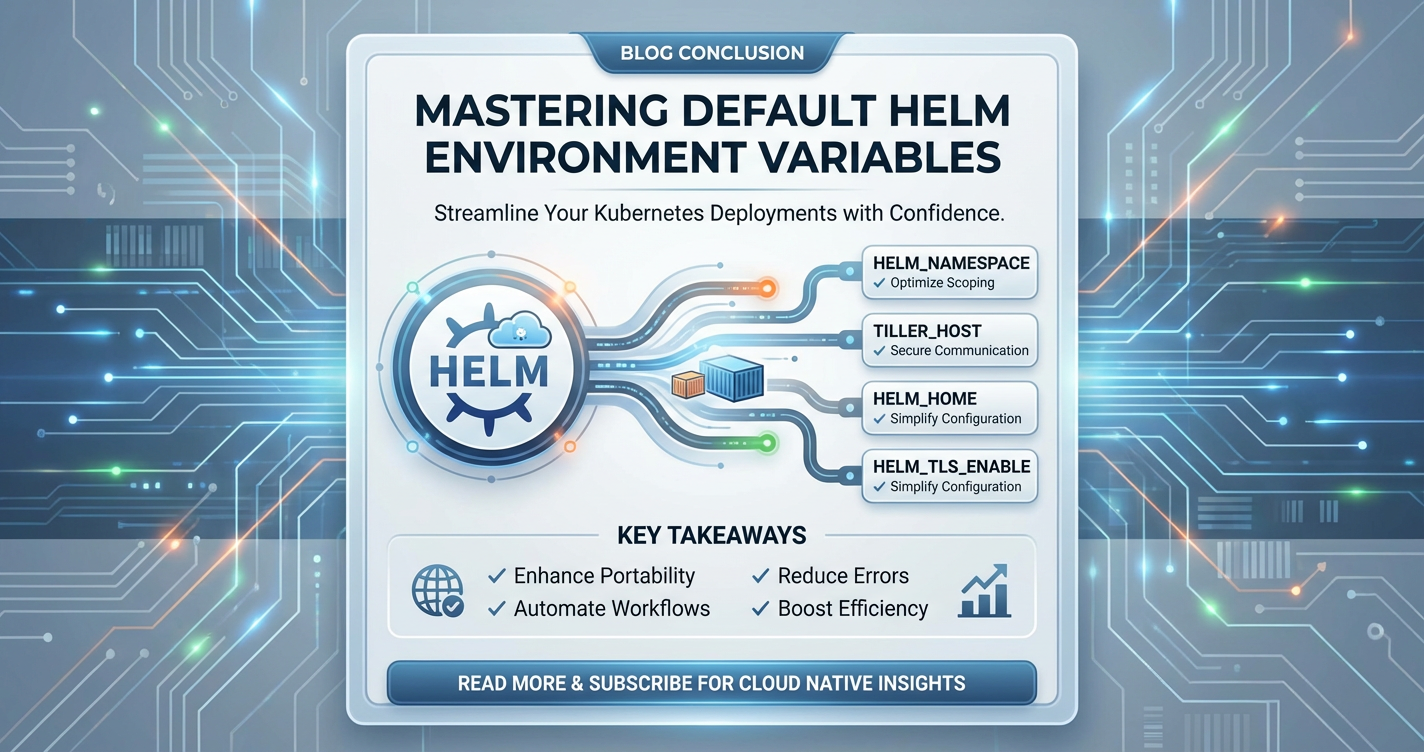
Mastering Default Helm Environment Variables


In the intricate landscape of modern cloud-native development, Kubernetes stands as the undisputed orchestrator, managing containerized applications with unparalleled efficiency. Yet, the sheer power and flexibility of Kubernetes often come with a steep learning curve, particularly when it comes to managing application configurations. At the heart of dynamic and adaptable application behavior lie environment variables, serving as crucial conduits for passing configuration data to running processes. While Kubernetes itself offers mechanisms for injecting these variables, Helm, the package manager for Kubernetes, elevates this capability, providing a sophisticated templating engine and a structured approach to defining and overriding configurations.
This comprehensive guide delves deep into the often-underestimated world of "default Helm environment variables." We're not just talking about any environment variables, but those inherent to Helm's design, those you define within a chart's structure, and those that are automatically available to your templates. Misunderstanding how these defaults are established, accessed, and, crucially, overridden can lead to brittle deployments, security vulnerabilities, and endless configuration headaches. Whether you're a seasoned DevOps engineer, a diligent developer, or an aspiring cloud architect, mastering these nuances is paramount for building resilient, scalable, and maintainable applications on Kubernetes. We will dissect the sources of these variables, explore advanced templating techniques, discuss best practices for security and maintainability, and provide practical examples to solidify your understanding. Prepare to transform your approach to Kubernetes configuration management and unlock the full potential of Helm in your deployment pipelines.
The Foundational Role of Environment Variables in Kubernetes
To truly master Helm's approach to environment variables, one must first grasp their fundamental importance within the Kubernetes ecosystem. Environment variables are a cornerstone of modern software development, providing a mechanism for processes to receive configuration information from their surrounding environment. This approach is particularly critical in containerized applications and microservices architectures, where applications are designed to be immutable and stateless, receiving all necessary operational parameters at runtime.
What are Environment Variables and Why Are They Critical?
Historically, environment variables have been a core feature of Unix-like operating systems, allowing users and processes to define name-value pairs that influence the behavior of executing programs. For instance, PATH directs the shell to find executables, while LANG dictates localization settings. In traditional monolithic applications, developers might hardcode configurations or rely on local files. However, this approach is incompatible with the principles of the Twelve-Factor App methodology, a set of best practices for building software-as-a-service applications, which strongly advocates for configuration to be stored in the environment.
The shift towards containerization, exemplified by Docker and subsequently orchestrated by Kubernetes, magnified the importance of environment variables. A container is a portable, isolated unit that bundles an application and all its dependencies. To truly be portable and reusable across different environments (development, staging, production), a container image must be generic. It cannot contain environment-specific configurations like database connection strings, API keys, or service endpoints. Instead, these parameters are injected into the container at startup via environment variables. This separation of code and configuration ensures that the same container image can run identically in various environments, with only the environmental variables changing to adapt its behavior. This principle drastically simplifies build processes, reduces deployment risks, and enhances consistency.
How Kubernetes Manages Environment Variables
Kubernetes, as the container orchestrator, provides robust mechanisms for defining and injecting environment variables into pods, which are the smallest deployable units in Kubernetes. Within a pod's specification (PodSpec), environment variables are typically defined at the container level.
The most straightforward way to define an environment variable for a container is using the env field within the container specification:
apiVersion: v1
kind: Pod
metadata:
  name: my-app-pod
spec:
  containers:
  - name: my-app
    image: my-app-image:latest
    env:
    - name: DATABASE_HOST
      value: "db-service.prod.svc.cluster.local"
    - name: API_KEY
      value: "some-secret-key-value" # Not recommended for sensitive data
    - name: LOG_LEVEL
      value: "INFO"
In this example, the my-app container will have three environment variables set when it starts. However, directly embedding sensitive values like API_KEY within the Pod definition is a major security anti-pattern, as it exposes the secret in plain text within your Kubernetes manifests and potentially in version control.
To address this, Kubernetes introduces ConfigMaps and Secrets.
- ConfigMaps: These are API objects used to store non-confidential data in key-value pairs. They are ideal for application configuration settings that are not sensitive, such as log levels, feature flags, or service URLs.
- Secrets: Similar to ConfigMaps, but designed for sensitive data like passwords, API tokens, and private keys. Kubernetes Secrets are base64 encoded by default (not encrypted!), but they can be further secured using external secret management systems or Kubernetes-native encryption at rest.
Kubernetes provides several ways to consume ConfigMaps and Secrets as environment variables:
envwithvalueFrom: This method allows you to reference a specific key from aConfigMaporSecretand assign its value to an environment variable.yaml env: - name: DATABASE_USER valueFrom: secretKeyRef: name: my-db-secret key: username - name: API_ENDPOINT valueFrom: configMapKeyRef: name: my-app-config key: apiEndpointenvFrom: This powerful feature allows you to inject all key-value pairs from aConfigMaporSecretas environment variables into a container. Each key in theConfigMaporSecretbecomes an environment variable with its corresponding value.yaml envFrom: - secretRef: name: my-db-secret - configMapRef: name: my-app-configUsingenvFromcan significantly simplify configurations, especially when a container needs many variables from a single source. However, it's crucial to be mindful of potential naming conflicts if multipleConfigMapsorSecretsare referenced and contain the same keys. Kubernetes defines a precedence forenvFromentries: variables defined later in the list override earlier ones if they have the same name. Explicitenvdefinitions always override variables set viaenvFrom.
The robust handling of ConfigMaps and Secrets by Kubernetes ensures that configurations, both sensitive and non-sensitive, can be managed externally to the container image and dynamically injected at runtime. This modularity is a cornerstone of flexible and secure Kubernetes deployments. However, manually creating and managing these objects, especially across multiple services and environments, can quickly become overwhelming. This is where Helm steps in, providing a templating layer that simplifies the generation and management of all Kubernetes resources, including those that define environment variables.
Helm's Indispensable Role in Kubernetes Deployments
While Kubernetes provides the raw power for container orchestration, managing the lifecycle of complex applications – from defining resources to deploying and upgrading them – often requires an additional layer of abstraction and automation. This is precisely where Helm, the package manager for Kubernetes, shines. Helm simplifies the packaging, deployment, and management of Kubernetes applications, making it an indispensable tool for anyone operating within the Kubernetes ecosystem.
Helm as the Kubernetes Package Manager
Helm operates on the concept of "Charts," which are collections of pre-configured Kubernetes resource definitions, combined with a templating engine. Think of a Helm Chart as a curated package that defines everything an application needs to run on Kubernetes: deployments, services, ingress rules, persistent volume claims, ConfigMaps, Secrets, and crucially, how environment variables are handled. Instead of manually writing and maintaining dozens or even hundreds of YAML files for a complex application, a Helm Chart encapsulates all these resources into a single, versionable unit.
When you deploy an application using Helm, you're not just applying static YAML manifests. Instead, you're "rendering" a Chart. Helm takes your Chart (which contains Go template files) and a set of configuration values (typically from a values.yaml file), processes them through its templating engine, and produces the final Kubernetes manifests. These manifests are then sent to the Kubernetes API server for creation or update. This dynamic generation of manifests is what gives Helm its incredible flexibility and power in managing diverse environments and configurations.
The Anatomy of a Helm Chart: values.yaml and Templates
Understanding the core components of a Helm Chart is fundamental to mastering environment variables.
Chart.yaml: This file provides metadata about the chart, such as its name, version, description, and Kubernetes API version compatibility.values.yaml: This is arguably the most crucial file for defining default configurations. It contains default values for any parameters that your chart templates might use. These values can be overridden during deployment or upgrade, allowing for environment-specific customizations without altering the chart's core logic.templates/directory: This directory contains the actual Kubernetes resource definitions, written as Go template files (e.g.,deployment.yaml,service.yaml,configmap.yaml). These files are not static YAML; they contain placeholders and logic that Helm's templating engine processes.charts/directory: Allows for dependency management, where a chart can declare other charts as its dependencies, which are then included and managed as part of the main release.
The interplay between values.yaml and the templates/ directory is where the magic happens for environment variable management. Developers define parameters in values.yaml that represent configuration options for their application. These parameters are then referenced within the template files to dynamically populate fields in Kubernetes manifests, including the env and envFrom sections of a PodSpec.
How Helm Simplifies Environment Variable Management
Without Helm, managing environment variables across different Kubernetes environments would involve:
- Manually editing
deployment.yamlfiles for each environment. - Copying and pasting
ConfigMapandSecretdefinitions. - Maintaining separate sets of raw Kubernetes YAML for development, staging, and production.
- A high risk of errors and inconsistencies due to manual changes.
Helm streamlines this process by:
- Centralized Default Configuration:
values.yamlacts as a single source of truth for all default configurations, including default values for environment variables. - Parameterization: Instead of hardcoding values, templates use placeholders like
{{ .Values.myConfig.myVar }}. This allows environment variables to be dynamically set based on thevalues.yamlor runtime overrides. - Version Control: Charts are versioned, meaning you can track changes to your application's deployment configuration, including environment variable definitions, just like your application code.
- Overridability: Helm provides robust mechanisms (
--set,--set-string,--set-file,-f) to override default values at deploy time, enabling easy customization for different environments (e.g., aDEV_DATABASE_URLfor development vs.PROD_DATABASE_URLfor production). - Structured Management of ConfigMaps and Secrets: Helm Charts can define
ConfigMapandSecretresources within their templates. This allows environment variables sourced from these Kubernetes objects to be managed as part of the chart, ensuring consistency and making it easier to deploy a complete application stack. For example, a database password stored in a Kubernetes Secret can be referenced by the application's deployment manifest throughvalueFromorenvFrom, all orchestrated by Helm.
By leveraging Helm, teams can encapsulate their application's entire deployment logic, including the sophisticated management of environment variables, into reusable and shareable charts. This not only accelerates deployments but also significantly enhances the reliability and maintainability of Kubernetes applications. The next sections will dive into the specific sources of "default Helm environment variables" and how to harness them effectively.
Unpacking Default Helm Environment Variables: Sources and Mechanisms
Understanding the various origins of environment variables within a Helm context is crucial for effective Kubernetes application configuration. When we talk about "default Helm environment variables," we're referring to values that are available to your chart templates either explicitly defined within the chart's values.yaml or implicitly provided by Helm itself through built-in objects. Additionally, Kubernetes objects like ConfigMaps and Secrets, when managed by Helm, become primary sources for runtime environment variables.
Source 1: Defining Variables in values.yaml
The values.yaml file is the cornerstone for defining default configurations in a Helm chart. It allows chart developers to expose configurable parameters to chart users without requiring them to modify the underlying template files. These parameters are then accessed within your Kubernetes manifests to set environment variables.
How it Works:
- Define in
values.yaml: You structure your configuration in a hierarchical YAML format.yaml # mychart/values.yaml appConfig: logLevel: INFO featureFlags: enableBeta: false database: host: "localhost" port: 5432
Access in Templates: Within your templates/*.yaml files (e.g., deployment.yaml), you use Go template syntax to reference these values. The .Values object is the top-level entry point for accessing values defined in values.yaml.```yaml
mychart/templates/deployment.yaml
apiVersion: apps/v1 kind: Deployment metadata: name: {{ include "mychart.fullname" . }} spec: template: spec: containers: - name: {{ .Chart.Name }} image: "my-app:1.0.0" env: - name: APP_LOG_LEVEL value: {{ .Values.appConfig.logLevel | quote }} # Using quote for string values - name: FEATURE_ENABLE_BETA value: {{ .Values.appConfig.featureFlags.enableBeta | quote }} - name: DB_HOST value: {{ .Values.appConfig.database.host | quote }} - name: DB_PORT value: {{ .Values.appConfig.database.port | quote }} `` The| quote` pipe is often used to ensure that values are rendered as strings, preventing YAML parsing issues, especially for boolean or numeric values.
Advantages: * Clear Defaults: Provides a transparent set of default configurations for the chart. * Hierarchical Organization: Allows for logical grouping of related settings. * Easy Overrides: Users can easily override these values during installation or upgrade using helm install/upgrade --set key=value or by providing custom values.yaml files (-f my-custom-values.yaml).
Source 2: Built-in Helm Variables (.Release, .Chart, .Capabilities, etc.)
Helm injects several predefined variables into every chart's scope. These built-in objects provide valuable contextual information about the Helm release, the chart itself, and the Kubernetes cluster capabilities. Leveraging these variables allows for highly dynamic and context-aware environment variable settings.
Here are some of the most commonly used built-in objects:
.Release: Information about the Helm release..Release.Name: The name of the release (e.g.,my-app-release)..Release.Namespace: The namespace where the release is deployed (e.g.,default,production)..Release.Service: The service that deployed the chart (alwaysHelm)..Release.IsUpgrade:trueif the current operation is an upgrade,falseotherwise..Release.IsInstall:trueif the current operation is an install,falseotherwise.
.Chart: Information from theChart.yamlfile of the current chart..Chart.Name: The name of the chart (e.g.,mychart)..Chart.Version: The chart's version (e.g.,1.0.0)..Chart.AppVersion: The version of the application packaged by the chart.
.Capabilities: Information about the Kubernetes cluster's capabilities..Capabilities.KubeVersion.Major: Major version of Kubernetes (e.g.,1)..Capabilities.KubeVersion.Minor: Minor version of Kubernetes (e.g.,28)..Capabilities.APIVersions.Has "apps/v1": Checks if a specific API version is supported.
Examples of Usage for Environment Variables:
# mychart/templates/deployment.yaml (snippet)
            env:
            - name: RELEASE_NAME
              value: {{ .Release.Name | quote }}
            - name: RELEASE_NAMESPACE
              value: {{ .Release.Namespace | quote }}
            - name: CHART_NAME
              value: {{ .Chart.Name | quote }}
            - name: KUBE_VERSION
              value: {{ .Capabilities.KubeVersion.Major | printf "%s.%s" .Capabilities.KubeVersion.Minor | quote }}
            # Conditional environment variable based on release type
            {{ if .Release.IsUpgrade }}
            - name: DEPLOYMENT_TYPE
              value: "Upgrade"
            {{ else }}
            - name: DEPLOYMENT_TYPE
              value: "InitialInstall"
            {{ end }}
This demonstrates how RELEASE_NAME and RELEASE_NAMESPACE can provide context to your application, useful for logging or service discovery. The KUBE_VERSION example dynamically builds a version string, and the DEPLOYMENT_TYPE shows how you can conditionally set variables based on whether it's an initial install or an upgrade.
Source 3: Kubernetes API Objects (Secrets and ConfigMaps) via Helm
While values.yaml is excellent for non-sensitive defaults, and built-in variables provide context, the best practice for handling sensitive data and non-sensitive, but large or frequently changing configurations, is through Kubernetes Secrets and ConfigMaps. Helm charts can generate and manage these objects, and then link them to your application's environment variables.
Helm Chart Structure for ConfigMaps/Secrets:
You would typically define ConfigMap and Secret resources in their own template files within templates/ directory, parameterized by values.yaml.
# mychart/templates/configmap.yaml
apiVersion: v1
kind: ConfigMap
metadata:
  name: {{ include "mychart.fullname" . }}-config
data:
  API_URL: {{ .Values.appConfig.apiUrl | quote }}
  LOG_LEVEL: {{ .Values.appConfig.logLevel | quote }}
---
# mychart/templates/secret.yaml
apiVersion: v1
kind: Secret
metadata:
  name: {{ include "mychart.fullname" . }}-secret
type: Opaque
data:
  DB_PASSWORD: {{ .Values.secrets.dbPassword | b64enc | quote }} # Base64 encoded from values
  API_KEY: {{ .Values.secrets.apiKey | b64enc | quote }}
Important Note: While b64enc base64-encodes the password, it does not encrypt it. Secrets in Kubernetes are only base64 encoded for transport, not encryption at rest by default. For true security, consider external secret managers or Kubernetes encryption providers. The value for dbPassword and apiKey in values.yaml would typically be provided at deployment time, perhaps by your CI/CD system, and never hardcoded in values.yaml in version control.
Consuming in Deployment via envFrom and valueFrom:
The application's deployment.yaml then references these generated ConfigMap and Secret objects.
# mychart/templates/deployment.yaml (snippet)
            env:
            - name: DB_USER # Individual variable from a secret
              valueFrom:
                secretKeyRef:
                  name: {{ include "mychart.fullname" . }}-secret
                  key: DB_USER # Assuming DB_USER is also in the secret
            - name: APP_VERSION # Individual variable from a configmap
              valueFrom:
                configMapKeyRef:
                  name: {{ include "mychart.fullname" . }}-config
                  key: APP_VERSION # Assuming APP_VERSION is in the configmap
            envFrom: # All key-value pairs from ConfigMap/Secret
            - configMapRef:
                name: {{ include "mychart.fullname" . }}-config
            - secretRef:
                name: {{ include "mychart.fullname" . }}-secret
This approach combines the power of Helm's templating with Kubernetes' secure configuration mechanisms. Helm manages the creation of the ConfigMap and Secret resources based on values (which can be overridden), and the Kubernetes runtime then injects these into your application's containers.
Source 4: .Values via helm install/upgrade --set or -f
The most common way for users to override the default environment variables defined in a chart's values.yaml is during the helm install or helm upgrade command. This mechanism provides immense flexibility for deploying the same chart with different configurations across various environments.
--set key=value: This flag allows you to specify individual parameter overrides directly on the command line. It's suitable for small, isolated changes.bash helm install my-app ./mychart \ --set appConfig.logLevel=DEBUG \ --set appConfig.database.host=production-db.example.comThis would override thelogLevelanddatabase.hostvalues fromvalues.yamlwithDEBUGandproduction-db.example.comrespectively.
-f custom-values.yaml: For more extensive or environment-specific overrides, you can provide one or more custom YAML files. These files are merged with the chart's values.yaml in a specific order. Values in later files override values in earlier files.```yaml
prod-values.yaml
appConfig: logLevel: ERROR database: host: "prod-db-cluster.aws.example.com" port: 5432 secrets: dbPassword: "YOUR_PROD_DB_PASSWORD" # Supplied by CI/CD apiKey: "YOUR_PROD_API_KEY" # Supplied by CI/CD bash helm install my-app ./mychart -f prod-values.yaml
Or for an upgrade
helm upgrade my-app ./mychart -f prod-values.yaml ``` This approach is highly recommended for managing different environments (dev, staging, prod), as it keeps environment-specific configurations version-controlled separately from the main chart.
Order of Precedence:
When Helm renders a chart, it applies values in a specific order of precedence, with later sources overriding earlier ones:
- Values in a dependency chart's
values.yaml. - Values in the main chart's
values.yaml. - Values provided via
-fflags (merged from left to right). - Values provided via
--set,--set-string,--set-fileflags.
Understanding this precedence is vital for debugging unexpected configuration behavior. By leveraging these diverse sources, Helm empowers developers to build highly configurable and adaptable Kubernetes applications, ensuring that environment variables are set precisely as needed for any given deployment context.
APIPark is a high-performance AI gateway that allows you to securely access the most comprehensive LLM APIs globally on the APIPark platform, including OpenAI, Anthropic, Mistral, Llama2, Google Gemini, and more.Try APIPark now! 👇👇👇
Advanced Techniques and Best Practices for Helm Environment Variables
Beyond the basic definition and consumption of environment variables, Helm offers a rich set of features and best practices that can significantly enhance the flexibility, security, and maintainability of your Kubernetes deployments. Mastering these advanced techniques is what truly elevates a Helm user to a Helm expert.
Conditional Environment Variables with Helm Templates
One of the most powerful aspects of Helm's templating engine (Go templates) is the ability to include conditional logic. This allows you to set different environment variables or even entire blocks of configuration based on specific conditions, such as the deployment environment, feature flags, or Kubernetes version.
Using if/else Logic: You can use {{ if ... }} blocks to conditionally inject environment variables. This is particularly useful for debugging or enabling/disabling features based on the target environment.
# mychart/templates/deployment.yaml (snippet)
            env:
            - name: COMMON_VAR
              value: "always-present"
            {{ if .Values.config.debugMode }}
            - name: DEBUG_ENABLED
              value: "true"
            - name: LOG_LEVEL
              value: "DEBUG"
            {{ else }}
            - name: DEBUG_ENABLED
              value: "false"
            - name: LOG_LEVEL
              value: "INFO"
            {{ end }}
            {{ if eq .Release.Namespace "production" }}
            - name: ENVIRONMENT_TYPE
              value: "Production"
            {{ else if eq .Release.Namespace "staging" }}
            - name: ENVIRONMENT_TYPE
              value: "Staging"
            {{ else }}
            - name: ENVIRONMENT_TYPE
              value: "Development"
            {{ end }}
In this example, the LOG_LEVEL and DEBUG_ENABLED variables change based on the config.debugMode value from values.yaml. Additionally, ENVIRONMENT_TYPE is dynamically set based on the Release.Namespace. This reduces the need for multiple distinct values.yaml files for minor conditional changes.
Templating Environment Variable Values with Helm Functions
Helm extends Go templates with a wide array of powerful functions (often called "sprig" functions, as they come from the Sprig library) that enable sophisticated string manipulation, data formatting, and conditional logic. These functions are invaluable for crafting precise environment variable values.
Commonly Used Functions for Environment Variables:
quote: Ensures a value is rendered as a string in YAML, preventing type conversion issues. Essential for numbers or booleans that should be treated as strings.value: {{ .Values.someNumber | quote }}default: Provides a fallback value if the primary value is not defined or is empty.value: {{ .Values.appConfig.timeout | default "30s" | quote }}cat: Concatenates multiple strings.value: {{ cat "http://" .Values.serviceHost ":" .Values.servicePort | quote }}nindent: Indents a multi-line string byNspaces. Useful for embedding multi-line content (like a script) into an environment variable.value: | {{ .Values.myMultiLineConfig | nindent 6 }}b64enc/b64dec: Base64 encode/decode. Used for secrets, but remember this is not encryption.value: {{ .Values.secrets.mySensitiveData | b64enc | quote }}tostring: Converts a value to a string.toJson/toYaml: Converts data structures to JSON or YAML strings. Useful for passing complex configurations as a single environment variable that the application can parse.value: {{ .Values.complexConfig | toJson | quote }}
Example with multiple functions:
# mychart/values.yaml
myService:
  endpoint: my-service
  port: 8080
  protocol: http
  path: /api/v1
# mychart/templates/deployment.yaml (snippet)
            env:
            - name: SERVICE_FULL_URL
              value: {{ printf "%s://%s:%d%s"
                            (.Values.myService.protocol | default "http")
                            (.Values.myService.endpoint)
                            (.Values.myService.port | default 80)
                            (.Values.myService.path | default "/") | quote }}
            - name: SERVICE_IDENTIFIER
              value: {{ include "mychart.fullname" . | upper | replace "-" "_" }}
Here, SERVICE_FULL_URL is constructed using printf and default functions for robustness, while SERVICE_IDENTIFIER capitalizes and replaces hyphens in the release name, creating a more traditional environment variable name.
Managing Sensitive Data with Security in Mind
The management of sensitive data, such as database passwords, API keys, and private certificates, is paramount for application security. While Kubernetes Secrets are the primary mechanism for storing such data, how Helm interacts with them is critical.
- Never Hardcode Secrets: As reiterated, never hardcode sensitive information directly into
values.yamlortemplatefiles that are committed to version control. - Leverage Kubernetes Secrets:
- Helm-managed Secrets: Your chart can define
Secretresources intemplates/secret.yaml. The values for these secrets (after base64 encoding) should come fromvalues.yaml, which are then supplied at deployment time (e.g., via CI/CD,helm install --set secrets.dbPassword=...). - Pre-existing Secrets: For highly sensitive production secrets, it's often preferred to manage them outside of Helm's lifecycle, creating them manually or via an external secret manager. Your Helm chart then simply references these pre-existing secrets using
valueFromorenvFromwithout creating them.
- Helm-managed Secrets: Your chart can define
- Integrating with Secret Management Solutions: For enterprise-grade security, integrate with dedicated secret management solutions:
- HashiCorp Vault: A popular choice. Helm charts can integrate with Vault using the
vault-agent-injector(which injects secrets into pods) or by using custom Helm hooks that fetch secrets from Vault during deployment. - Cloud-specific Secret Managers: AWS Secrets Manager, Azure Key Vault, Google Secret Manager. Kubernetes operators like External Secrets Operator can sync secrets from these cloud providers into Kubernetes
Secretobjects, which your Helm chart then consumes. helm secretsPlugin: For storing encrypted secrets within your Git repository (e.g., invalues.yaml), thehelm secretsplugin (usingsops) allows you to encrypt specific values in yourvalues.yamlfile. Helm can then decrypt them at deploy time. This balances security with the convenience of GitOps.
- HashiCorp Vault: A popular choice. Helm charts can integrate with Vault using the
Environment Variables in CI/CD Pipelines
Helm's power truly amplifies when integrated into Continuous Integration/Continuous Deployment (CI/CD) pipelines. CI/CD systems are ideal for dynamically injecting environment-specific variables and secrets into Helm deployments.
- Dynamic Variable Injection: CI/CD pipelines can retrieve environment variables from secure stores (like Vault, CI/CD secret management) and pass them to Helm commands:
bash # Example for GitLab CI/GitHub Actions DB_PASSWORD=$(vault kv get -field=password secret/my-app/prod) # Fetch password securely helm upgrade --install my-app ./mychart \ --namespace production \ --set secrets.dbPassword="${DB_PASSWORD}" \ -f production-values.yaml - Ensuring Consistent Deployments: By using parameterization with Helm and CI/CD, you guarantee that the same chart code is used across all environments, with only the configuration changing. This minimizes configuration drift and enhances reliability.
- GitOps Workflows: In a GitOps model, your entire desired state (including Helm chart values) is stored in Git. CI/CD systems or GitOps tools (like Argo CD, Flux CD) then observe Git, detect changes, and apply them to the cluster. This provides an audit trail for all configuration changes.
Debugging Environment Variable Issues
Configuration errors are common. Helm provides tools to help debug environment variable issues before deployment:
helm template: This command renders your chart locally, generating the final Kubernetes YAML manifests without actually deploying anything to the cluster. This is invaluable for inspecting exactly how your environment variables will be set.bash helm template my-app ./mychart -f production-values.yaml --debug > rendered-manifests.yaml # Then inspect rendered-manifests.yaml for the 'env' sectionskubectl describe pod <pod-name>: After deployment, usekubectl describe podto view the environment variables set for each container in a running pod. This shows the final, resolved values.kubectl exec <pod-name> -- env: For more direct inspection, you cankubectl execinto a running container and run theenvcommand to see the environment variables from the container's perspective.- Common Pitfalls:
- Typographical Errors: A simple misspelling in
values.yamlor template access (.Values.config.loglevelvs..Values.config.logLevel). - Order of Precedence: Not understanding which
values.yamlor--setflag takes precedence. - Type Mismatches: Passing a number where a string is expected, or vice-versa, especially without
| quote. - Secret/ConfigMap Not Found: The referenced
SecretorConfigMapmight not exist or be in the wrong namespace. - Base64 Encoding Issues: Incorrectly encoding or decoding secret values.
- Typographical Errors: A simple misspelling in
By systematically applying these advanced techniques and best practices, you can build Helm charts that are not only robust and secure but also highly adaptable to the evolving needs of your applications and environments.
The APIPark Connection: A Practical Example of Environment Variable Use
While our focus has been on Helm's core mechanisms for managing environment variables, it's valuable to see how these principles apply to real-world applications. Consider an API Gateway like APIPark. APIPark is an open-source AI gateway and API management platform designed to streamline the integration and deployment of AI and REST services. When deploying such a sophisticated platform onto Kubernetes, Helm becomes an invaluable tool for managing its configuration.
An API Gateway, by its nature, requires extensive configuration: * Upstream Service Endpoints: Where to route API requests (e.g., AUTH_SERVICE_URL, AI_MODEL_ENDPOINT). * Database Connection Strings: For storing API definitions, user data, analytics (e.g., DATABASE_HOST, DATABASE_PORT, DATABASE_NAME). * Authentication and Authorization Details: Keys for external authentication providers, internal JWT secrets (e.g., JWT_SECRET, OAUTH_CLIENT_ID). * Logging and Monitoring: Levels, endpoints for metrics collection (e.g., LOG_LEVEL, METRICS_ENDPOINT). * AI Model Specifics: Configuration for integrating 100+ AI models, unified API formats, prompt encapsulation, etc. (e.g., OPENAI_API_KEY, GOOGLE_AI_MODEL_ID).
For an API Gateway like APIPark, all these critical parameters would typically be exposed as environment variables to its running containers. A Helm chart for APIPark would define these variables in its values.yaml with sensible defaults. For example:
# apipark-chart/values.yaml (snippet)
apipark:
  database:
    host: apipark-db-service
    port: 5432
    name: apipark
  logging:
    level: INFO
  security:
    jwtSecret: "some-default-jwt-secret-for-dev" # Should be overridden in production
  ai:
    openai:
      apiKey: "dummy-openai-key-dev" # Override with actual secret
    google:
      modelId: "text-bison-001"
And in the deployment.yaml template of the APIPark chart:
# apipark-chart/templates/deployment.yaml (snippet)
            env:
            - name: APPSRV_DATABASE_HOST
              value: {{ .Values.apipark.database.host | quote }}
            - name: APPSRV_DATABASE_NAME
              value: {{ .Values.apipark.database.name | quote }}
            - name: APPSRV_LOG_LEVEL
              value: {{ .Values.apipark.logging.level | quote }}
            - name: APPSRV_JWT_SECRET
              valueFrom: # Reference a Kubernetes Secret for production
                secretKeyRef:
                  name: apipark-secrets
                  key: jwtSecret
            - name: APPSRV_OPENAI_API_KEY
              valueFrom:
                secretKeyRef:
                  name: apipark-secrets
                  key: openaiApiKey
            - name: APPSRV_GOOGLE_AI_MODEL_ID
              value: {{ .Values.apipark.ai.google.modelId | quote }}
During a production deployment, users would supply an environment-specific values-prod.yaml or use --set flags to override these defaults and inject actual production secrets (e.g., via a CI/CD pipeline fetching them from a secret manager like Vault or cloud-specific secret stores). The APPSRV_JWT_SECRET and APPSRV_OPENAI_API_KEY would then reference a Kubernetes Secret that contains the truly sensitive data, demonstrating the secure practices discussed earlier. This ensures that the powerful API management capabilities of APIPark are configured correctly and securely, adapting seamlessly to any Kubernetes environment.
This highlights how crucial mastering Helm's environment variable management is. It enables robust and secure deployments of complex applications like APIPark, ensuring they operate optimally and securely in diverse Kubernetes environments.
Practical Examples and Case Studies
To solidify the concepts discussed, let's walk through some practical examples of configuring environment variables in Helm charts, illustrating various scenarios and best practices.
Example 1: A Simple Web Application with Database and API Key
Consider a basic web application that needs to connect to a database and use an external API. We'll manage its configuration using values.yaml and Kubernetes Secrets.
my-webapp/values.yaml: This file defines our default configurations. Notice dbPassword and apiKey are placeholders, emphasizing they should be overridden.
# my-webapp/values.yaml
replicaCount: 1

image:
  repository: my-org/my-webapp
  tag: latest
  pullPolicy: IfNotPresent

service:
  type: ClusterIP
  port: 80

appConfig:
  # Non-sensitive application configurations
  logLevel: INFO
  apiUrl: "https://api.example.com/v1"
  featureFlags:
    enableCaching: true

secrets:
  # Placeholders for sensitive data. These values MUST be overridden
  # in production deployments via CI/CD or external secret management.
  dbPassword: "change_me_db_password"
  apiKey: "change_me_api_key"
  dbUser: "webapp_user"
  dbHost: "my-dev-db.svc.cluster.local"
  dbPort: "5432"
  dbName: "my_webapp_db"
my-webapp/templates/secret.yaml: This template defines a Kubernetes Secret to hold our sensitive database credentials and API key. The values are base64 encoded versions of what's provided in values.yaml (or overrides).
# my-webapp/templates/secret.yaml
apiVersion: v1
kind: Secret
metadata:
  name: {{ include "my-webapp.fullname" . }}-secrets
  labels:
    {{- include "my-webapp.labels" . | nindent 4 }}
type: Opaque
data:
  DB_PASSWORD: {{ .Values.secrets.dbPassword | b64enc | quote }}
  API_KEY: {{ .Values.secrets.apiKey | b64enc | quote }}
  DB_USER: {{ .Values.secrets.dbUser | b64enc | quote }}
  DB_HOST: {{ .Values.secrets.dbHost | b64enc | quote }}
  DB_PORT: {{ .Values.secrets.dbPort | b64enc | quote }}
  DB_NAME: {{ .Values.secrets.dbName | b64enc | quote }}
my-webapp/templates/deployment.yaml: This template defines our application's Deployment. It consumes both direct values.yaml parameters for general config and references the generated Secret for sensitive data via valueFrom and envFrom.
# my-webapp/templates/deployment.yaml
apiVersion: apps/v1
kind: Deployment
metadata:
  name: {{ include "my-webapp.fullname" . }}
  labels:
    {{- include "my-webapp.labels" . | nindent 4 }}
spec:
  replicas: {{ .Values.replicaCount }}
  selector:
    matchLabels:
      {{- include "my-webapp.selectorLabels" . | nindent 6 }}
  template:
    metadata:
      {{- with .Values.podAnnotations }}
      annotations:
        {{- toYaml . | nindent 8 }}
      {{- end }}
      labels:
        {{- include "my-webapp.selectorLabels" . | nindent 8 }}
    spec:
      containers:
        - name: {{ .Chart.Name }}
          image: "{{ .Values.image.repository }}:{{ .Values.image.tag | default .Chart.AppVersion }}"
          imagePullPolicy: {{ .Values.image.pullPolicy }}
          ports:
            - name: http
              containerPort: {{ .Values.service.port }}
              protocol: TCP
          env:
            # Environment variables from appConfig in values.yaml
            - name: APP_LOG_LEVEL
              value: {{ .Values.appConfig.logLevel | quote }}
            - name: APP_API_URL
              value: {{ .Values.appConfig.apiUrl | quote }}
            - name: FEATURE_ENABLE_CACHING
              value: {{ .Values.appConfig.featureFlags.enableCaching | quote }}
            # Environment variables from the generated Secret
            # Specific keys can be picked using valueFrom
            - name: DATABASE_USER
              valueFrom:
                secretKeyRef:
                  name: {{ include "my-webapp.fullname" . }}-secrets
                  key: DB_USER
            - name: DATABASE_HOST
              valueFrom:
                secretKeyRef:
                  name: {{ include "my-webapp.fullname" . }}-secrets
                  key: DB_HOST
            - name: DATABASE_PORT
              valueFrom:
                secretKeyRef:
                  name: {{ include "my-webapp.fullname" . }}-secrets
                  key: DB_PORT
            - name: DATABASE_NAME
              valueFrom:
                secretKeyRef:
                  name: {{ include "my-webapp.fullname" . }}-secrets
                  key: DB_NAME
            # All other keys from the secret can be injected via envFrom
          envFrom:
            - secretRef:
                name: {{ include "my-webapp.fullname" . }}-secrets
          resources:
            {{- toYaml .Values.resources | nindent 12 }}
          livenessProbe:
            httpGet:
              path: /healthz
              port: http
          readinessProbe:
            httpGet:
              path: /readyz
              port: http
This comprehensive example demonstrates how to use values.yaml for default configurations, Secret templates for sensitive data, and valueFrom/envFrom in Deployment templates to consume them.
Example 2: Multi-environment Configuration with Overrides
Now, let's see how to manage different configurations for development and production environments using Helm's override capabilities.
production-values.yaml: This file contains production-specific overrides. Notice how sensitive values like dbPassword and apiKey would be populated by a secure CI/CD process.
# production-values.yaml (to be used with -f)
# This file would typically be managed securely and values
# like dbPassword and apiKey would be injected by a CI/CD system.

replicaCount: 3

image:
  tag: 1.2.3 # Specific production image tag

appConfig:
  logLevel: ERROR # Production typically has stricter logging
  apiUrl: "https://api.prod.example.com/v1"
  featureFlags:
    enableCaching: true # Ensure caching is on in production

secrets:
  dbPassword: "REAL_PRODUCTION_DB_PASSWORD" # Injected by CI/CD
  apiKey: "REAL_PRODUCTION_API_KEY_SECURELY_MANAGED" # Injected by CI/CD
  dbUser: "prod_webapp_user"
  dbHost: "prod-db-cluster.aws.example.com"
  dbPort: "5432"
  dbName: "prod_my_webapp_db"
Deployment commands:
- For Development (using default values or simple
--set):bash helm install my-webapp-dev ./my-webapp --namespace dev # Or, to quickly test a debug mode: helm install my-webapp-debug ./my-webapp --namespace dev-debug --set appConfig.logLevel=DEBUG
For Production (using production-values.yaml and CI/CD-injected secrets): Imagine your CI/CD pipeline retrieves REAL_PRODUCTION_DB_PASSWORD and REAL_PRODUCTION_API_KEY from a secure secret store.```bash
In a CI/CD script:
DB_PROD_PASSWORD=$(get_secret "prod/db/password") API_PROD_KEY=$(get_secret "prod/api/key")helm upgrade --install my-webapp-prod ./my-webapp \ --namespace production \ -f production-values.yaml \ --set secrets.dbPassword="${DB_PROD_PASSWORD}" \ --set secrets.apiKey="${API_PROD_KEY}" \ --set image.tag="1.2.3" # Explicitly set production image tag `` This demonstrates howproduction-values.yamlprovides the bulk of environment-specific overrides, while--setflags handle sensitive runtime-injected secrets. Theimage.tag` is explicitly set to ensure the correct production image is used, preventing accidental deployment of a development tag.
Table: Common Helm Variables and Their Uses
This table summarizes some of the most frequently encountered Helm variables and their typical applications in environment variable management.
| Variable/Object | Source | Typical Use Case | Example for Environment Variable | Best Practice |
|---|---|---|---|---|
.Values.some.key |
values.yaml |
Non-sensitive application configuration, feature flags, service URLs | APP_DEBUG_MODE={{ .Values.appConfig.debugMode | quote }} |
Use for configurable defaults; override with -f or --set. |
.Release.Name |
Built-in | Unique identifier for the application instance | APP_RELEASE_NAME={{ .Release.Name | quote }} |
Useful for logging, tracing, or generating unique resource names. |
.Release.Namespace |
Built-in | Specifies the deployment namespace | K8S_NAMESPACE={{ .Release.Namespace | quote }} |
Good for multi-tenant deployments or environment isolation. |
.Chart.Version |
Chart.yaml |
Version of the Helm chart itself | CHART_VERSION={{ .Chart.Version | quote }} |
Useful for auditing and tracking chart deployments. |
.Capabilities.KubeVersion |
Built-in | Kubernetes cluster version information | KUBE_VERSION={{ .Capabilities.KubeVersion.Major | printf "%s.%s" .Capabilities.KubeVersion.Minor | quote }} |
For conditional logic based on cluster capabilities. |
envFrom: secretRef: |
Kubernetes Secret (via Helm Chart) | Inject all sensitive data from a Secret | envFrom: - secretRef: name: my-app-secret |
Preferred for injecting groups of secrets; requires careful key naming. |
envFrom: configMapRef: |
Kubernetes ConfigMap (via Helm Chart) | Inject all non-sensitive configuration from a ConfigMap | envFrom: - configMapRef: name: my-app-config |
Good for injecting common, non-sensitive configurations. |
valueFrom: secretKeyRef: |
Kubernetes Secret (via Helm Chart) | Inject a single specific sensitive value from a Secret | valueFrom: secretKeyRef: name: my-secret, key: DB_PASS |
Ideal for specific, named environment variables from secrets. |
valueFrom: configMapKeyRef: |
Kubernetes ConfigMap (via Helm Chart) | Inject a single specific non-sensitive value from a ConfigMap | valueFrom: configMapKeyRef: name: my-config, key: API_URL |
Best for mapping specific ConfigMap keys to distinct environment variable names. |
These examples and the table illustrate the versatility of Helm in managing environment variables. By combining values.yaml with built-in variables, Kubernetes Secrets/ConfigMaps, and Helm's templating functions, you gain unparalleled control over your application's configuration across any Kubernetes environment.
Potential Pitfalls and Anti-Patterns
While Helm provides powerful capabilities for managing environment variables, misuse can introduce complexity, security vulnerabilities, and deployment challenges. Being aware of these common pitfalls and anti-patterns is crucial for building maintainable and robust Helm charts.
Over-reliance on helm install/upgrade --set
The --set flag is incredibly convenient for quick overrides or small, isolated changes. However, an over-reliance on it for extensive configuration can quickly become an anti-pattern:
- Command Line Bloat: As the number of configurations grows,
helm install --set key1=value1 --set key2=value2 ...commands become excessively long, difficult to read, and prone to errors. - Reduced Readability: It's hard to discern the complete configuration of a release by looking at a long command. The context is lost.
- Version Control Challenges:
--setflags are typically part of a CI/CD script or manual command, making it harder to track changes in a version control system compared to a dedicatedvalues.yamlfile. - Order of Precedence Confusion: When
--setis used alongside-f(multiple value files), the order of precedence can become confusing, leading to unexpected overrides.
Best Practice: Reserve --set for truly dynamic, runtime-specific overrides (e.g., image tag for a canary deployment, a temporary debug flag). For environment-specific configurations, always prefer dedicated values-*.yaml files (e.g., values-dev.yaml, values-prod.yaml) and use the -f flag. These files can be version-controlled, providing a clear and auditable record of configuration changes.
Hardcoding Sensitive Data
This is perhaps the most critical security anti-pattern. Directly embedding passwords, API keys, or any other sensitive information into values.yaml or template files that are committed to a public or even private Git repository (without encryption) is a major security risk.
- Exposure in Version Control: Anyone with access to the repository can view sensitive data.
- Breach Risk: If the repository or CI/CD system is compromised, secrets are immediately exposed.
- Poor Compliance: Fails to meet security and compliance standards (e.g., SOC2, ISO 27001).
Best Practice: * Use Kubernetes Secrets: Always manage sensitive data using Kubernetes Secret objects. * External Secret Managers: For production, integrate with robust external secret management solutions like HashiCorp Vault, cloud-native secret services (AWS Secrets Manager, Azure Key Vault, Google Secret Manager), or External Secrets Operator. * helm secrets Plugin: If storing secrets in Git is a strict requirement for GitOps, use a tool like the helm secrets plugin (which leverages sops) to encrypt values.yaml entries, ensuring they are encrypted at rest in the repository and decrypted only at deployment time. * CI/CD Injection: Populate secrets in values.yaml or directly via --set from secure CI/CD secret stores at runtime.
Too Much Logic in Helm Templates
While Helm's Go templating engine is powerful, embedding overly complex logic, deep nested if/else statements, or extensive string manipulations directly within your deployment.yaml or other resource templates can lead to:
- Reduced Readability: Complex templates are harder to understand, review, and debug.
- Maintenance Nightmare: Changes become riskier and more time-consuming.
- Increased Error Surface: More logic means more opportunities for subtle bugs.
- Chart Fatigue: Users of your chart might find it opaque and difficult to customize.
Best Practice: * Keep Templates Focused: Templates should primarily define Kubernetes resources. Logic should be minimal and focused on simple conditionals or value substitutions. * Abstract to _helpers.tpl: For reusable snippets of logic, string formatting, or complex computations, create partials in _helpers.tpl. This keeps your main resource templates clean. * Prioritize values.yaml for Configuration: Design values.yaml to be the primary interface for customization. Push complex configuration choices into a well-structured values.yaml rather than complex template logic. For instance, instead of {{ if .Values.env.isProd }}, consider {{ .Values.appConfig.envSpecificParams.prod.value }}. * Use Helper Functions: Leverage Helm's rich set of helper functions to simplify data manipulation, rather than writing convoluted custom logic.
Lack of Documentation for Environment Variables in a Chart
A common oversight, especially in internally developed charts, is inadequate documentation for the environment variables a chart consumes or exposes.
- User Confusion: Chart users (developers, operations teams) struggle to understand which
values.yamlparameters control which environment variables, what their valid values are, and what impact they have. - Debugging Difficulties: Without clear documentation, troubleshooting configuration issues becomes a lengthy trial-and-error process.
- Inconsistent Usage: Different teams might configure the same variable inconsistently due to a lack of guidance.
Best Practice: * Comprehensive values.yaml Comments: Include detailed comments directly in values.yaml for each configurable parameter, explaining its purpose, default value, and potential impact. * README.md in Chart: Provide a dedicated section in your chart's README.md file that lists key environment variables, their mapping to values.yaml parameters, and any critical usage notes. * Leverage Chart Schema (values.schema.json): For Helm 3.6+, you can define a JSON schema for your values.yaml file. This not only provides validation but also offers descriptions for each field, making your chart's configuration options self-documenting for tools that can consume the schema. * Examples: Provide examples for common deployment scenarios (dev, prod) to guide users on how to construct their override values.yaml files.
By diligently avoiding these pitfalls, you can ensure that your Helm charts are not only powerful and flexible but also secure, readable, and easy to maintain, contributing to more reliable Kubernetes deployments.
Conclusion
Mastering the use of default Helm environment variables is not merely a technical skill; it is a fundamental pillar of building robust, scalable, and secure cloud-native applications on Kubernetes. Throughout this guide, we've journeyed from the foundational importance of environment variables in containerized environments to Helm's pivotal role in their structured management. We've dissected the diverse sources of these variables, from the explicit declarations in values.yaml and the rich context provided by Helm's built-in objects to the secure and dynamic injection via Kubernetes Secrets and ConfigMaps.
We delved into advanced techniques, demonstrating how conditional logic and powerful templating functions can craft highly adaptable configurations, perfectly tailored to specific environments or operational needs. Critically, we emphasized the paramount importance of security, particularly in handling sensitive data, and explored how robust CI/CD pipelines can seamlessly integrate with Helm for consistent, secure deployments. The connection to real-world applications, such as managing the intricate configurations required for an AI gateway like APIPark, underscores the practical relevance of these principles in modern microservice architectures.
Finally, by identifying and actively avoiding common pitfalls and anti-patterns – such as over-reliance on --set, hardcoding sensitive data, overly complex templates, and insufficient documentation – you can ensure that your Helm charts remain maintainable, understandable, and resilient against errors.
The ability to effectively manage environment variables through Helm empowers you to: * Enhance Security: By separating sensitive data from application code and leveraging Kubernetes' native security features. * Improve Maintainability: Through centralized, version-controlled configurations and clear logical separation. * Increase Flexibility: Allowing a single Helm chart to deploy applications across diverse environments with minimal effort. * Boost Reliability: By ensuring consistent configuration and reducing the scope for manual errors during deployment.
As the complexity of Kubernetes deployments continues to grow, your proficiency in Helm environment variable management will be a key differentiator, enabling you to construct resilient, well-governed, and high-performing applications. Continue to explore, experiment, and refine your approach, and you'll be well on your way to truly mastering Kubernetes configuration.
Frequently Asked Questions (FAQs)
1. What is the primary difference between setting environment variables directly in deployment.yaml and using Helm's values.yaml?
Directly setting environment variables in deployment.yaml hardcodes them into your Kubernetes manifest, making it static and difficult to modify for different environments without editing the file. Using Helm's values.yaml allows you to define default, parameterizable values. These values can then be overridden at deployment time (e.g., via helm install --set or -f custom-values.yaml), providing much greater flexibility and reusability for your Kubernetes applications across various environments (development, staging, production) without altering the base chart.
2. How should I handle sensitive information like database passwords or API keys when using Helm?
You should never hardcode sensitive information directly into values.yaml or template files that are committed to version control. The recommended approach is to: 1. Use Kubernetes Secrets: Create Kubernetes Secret objects (either directly in your Helm chart's templates/secret.yaml or externally). 2. Reference Secrets: Use valueFrom.secretKeyRef or envFrom.secretRef in your Deployment template to consume these secrets as environment variables. 3. Secure Injection: For production deployments, ensure the values for these secrets are injected securely at runtime, typically by your CI/CD pipeline fetching them from a dedicated secret management solution (e.g., HashiCorp Vault, AWS Secrets Manager, Azure Key Vault) or using tools like helm secrets to manage encrypted values within your repository.
3. What is the order of precedence for Helm values? If I define a variable in values.yaml and override it with -f and then again with --set, which one takes effect?
Helm applies values in a specific order, with later sources overriding earlier ones. The general order of precedence (from lowest to highest) is: 1. Values from a dependency chart's values.yaml. 2. Values from the main chart's values.yaml. 3. Values provided via -f flags (merged from left to right if multiple files are provided). 4. Values provided via --set, --set-string, or --set-file flags on the command line. Therefore, a value set with --set will override one from -f, which will override one from values.yaml.
4. Can I use conditional logic to set environment variables in Helm based on the deployment environment?
Yes, absolutely. Helm's templating engine (Go templates) fully supports conditional logic using {{ if ... }} blocks. You can set different environment variables or entire configuration blocks based on values passed into the chart (e.g., .Values.environment == "production") or based on built-in Helm variables (e.g., .Release.Namespace). This allows for highly flexible and environment-aware configurations from a single chart.
5. My application isn't picking up the environment variables I set in my Helm chart. How can I debug this?
Several tools and steps can help debug this common issue: 1. helm template: The most crucial first step. Run helm template <release-name> <chart-path> -f <your-values-file.yaml> --debug > rendered.yaml. Then, carefully inspect the rendered.yaml file to verify that the env and envFrom sections of your Deployment (or other workload) manifest are configured exactly as you expect. This shows what Helm thinks it's deploying. 2. kubectl describe pod <pod-name>: After deployment, use this command to inspect a running pod. Look under the Containers section for the Environment field. This shows the actual environment variables that Kubernetes set for the container. 3. kubectl exec <pod-name> -- env: For the ultimate verification, execute env inside the running container. This shows what the application process actually sees. 4. Check Spelling and Precedence: Double-check all key names and ensure you understand Helm's order of precedence for values, as a subtle typo or an unexpected override can lead to missing or incorrect variables. 5. ConfigMap/Secret Existence: If using valueFrom or envFrom, ensure the referenced ConfigMap or Secret actually exists in the correct namespace and has the expected keys.
🚀You can securely and efficiently call the OpenAI API on APIPark in just two steps:
Step 1: Deploy the APIPark AI gateway in 5 minutes.
APIPark is developed based on Golang, offering strong product performance and low development and maintenance costs. You can deploy APIPark with a single command line.
curl -sSO https://download.apipark.com/install/quick-start.sh; bash quick-start.sh

In my experience, you can see the successful deployment interface within 5 to 10 minutes. Then, you can log in to APIPark using your account.

Step 2: Call the OpenAI API.