How to Fix 'Redis Connection Refused' Error
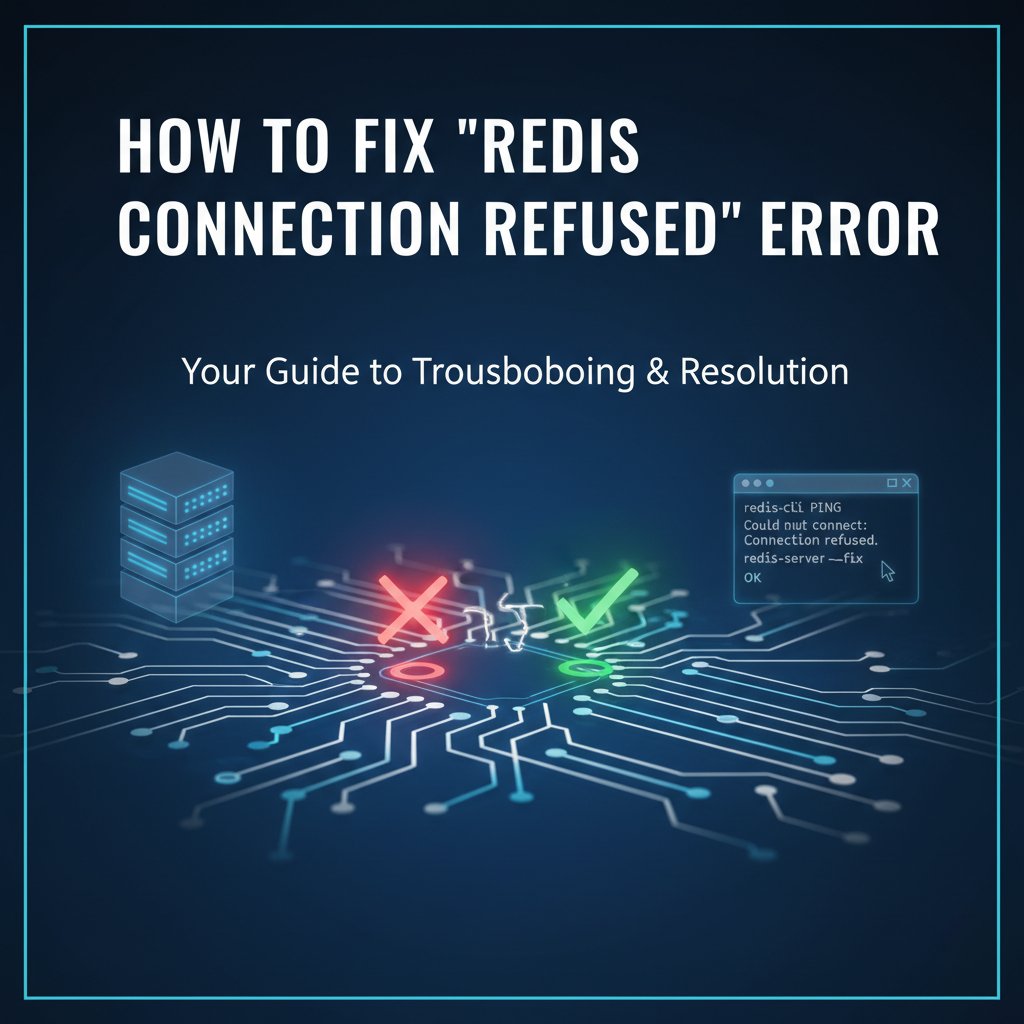


The digital landscape is a vast and intricate web of interconnected systems, where data flows seamlessly between applications, databases, and services. At the heart of many modern, high-performance applications lies Redis, an open-source, in-memory data structure store used as a database, cache, and message broker. Its speed, versatility, and efficiency make it an indispensable component for handling real-time data, session management, caching frequently accessed information, and powering various other critical functionalities. However, even the most robust systems encounter hiccups, and one of the most common and frustrating errors developers and system administrators face is the dreaded "Redis Connection Refused."
This error message is a clear indicator that your client application, attempting to establish a connection with a Redis server, has been outright rejected. It's akin to knocking on a door only to find it not only locked but also with a sign implicitly stating, "No entry." While seemingly simple, diagnosing and resolving a "Redis Connection Refused" error can be a complex endeavor, requiring a methodical approach to inspect various layers of your system, from application configuration to network infrastructure and server health. Understanding the root causes, which range from simple misconfigurations to underlying system issues, is paramount to quickly restoring service and maintaining the reliability of your applications. This comprehensive guide will delve deep into the intricacies of this error, providing an exhaustive exploration of its causes, detailed troubleshooting steps, best practices for prevention, and insights into ensuring your Redis instances are always accessible and responsive.
Understanding the "Redis Connection Refused" Error
The "Redis Connection Refused" error typically manifests when a client application, such as a web server, microservice, or even the redis-cli utility, tries to initiate a TCP connection to a Redis server, but the server's operating system explicitly rejects the connection attempt. This rejection occurs at the TCP/IP level, before any Redis-specific protocol negotiation can even begin. It's not a Redis authentication error, nor is it a Redis command error; it's a fundamental network communication blockage.
When a client attempts to connect, it sends a SYN (synchronize) packet to the server on the specified port. If the server is listening on that port, it should respond with a SYN-ACK (synchronize-acknowledge) packet. If the server is not listening on that port, or if a firewall is blocking the connection, the server's operating system (or the network infrastructure in between) will respond with a RST (reset) packet, or simply drop the SYN packet, leading to a connection timeout. A "Connection Refused" error specifically means that the server received the SYN packet but chose to explicitly reject it, typically because no process was actively listening on that port. This distinction is crucial for targeted troubleshooting. It implies that the connection attempt reached the server's network stack, but found no open socket to connect to. This often points towards the Redis server process itself not running, being misconfigured, or network binding issues.
Common Causes of "Redis Connection Refused"
The causes behind a "Redis Connection Refused" error are diverse, spanning multiple layers of your infrastructure. A systematic approach to inspecting each potential culprit is essential. Here, we break down the most prevalent reasons why your Redis connection might be refused, providing rich detail for each.
1. Redis Server Not Running
This is arguably the most common and often overlooked reason for a connection refusal. If the Redis server process isn't running on the target machine, there's no program actively listening on the designated port (default 6379) to accept incoming connections. When a client sends a SYN packet to that port, the operating system finds no listening application and responds with a "Connection Refused."
- Detail: Imagine a bustling restaurant (your application) trying to order food from a kitchen (your Redis server). If the kitchen is entirely shut down, there's no one to take the order, let alone prepare it. Your order (connection request) is immediately rejected. The Redis server might have crashed due to an unhandled error, run out of memory, or simply failed to start after a system reboot or manual intervention. It's also possible that it was never started in the first place, or was intentionally stopped for maintenance and not restarted.
2. Incorrect Host or Port Configuration
Even if the Redis server is up and running, your client application might be trying to connect to the wrong address or port. This is a fundamental misconfiguration that often results in a connection refused error if the incorrect host/port points to a machine or service that happens to be responding with a refusal, or a timeout if it points to an unresponsive address.
- Detail: Every network service, including Redis, listens on a specific IP address (host) and port number. For instance,
127.0.0.1:6379refers to the local machine on the default Redis port. If your Redis server is configured to listen on192.168.1.100:6380, but your client is attempting to connect to127.0.0.1:6379, the connection will be refused if no Redis instance is running on the local machine at that port. Even a single digit typo in the IP address or port number can lead to this issue. This problem is particularly insidious in environments where multiple Redis instances might be running or where configurations are manually updated across different services.
3. Firewall Blocking the Connection
Firewalls, both at the operating system level (e.g., iptables, ufw on Linux, Windows Firewall) and network level (e.g., router/switch ACLs, cloud security groups), are designed to restrict incoming and outgoing network traffic. If a firewall is configured to block traffic on the Redis port (default 6379) from your client's IP address, the connection will be refused.
- Detail: A firewall acts as a digital bouncer, checking IDs (source/destination IP, port) for every packet trying to enter or leave your system. If an incoming connection attempt to Redis doesn't match a predefined rule allowing it, the firewall will typically drop the packet or, in some configurations, explicitly send a refusal. In cloud environments like AWS, Azure, or GCP, security groups or network access control lists (NACLs) often act as virtual firewalls. It's common for developers to forget to open the Redis port to their application servers' IP addresses, especially when deploying new instances or moving services.
4. Redis bind Directive Misconfiguration
The bind directive in the redis.conf file specifies which network interfaces Redis should listen on. By default, Redis often binds to 127.0.0.1 (localhost), meaning it will only accept connections from the machine it's running on. If your client application is on a different machine, and Redis is only bound to 127.0.0.1, it will refuse external connections.
- Detail: This is a security-conscious default. Binding to
127.0.0.1prevents Redis from being accidentally exposed to the public internet. However, in most production scenarios where client applications reside on separate servers, Redis needs to listen on a network interface that is accessible from those clients. This might be a specific internal IP address (e.g.,bind 192.168.1.10) or all available interfaces (e.g.,bind 0.0.0.0, though this is generally not recommended for security reasons unless protected by a robust firewall). A common oversight is to deploy Redis with its default configuration in a multi-server setup, leading to external connections being refused even if the server is running and the port is open through firewalls.
5. protected-mode Enabled
Redis's protected-mode is a security feature introduced in Redis 3.2. When enabled, and bind is set to 127.0.0.1 (or not set, implying 0.0.0.0), Redis will only accept connections from clients on the localhost interface unless a requirepass is also configured. If protected-mode is enabled and bind 0.0.0.0 is used without requirepass, Redis will still refuse connections from external clients.
- Detail: This mode acts as an additional layer of defense against accidental exposure. If Redis detects that it's listening on all interfaces (
0.0.0.0) but norequirepass(password) is set, andprotected-modeisyes, it will automatically limit connections to localhost. This can be a source of confusion because the server is running, andbind 0.0.0.0is configured, yet external connections are still refused. The solution typically involves either disablingprotected-mode(not recommended for production), setting a strong password withrequirepass, or explicitly binding to a specific internal IP address.
6. Maximum Connections Reached
Redis, like any server, has a limit on the number of concurrent client connections it can handle. This limit is defined by the maxclients directive in redis.conf (default is 10000). If this limit is reached, any new connection attempt will be refused.
- Detail: While
maxclientsis usually quite high, it can be exhausted in high-traffic scenarios, with misconfigured client applications creating too many connections, or if connections are not properly closed (connection leaks). Each client connection consumes some system resources. When the server hits its capacity, it prioritizes stability and existing connections by refusing new ones. This scenario might present as intermittent "Connection Refused" errors, as some connections might drop, allowing others to temporarily connect, creating a frustrating diagnostic challenge. This often indicates a need for either scaling Redis, optimizing client connection pooling, or identifying problematic client behaviors.
7. Out of System Resources (Memory, File Descriptors)
Operating systems impose limits on the resources a process can consume, such as the number of open file descriptors (sockets count as file descriptors) or available memory. If Redis exceeds these limits, it might become unstable, crash, or fail to accept new connections.
- Detail:
- File Descriptors (
ulimit -n): Every open file, every network socket connection, and even internal Redis operations consume a file descriptor. If the system'sulimit -n(number of open file descriptors) for the Redis user is too low, Redis might not be able to open new sockets for incoming connections, leading to refusals. Defaultulimitvalues are often suitable for desktop use but insufficient for high-concurrency server applications. - Memory: While Redis is an in-memory data store, it also uses memory for its internal operations, keys, and values. If the server runs out of physical RAM or swap space, the operating system might start killing processes (including Redis) or prevent it from accepting new connections to maintain system stability. The
maxmemorydirective inredis.confcan help manage Redis's memory footprint, but if the total system memory is insufficient for Redis and other processes, issues will arise.
- File Descriptors (
8. Authentication Issues (Password Misconfiguration)
While a password mismatch typically results in an "Authentication required" or "NOAUTH Authentication required" error after a connection is established, in some edge cases with specific client libraries or server configurations, it might manifest as a "Connection Refused." This is less common for "Connection Refused" but worth noting, especially if other causes have been ruled out.
- Detail: The
requirepassdirective inredis.confenforces password authentication. If a password is set, clients must authenticate before performing any operations. Most clients handle this by sending anAUTHcommand after the TCP connection is successfully established. However, if there's a misconfiguration in how the client library handles initial connection security or if a highly restrictive Redis setup is in place, it could theoretically lead to a premature connection termination that clients interpret as "refused." This is a rare edge case, but good to keep in mind.
9. Network Segmentation or Routing Issues
In complex network infrastructures, especially those involving VPNs, VLANs, or multiple subnets, routing issues or incorrect network segmentation can prevent client traffic from reaching the Redis server.
- Detail: If the client and server are in different network segments and there's no proper routing configured, or if an intermediate network device (like a router or a load balancer) is misconfigured, the connection packets might simply get lost or misdirected. This often results in a connection timeout rather than a "Connection Refused," but if a device along the path is actively blocking or redirecting traffic in a way that generates a RST packet, it could present as a refusal. This problem is particularly prevalent in Kubernetes environments where
api gatewaysolutions route traffic to pods, and network policies or CNI issues can cause connectivity problems between services.
10. IPv4 vs. IPv6 Mismatch
If your Redis server is configured to listen only on IPv6 addresses, but your client application is attempting to connect using an IPv4 address (or vice-versa), the connection will be refused.
- Detail: Many modern systems support both IPv4 and IPv6. Redis can be configured to listen on either or both. If
bindis set to an IPv6 address (e.g.,::1for IPv6 localhost) and the client tries127.0.0.1(IPv4 localhost), it will fail. Similarly, if Redis binds to an IPv4 address and the client resolves the hostname to an IPv6 address, the connection will be refused. It's crucial that both client and server are speaking the same "language" in terms of IP versions.
Troubleshooting "Redis Connection Refused" – A Methodical Approach
Diagnosing a "Redis Connection Refused" error requires a systematic, step-by-step approach, starting from the most obvious causes and progressively moving to more complex network and system-level issues.
Step 1: Verify Redis Server Status
This is always the first step. You need to confirm if the Redis server process is actually running on the target machine.
- Action:
- Check Process List: Use
psorsystemctl(on Linux) to see if Redis is running.bash ps aux | grep redis-server # Or, if running as a systemd service: systemctl status redis - Check Redis Logs: Examine the Redis server logs (
/var/log/redis/redis-server.logor as specified inredis.conf) for any startup failures, crash reports, or error messages that might indicate why Redis isn't running or stopped unexpectedly.
- Check Process List: Use
- Expected Outcome & Next Steps:
- Not Running: If
redis-serveris not in the process list orsystemctl statusshows it stopped/failed, attempt to start it:bash systemctl start redis # Or manually: redis-server /path/to/redis.confThen re-check the status and logs. If it fails to start, the logs are crucial for understanding why (e.g., configuration error, memory issues). - Running: If Redis is running, proceed to Step 2.
- Not Running: If
Step 2: Verify Host and Port Configuration
Ensure your client application is attempting to connect to the correct IP address and port where Redis is listening.
- Action:
- Client-Side: Check your application's configuration files, environment variables, or code to determine the Redis host and port it's trying to connect to.
- Server-Side (
redis.conf): On the Redis server, inspect theredis.conffile (typically located at/etc/redis/redis.confor/usr/local/etc/redis.conf) for theportdirective.bash grep '^port' /path/to/redis.conf
- Expected Outcome & Next Steps:
- Mismatch: If there's a discrepancy, correct the configuration in your client application to match the Redis server's actual port.
- Match: If host and port match, proceed to Step 3.
Step 3: Test Connectivity from the Redis Server Itself
This helps isolate whether the problem is with the Redis server configuration, the network, or the client.
- Action:
- Local
redis-cliConnection: On the Redis server machine, try connecting to Redis usingredis-cli.bash redis-cli -h 127.0.0.1 -p 6379 # Or your configured IP/portIf you haveprotected-modeenabled and a password set, you might need to authenticate:bash redis-cli -h 127.0.0.1 -p 6379 AUTH your_redis_password pingAlternatively, if you're binding to0.0.0.0or a specific external IP, try connecting using that IP from the server itself.
- Local
- Expected Outcome & Next Steps:
- Successful Connection (e.g.,
PONGresponse): This indicates Redis is running and listening on the specified host/port locally. The problem likely lies with network access from the client or external configuration (firewall,binddirective). Proceed to Step 4. - "Connection Refused" (locally): This is a critical finding. It means Redis isn't properly listening even on its own machine. Re-check:
- Step 1 (Is Redis running?).
redis.conf: Look atportandbinddirectives very carefully.netstatorssto see what ports are open.
- Successful Connection (e.g.,
Step 4: Check Network Listeners on the Redis Server
Verify that Redis is actually listening on the expected IP address and port.
- Action: Use
netstatorss(socket statistics) to list open ports and listening services on the Redis server.bash # For IPv4 sudo netstat -tulnp | grep 6379 # Or more modern: sudo ss -tulnp | grep 6379 # For IPv6 sudo netstat -tulnp | grep 'redis' # Or specific port if different - Expected Outcome & Next Steps:
- Redis Listening (e.g.,
tcp 0 0 127.0.0.1:6379 0.0.0.0:* LISTEN <PID>/redis-server): This confirms Redis is listening.- If it's listening only on
127.0.0.1, but your client is external, then thebinddirective is the issue. Proceed to Step 5. - If it's listening on
0.0.0.0or the specific external IP you expect, proceed to Step 6 (Firewall).
- If it's listening only on
- Redis NOT Listening: If
netstatorssdoesn't show Redis listening on the expected port/IP, then:- Redis might not be running at all (go back to Step 1).
- There's a serious configuration error in
redis.conffor theportorbinddirective. Re-examineredis.confand Redis logs for startup errors.
- Redis Listening (e.g.,
Step 5: Review Redis bind Directive and protected-mode
If Redis is running but not listening on the correct external interface, these are the primary culprits.
- Action:
- Inspect
redis.conf:bash grep -E '^(bind|protected-mode)' /path/to/redis.conf - Modify as Needed:
- If
bind 127.0.0.1is present and you need external connections, change it tobind <your_server_private_ip>or (less securely, and generally not recommended without strong firewall rules)bind 0.0.0.0. - If
protected-mode yesis present and you're binding to0.0.0.0without a password, consider settingrequirepassor explicitly binding to a non-loopback IP. For development environments, you might temporarily setprotected-mode no, but this is highly discouraged for production.
- If
- Inspect
- Expected Outcome & Next Steps:
- Configuration Change: After making changes, restart the Redis server for them to take effect.
bash systemctl restart redisThen, repeat Step 4 to verify Redis is now listening on the correct interface. After verification, try connecting from the client application.
- Configuration Change: After making changes, restart the Redis server for them to take effect.
Step 6: Check Firewall Rules
If Redis is listening on the correct external IP, but the client still gets "Connection Refused," a firewall is the next most likely cause.
- Action:
- Server-Side OS Firewall:
- Linux (iptables/ufw):
bash sudo iptables -L -n | grep 6379 sudo ufw status # If UFW is usedLook for rules that explicitly ALLOW traffic to port 6379 from your client's IP address. - Windows Firewall: Open "Windows Defender Firewall with Advanced Security" and check "Inbound Rules."
- Linux (iptables/ufw):
- Network/Cloud Firewall:
- Cloud Security Groups (AWS, Azure, GCP): Check the inbound rules for the security group associated with your Redis server instance. Ensure port 6379 (or your custom Redis port) is open to the IP addresses of your client applications.
- On-Premises Network Firewalls: Consult with your network administrator to ensure there are no network ACLs or corporate firewalls blocking the Redis port.
- Server-Side OS Firewall:
- Expected Outcome & Next Steps:
- Blocked: If the firewall is blocking the connection, add a rule to allow inbound TCP traffic on the Redis port from your client's IP address (or a CIDR block if multiple clients).
- Allowed: If firewalls appear open, proceed to Step 7.
Step 7: Network Connectivity Test from Client
Even if the firewall on the Redis server is open, there might be network issues preventing the client from reaching the server.
Action: From the client machine, attempt to establish a raw TCP connection to the Redis server's IP and port. ```bash # Using telnet (install if not available: sudo apt-get install telnet) telnet
Using netcat (nc -z for scan, -v for verbose)
nc -zv`` * **Expected Outcome & Next Steps:** * **"Connection Refused" (from telnet/nc):** This confirms the refusal happens at the network layer before the Redis client library even gets involved. It points strongly back to firewall rules (Step 6) or thebind` directive (Step 5), assuming Redis is running (Step 1). * "Connected to..." or Blank Screen (telnet): This indicates a successful TCP connection. The issue is likely client-side configuration, authentication, or possibly a very subtle Redis server issue. Proceed to Step 8. * "Connection timed out" or no response: This suggests a network path issue or a firewall silently dropping packets rather than refusing. Double-check network routing, intermediate firewalls, or security groups.
Step 8: Check Client-Side Application Configuration and Code
If direct network connectivity is confirmed, the problem might be how your application interacts with Redis.
- Action:
- Review Client Code: Examine the code that establishes the Redis connection. Is it using the correct host, port, and password? Are there any hardcoded values or environment variables that might be wrong?
- Client Library Versions: Ensure your Redis client library is up-to-date and compatible with your Redis server version. Outdated clients can sometimes exhibit unexpected behavior.
- Connection Pooling: If using connection pooling, ensure it's configured correctly and not exceeding
maxclientsor leaking connections. - Timeouts: While timeouts usually manifest differently, a very short connection timeout combined with network latency could, in rare cases, be interpreted oddly.
- Expected Outcome & Next Steps:
- Misconfiguration Found: Correct the client-side configuration, restart the application, and test.
- No Obvious Client-Side Issue: Proceed to Step 9 (Advanced Server Diagnostics).
Step 9: Advanced Server Diagnostics (Resource Limits, Logs, and Authentication)
If all basic checks pass, delve deeper into the Redis server's health and system resources.
- Action:
- Check
maxclients: Inredis.conf, review themaxclientsdirective. If it's set too low, consider increasing it.bash grep '^maxclients' /path/to/redis.conf - Check Open File Descriptors (
ulimit -n): On the Redis server, check theulimit -nfor the user running Redis.bash ulimit -n # To check for a specific user: sudo su - <redis_user> -c "ulimit -n"If it's too low (e.g., 1024), increase it in/etc/security/limits.confand possibly/etc/systemd/system/redis.service(forLimitNOFILE). - Authentication (
requirepass): Ifrequirepassis set inredis.conf, ensure your client is providing the correct password. An incorrect password usually gives anAUTHerror, but in some setups, a bad initial authentication handshake might be seen as a refusal.bash grep '^requirepass' /path/to/redis.conf - System Logs: Check general system logs (
/var/log/syslog,/var/log/messages,dmesg) for any OOM (Out Of Memory) killer events that might have terminated Redis, or other system-level errors occurring around the time of the refusal. - Redis
INFOCommand: If you can connect locally, useredis-cli INFO clientsto see the number of connected clients. If it's nearmaxclients, that's your issue.
- Check
- Expected Outcome & Next Steps:
- Resource Exhaustion: Address the resource limits (increase
maxclients,ulimit, add more RAM). - Authentication Mismatch: Correct the password in the client application.
- OOM Killer: Investigate why the system is running out of memory. This might require optimizing Redis memory usage (
maxmemorydirective), or increasing server RAM. - Still No Clear Cause: This indicates a highly unusual scenario. Consider reinstalling Redis, checking for OS-level corruption, or seeking expert help.
- Resource Exhaustion: Address the resource limits (increase
Troubleshooting in Specific Environments
The "Redis Connection Refused" error can be particularly nuanced in containerized or cloud environments due to additional layers of abstraction and specific configurations.
Docker/Kubernetes Environments
In containerized setups, the redis-server runs inside a container, which adds a layer of networking abstraction.
- Key Checks:
- Port Mapping: Ensure the Docker container's internal Redis port (default 6379) is correctly mapped to a host port (e.g.,
docker run -p 6379:6379 ...). In Kubernetes, this involves ensuring your Service object exposes the correct port and targets the correct container port. - Container Status: Is the Redis container actually running?
bash docker ps | grep redis kubectl get pods | grep redis - Container Logs: Check the logs inside the container for Redis startup errors or crashes.
bash docker logs <redis_container_id> kubectl logs <redis_pod_name> - Network Policies (Kubernetes): If Kubernetes Network Policies are in place, ensure they explicitly allow traffic to your Redis service from your client application pods. These policies can act as internal firewalls.
- Service Discovery: In Kubernetes, clients typically connect to a Redis Service (e.g.,
redis-service.mynamespace.svc.cluster.local) rather than directly to pod IPs. Verify the Service is correctly configured and has healthy endpoints (Redis pods). A common scenario is a Service without active Endpoints, leading to connection refusals. bindin Container: Even in a container, Redis typically binds to0.0.0.0or an internal IP. Ensure this is not127.0.0.1unless only other containers within the same pod will access it.api gatewayimplications: If your microservices architecture relies on anapi gatewayto exposeapiendpoints, and one of theseapiendpoints depends on Redis, a "Connection Refused" at the Redis layer will cascade up, potentially causing errors or timeouts at theapi gatewaylevel, affecting multipleapiconsumers. It highlights the importance of robust internal connectivity and monitoring for all backend services, including Redis.
- Port Mapping: Ensure the Docker container's internal Redis port (default 6379) is correctly mapped to a host port (e.g.,
Cloud Provider Managed Services (AWS ElastiCache, Azure Cache for Redis, GCP Memorystore)
When using managed Redis services, many of the underlying OS and network issues are abstracted away, but new considerations arise.
- Key Checks:
- Security Groups/Network ACLs: This is the most common cause. Ensure the security groups (AWS), VNet configurations (Azure), or authorized networks (GCP) for your Redis instance allow inbound traffic on the Redis port (usually 6379) from the IP addresses/security groups of your client applications.
- Availability: Check the cloud provider's console for the status of your Redis instance. Is it healthy, or in a "maintenance" or "failed" state?
- Endpoint/Connection String: Double-check the exact endpoint provided by the cloud service. These are often complex hostnames.
- Authentication: For managed services, authentication is often configured differently (e.g., using IAM roles, service principal, or specific access keys). Ensure your client is using the correct credentials/method.
- Private Link/Service Endpoints: If you're using private networking solutions (AWS PrivateLink, Azure Private Link, GCP Private Service Connect), ensure these are correctly configured and allow traffic between your client network and the Redis service's private endpoint.
- Throttling/Limits: While less common for "Connection Refused," some managed services might have rate limits or connection limits that could indirectly affect new connection attempts if the client isn't managing connections efficiently.
API Gatewayand Cloud: When a client interacts with your application via anAPI Gatewayin the cloud, and your application then interacts with a managed Redis instance, a connection refusal to Redis could cause theAPI Gatewayto return an error to the end-user. Ensuring theapiendpoints are backed by reliable Redis connectivity is a core tenet of building robust cloud-native applications. Services like APIPark, an open-sourceAI gatewayandAPI management platform, rely on stable backend connections, and any disruption to a data store like Redis could impede its ability to route requests and manageAPIseffectively. Maintaining the health of your underlying infrastructure is critical for the seamless operation of anygatewayorapiservice.
Preventative Measures and Best Practices
Proactive measures can significantly reduce the likelihood of encountering a "Redis Connection Refused" error.
- Robust Monitoring and Alerting:
- Implement comprehensive monitoring for your Redis instances. Track key metrics like server availability, connected clients, memory usage, and CPU load.
- Set up alerts for critical events, such as the Redis process stopping, excessive memory consumption, or the number of connected clients approaching
maxclients. Tools like Prometheus, Grafana, Datadog, or cloud-specific monitoring solutions are invaluable. - Monitoring should extend to application logs as well, specifically looking for repetitive connection errors.
- Automated Redis Process Management:
- Ensure Redis is configured to start automatically on system boot (e.g., using
systemdorsysvinitscripts). - Implement a process manager (like
systemditself, or Supervisor) to automatically restart Redis if it crashes.
- Ensure Redis is configured to start automatically on system boot (e.g., using
- Secure and Thoughtful Configuration (
redis.conf):bindDirective: Explicitly bind Redis to a specific internal IP address (e.g.,bind 192.168.1.10) rather than0.0.0.0unless absolutely necessary and coupled with strong firewall rules. Avoid127.0.0.1if external clients need access.protected-mode: Keepprotected-mode yesenabled and always use a strongrequirepasspassword for production instances.port: Use a non-default port if you have multiple Redis instances on the same host or for a minor security obfuscation.maxclients: Setmaxclientsto a reasonable value based on your application's needs and server resources. A common production value is higher than the default 10000, often 50000 or 100000.timeout: Configure appropriatetimeoutvalues inredis.confto automatically close idle client connections, freeing up resources.
- Firewall and Security Group Management:
- Follow the principle of least privilege: only open the Redis port (6379 or custom) to the specific IP addresses or security groups of your client applications. Avoid opening it to
0.0.0.0/0(everyone) unless absolutely necessary and with extreme caution. - Regularly review your firewall rules and security groups as your infrastructure evolves.
- Follow the principle of least privilege: only open the Redis port (6379 or custom) to the specific IP addresses or security groups of your client applications. Avoid opening it to
- Client-Side Connection Pooling and Management:
- Always use connection pooling in your client applications. Establishing and tearing down TCP connections is expensive. Pools reuse existing connections.
- Configure pool sizes carefully to avoid exhausting Redis's
maxclientslimit while ensuring sufficient concurrency for your application. - Implement proper error handling and retry mechanisms in your client code for network operations. Exponential backoff for retries can prevent overwhelming Redis during transient issues.
- Resource Planning and Scaling:
- Ensure your Redis server has adequate CPU, memory, and disk I/O (for persistence) for its workload.
- Monitor
ulimit -nand other OS-level resource limits. Increase them if necessary to support the expected number of connections and open files. - Plan for scalability: consider Redis Cluster, Sentinel, or managed services for high availability and horizontal scaling.
- Regular Software Updates:
- Keep your Redis server and client libraries updated to benefit from bug fixes, performance improvements, and security patches.
- Test updates in a staging environment before deploying to production.
- Automated Configuration Management:
- Use configuration management tools (Ansible, Chef, Puppet, Terraform) to ensure consistent Redis deployments and configurations across your environment. This minimizes human error, especially in complex deployments involving an
api gatewayand multipleapiservices.
- Use configuration management tools (Ansible, Chef, Puppet, Terraform) to ensure consistent Redis deployments and configurations across your environment. This minimizes human error, especially in complex deployments involving an
Table of Common Causes and Quick Solutions
To aid in quick diagnosis, here's a summary table mapping common "Redis Connection Refused" causes to immediate actions.
| Cause | Diagnostic Step | Quick Solution | Severity | Related redis.conf Directives |
|---|---|---|---|---|
| Redis Server Not Running | ps aux | grep redis-server, systemctl status redis |
Start Redis server: systemctl start redis or redis-server /path/to/redis.conf. Check logs for startup errors. |
High | N/A |
| Incorrect Host/Port | Check client config vs. redis.conf (port directive) |
Correct client application's Redis host/port. | Medium | port |
| Firewall Blocking | sudo iptables -L -n, sudo ufw status, Cloud Security Groups, telnet from client |
Add/modify firewall rule to allow inbound TCP traffic on Redis port (e.g., 6379) from client IPs. | High | N/A |
bind Directive Misconfiguration |
grep '^bind' /path/to/redis.conf, sudo netstat -tulnp |
Change bind in redis.conf to a specific internal IP or 0.0.0.0 (with caution). Restart Redis. |
High | bind |
protected-mode Enabled |
grep '^protected-mode' /path/to/redis.conf |
Set requirepass (recommended), or disable protected-mode no (less secure), or explicitly bind to a specific IP, then restart Redis. |
Medium | protected-mode, requirepass |
| Max Connections Reached | redis-cli INFO clients, grep '^maxclients' /path/to/redis.conf |
Increase maxclients in redis.conf and restart Redis. Optimize client connection pooling. |
Medium | maxclients |
Out of System Resources (ulimit -n) |
ulimit -n (for Redis user), check dmesg for OOM events |
Increase ulimit -n for the Redis user. Review maxmemory in redis.conf. Add more RAM if frequently hitting OOM. |
High | maxmemory |
| Authentication Mismatch | grep '^requirepass' /path/to/redis.conf, check client config for password |
Ensure client provides the correct password for requirepass. |
Low | requirepass |
| Network Segmentation/Routing | traceroute from client, consult network admin |
Verify network routes, VLANs, and intermediate devices. | High | N/A |
| IPv4 vs. IPv6 Mismatch | Check client connection string and bind directive for IP version. |
Ensure client and server are using the same IP version. Adjust bind or client configuration. |
Medium | bind |
| Docker/K8s Port Mapping/Network Policies | docker ps -a, kubectl get services, kubectl get networkpolicy |
Verify container port mappings. Check Kubernetes Service endpoints. Review network policies to allow traffic. | High | N/A |
| Cloud Security Groups | Cloud Provider Console (AWS Security Groups, Azure VNet/NSG, GCP Authorized Networks) | Add inbound rule to allow Redis port (e.g., 6379) from client IPs/security groups. | High | N/A |
The Broader Context: Redis in a Microservices World with API Gateways
In modern distributed systems, particularly those built on a microservices architecture, Redis plays a pivotal role. It often serves as a central hub for caching, session storage, real-time analytics, and message queuing, supporting numerous independent services. These microservices, in turn, often expose APIs that are managed and routed through an API Gateway.
An API Gateway acts as a single entry point for all API requests from clients, handling routing, authentication, rate limiting, and other cross-cutting concerns before forwarding requests to the appropriate backend microservice. For instance, a mobile application might make a single API call to an API Gateway for user data. The API Gateway then orchestrates calls to various backend services – perhaps an authentication service, a user profile service, and a data service that caches frequently accessed information in Redis.
In such an environment, a "Redis Connection Refused" error can have far-reaching implications. If a core service relies on Redis for caching, and that connection fails, the service might experience degraded performance (falling back to slower database calls) or even outright failure if it's designed to hard-fail without Redis. When this service is behind an API Gateway, the failure can manifest as delayed or erroneous responses to the end-user, impacting the overall user experience of the API consumers. The API Gateway might even log these as internal server errors, masking the true root cause, which lies further down in the infrastructure stack with Redis.
This interconnectedness underscores the importance of robust monitoring and fault tolerance at every layer. The ability to quickly diagnose a "Redis Connection Refused" error is not just about bringing a single database back online; it's about restoring the health of potentially dozens of dependent API services and ensuring the smooth operation of the entire application landscape. Tools that provide end-to-end visibility, from the API Gateway down to individual database instances, are invaluable in such scenarios.
Consider a platform like APIPark, an open-source AI gateway and API management platform. It is designed to manage and deploy AI and REST services, acting as a critical gateway for numerous APIs. If the underlying microservices that APIPark routes to rely on Redis for performance or state management, a "Redis Connection Refused" error could directly impact the availability and responsiveness of those APIs exposed through APIPark. While APIPark itself is an API Gateway, its robustness and the seamless delivery of API services it manages are contingent upon the stability of the entire backend infrastructure, including databases like Redis. A robust gateway architecture needs reliable connectivity to all its components. This scenario highlights how seemingly isolated database errors can have cascading effects, reaching users through layers of abstraction, making comprehensive troubleshooting skills vital for any system administrator or developer.
Conclusion
The "Redis Connection Refused" error, while seemingly a straightforward message, can be a gateway to a multi-layered diagnostic journey. From confirming that the Redis server is actually running, to meticulous checks of network configurations, firewall rules, and specific redis.conf directives like bind and protected-mode, each potential cause demands careful investigation. In complex ecosystems, especially those leveraging microservices and an API Gateway to manage dozens of APIs, the impact of a Redis connection issue can ripple throughout the entire system, affecting user experience and operational efficiency.
By adopting a methodical troubleshooting approach, combining client-side checks with server-side diagnostics using tools like ps, systemctl, netstat, ss, telnet, and redis-cli, you can systematically pinpoint the root cause. Furthermore, implementing robust preventative measures – including comprehensive monitoring, thoughtful configuration, strict firewall policies, and efficient client-side connection management – is crucial for minimizing downtime and ensuring the high availability of your Redis instances. Understanding the interconnectedness of modern applications, where a component like Redis underpins the performance of various API services managed by an API Gateway, reinforces the importance of mastering these troubleshooting techniques. With the insights provided in this guide, you are now equipped to confidently tackle the "Redis Connection Refused" error, ensuring your data flows freely and your applications remain responsive.
FAQs
- What is the most common reason for "Redis Connection Refused"? The most common reason is that the Redis server process is not running on the target machine. Other frequent causes include incorrect host/port in the client configuration, a firewall blocking the connection, or the
binddirective inredis.confpreventing external connections. - How do I quickly check if Redis is running? On Linux, you can use
ps aux | grep redis-serverto see if the process is active, orsystemctl status redisif Redis is managed as a systemd service. If it's not running, try starting it withsystemctl start redisorredis-server /path/to/redis.conf. - My Redis is running, but external connections are refused. What's next? If Redis is running, the next likely culprits are the
binddirective in yourredis.conffile (ensure it's not127.0.0.1if you need external access, or is set to0.0.0.0or a specific network interface IP), or a firewall blocking the connection. Usesudo netstat -tulnp | grep 6379to check what IP Redis is listening on, and check your server's firewall rules (iptables,ufw, or cloud security groups). - Is
protected-moderelated to "Connection Refused"? Yes,protected-modecan contribute to connection refused errors, especially if Redis is configured to bind to0.0.0.0(all interfaces) but norequirepass(password) is set. In this scenario,protected-modewill restrict connections to localhost, refusing external clients for security reasons. You should either set a password or explicitly bind to a specific non-loopback IP address. - How does a "Redis Connection Refused" error impact an application using an
API Gateway? In applications leveraging anAPI Gateway(like APIPark) to manageAPItraffic, a "Redis Connection Refused" error in a backend service can have cascading effects. If a microservice relies on Redis for caching or session management, its inability to connect to Redis could lead to degraded performance (slow responses), functional failures within that service, or even its complete unavailability. TheAPI Gatewaywould then route requests to a failing service, resulting in error responses or timeouts for end-users interacting with theAPI, thereby impacting the overall application experience.
🚀You can securely and efficiently call the OpenAI API on APIPark in just two steps:
Step 1: Deploy the APIPark AI gateway in 5 minutes.
APIPark is developed based on Golang, offering strong product performance and low development and maintenance costs. You can deploy APIPark with a single command line.
curl -sSO https://download.apipark.com/install/quick-start.sh; bash quick-start.sh

In my experience, you can see the successful deployment interface within 5 to 10 minutes. Then, you can log in to APIPark using your account.

Step 2: Call the OpenAI API.