How to Access Arguments Passed to Helm Upgrade
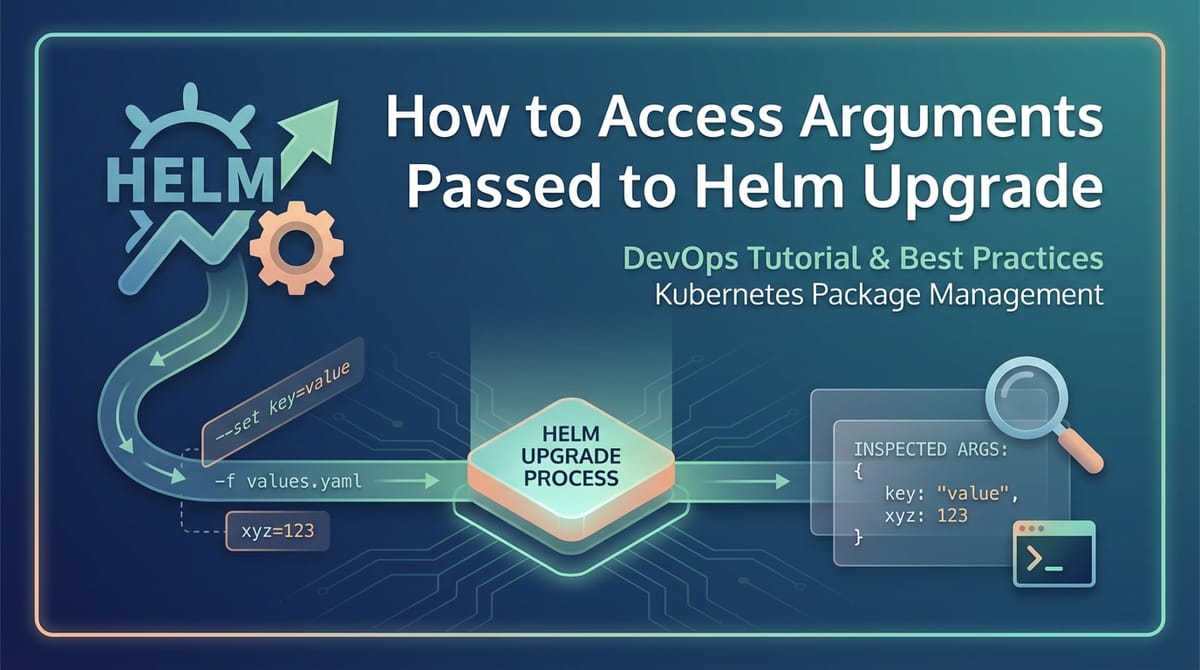


In the intricate tapestry of modern cloud-native deployments, Kubernetes stands as the foundational orchestrator, and Helm, the package manager for Kubernetes, acts as its indispensable tool for streamlining application deployments. Helm charts encapsulate complex application definitions, offering a standardized, versionable, and highly configurable way to deploy anything from a simple web application to an elaborate microservices architecture. At the heart of Helm's power lies its robust argument passing mechanism, particularly during the helm upgrade operation, which allows users to dynamically customize deployments without altering the core chart definitions.
However, with great power comes inherent complexity. While passing arguments via helm upgrade is straightforward, understanding which arguments are ultimately applied, how they interact with existing configurations, and where to inspect their final state can be a significant challenge. This deep dive aims to demystify the process of accessing arguments passed to helm upgrade, providing a comprehensive guide for developers, DevOps engineers, and SREs to effectively manage, debug, and audit their Helm deployments. We will explore the various facets of Helm's value merging, the tools available for inspection, and the best practices for ensuring configuration integrity, even touching upon how these principles apply to crucial components like an api gateway and general api management.
The Anatomy of a Helm Upgrade: Understanding the Flow
Before delving into how to access arguments, it's crucial to first comprehend the lifecycle and mechanics of a helm upgrade command. When you execute helm upgrade, you are essentially instructing Helm to take a new or updated version of a chart, apply a set of configuration values (arguments), compare it against the currently deployed release (if one exists), and then generate the necessary Kubernetes manifest changes to reconcile the differences.
The helm upgrade command is not just about deploying new versions; it's equally about applying configuration changes to an existing deployment. This duality makes the argument passing mechanism incredibly powerful but also a potential source of confusion if not understood thoroughly. Helm's core strength here is its declarative nature: you tell it what you want the state to be, and it figures out how to get there.
A typical helm upgrade command looks like this:
helm upgrade [RELEASE_NAME] [CHART_PATH_OR_NAME] [flags]
Here, [RELEASE_NAME] is the unique identifier for your deployment in the Kubernetes cluster, [CHART_PATH_OR_NAME] points to the Helm chart you're using (either a local path, a chart reference from a repository, or a URL), and [flags] are where the arguments are passed. These flags dictate how the chart's default values are overridden or augmented, providing the flexibility needed for different environments (development, staging, production) or specific use cases. The challenge often lies in reconciling the multitude of sources from which these values can originate.
The Value Merging Strategy: A Hierarchy of Overrides
The concept of "accessing" arguments in Helm fundamentally boils down to understanding Helm's value merging strategy. Helm collects values from various sources and applies them in a specific order of precedence, with later sources overriding earlier ones. This hierarchy is paramount to understanding which value ultimately takes effect.
- Chart's
values.yaml: This is the default configuration provided by the chart developer. It lives inside the chart package (chart-name/values.yaml) and defines all the configurable parameters with their default settings. This file acts as the baseline for any deployment. - Parent Chart's
values.yamlfor Subcharts: If you're dealing with a parent chart that includes subcharts, the parent chart can define values for its subcharts within its ownvalues.yamlfile under a key named after the subchart. For example,my-parent-chart/values.yamlmight contain:yaml my-subchart: replicaCount: 2 image: tag: "1.0.0" - User-Provided Value Files (
-for--values): These are YAML files specified by the user during thehelm upgradecommand. You can provide multiple such files, and they are merged in the order they are specified on the command line. For instance,-f values-dev.yaml -f values-override.yamlwould first applyvalues-dev.yamland thenvalues-override.yaml, allowing the latter to override values set in the former. These files are typically used for environment-specific configurations or custom overrides without touching the main chart. --setFlags: These are key-value pairs passed directly on the command line using the--setflag. They have the highest precedence among all value sources. You can use multiple--setflags. Helm supports various--setformats for different data types:--set key=value: Sets a scalar value.--set key1.key2=value: Sets a nested value.--set key={value1,value2}: Sets a list of strings.--set-string key=value: Explicitly treats the value as a string, preventing Helm from attempting type conversion (e.g.,1.0would remain"1.0"instead of becoming1).--set-json key=json_string: Passes a JSON string that gets parsed into a Go map/slice. Useful for complex structures.--set-file key=file_path: Reads the value from a file. This is particularly useful for injecting multiline strings or sensitive data like certificate chains into a value.
Understanding this hierarchy is the first step in debugging configuration issues. If a value isn't what you expect, trace back through this list to see where it might have been overridden. For instance, if your api gateway isn't routing correctly, its ingress rules might be defined in values.yaml, overridden in values-prod.yaml, and then potentially overridden again by a --set flag during a manual deployment.
Why Accessing Arguments Matters: Beyond Simple Deployment
The need to "access" or inspect the effective arguments passed to helm upgrade extends far beyond just curiosity. It is fundamental to robust and reliable Kubernetes operations.
- Debugging Misconfigurations: This is perhaps the most common scenario. A deployed application, a critical microservice, or an
api gatewaymight not behave as expected. The first suspicion often falls on configuration. By inspecting the actual values Helm used to render the manifests, you can quickly identify discrepancies between intended and applied settings. Imagine anapiendpoint that isn't publicly accessible; inspecting theServiceandIngressconfigurations derived from Helm values would be the immediate diagnostic step. - Auditing and Compliance: In regulated environments, knowing the exact configuration state of every deployed application is not just good practice, it's often a legal requirement. Being able to retrieve and verify the values used for a specific release provides an auditable trail, demonstrating adherence to security policies, resource quotas, or network segmentation rules. This is particularly critical for applications that handle sensitive
apicalls or manage access to core systems. - Ensuring Consistency Across Environments: Developers often deploy the same chart across multiple environments (dev, staging, production), each with its unique configuration values. Accessing these arguments allows teams to confirm that production deployments use the correct database connection strings,
apikeys, resource limits, orapi gatewayrouting policies, preventing environment-specific bugs. - Pre-Flight Validation and Dry Runs: Before committing to a potentially disruptive
helm upgrade, it's invaluable to understand precisely what changes will be applied. By rendering the templates with proposed arguments, you can catch errors, validate complex logic, and ensure the generated manifests align with expectations without affecting the live cluster. This reduces the risk of downtime and unexpected behavior, especially for criticalapiservices. - Knowledge Transfer and Documentation: When new team members join or existing ones take over maintenance of a service, having the ability to easily inspect the current configuration provides invaluable context. It acts as living documentation, clarifying how a particular release was configured and why it behaves in a certain way. This is essential for managing the configuration of an
api gatewaythat might have complex rules and policies.
Methods for "Accessing" Effective Helm Arguments: Pre-Upgrade Inspection
Before you even hit helm upgrade, Helm provides powerful mechanisms to preview and inspect how arguments will be processed and how they will influence the final Kubernetes manifests. These methods are indispensable for pre-flight checks and understanding the impact of your changes.
1. helm template: The Ultimate Dry Run
The helm template command is your most powerful ally for pre-upgrade inspection. It renders a Helm chart locally into Kubernetes manifests using the specified values, without actually deploying anything to the cluster. This allows you to see the exact YAML output that helm upgrade would generate.
How to use it:
helm template [RELEASE_NAME] [CHART_PATH_OR_NAME] \
    -f values-dev.yaml \
    -f values-override.yaml \
    --set someKey.nestedValue="newValue" \
    --namespace my-app-ns
What it reveals:
- Combined Values: While
helm templatedoesn't directly print the merged values object, it uses the merged values to render the templates. By examining the generated manifests, you can infer how the values were applied. - Final Kubernetes Manifests: You get to see the exact
Deployment,Service,Ingress,ConfigMap,Secret, etc., resources that Helm will create or update. This is where you verify if yourapi gateway'sIngressrules are correctly configured, or if your service'sConfigMapcontains the right settings. - Templating Logic Execution: You can observe the results of any conditional logic or functions within your chart's templates (
.tplfiles), ensuring they behave as expected with your provided values. - Syntax Errors:
helm templatewill often catch syntax errors in yourvalues.yamlfiles or--setflags that might otherwise only surface during a live deployment.
Example Scenario: You're updating an api gateway deployment. You want to ensure the new version correctly sets the proxy buffer size and exposes a new api endpoint.
helm template my-api-gateway api-gateway-chart/ \
    -f values-prod.yaml \
    --set proxy.bufferSize="16k" \
    --set ingress.host="api.example.com" \
    --debug
Reviewing the output, you would look for the ConfigMap or Deployment arguments that control proxy.bufferSize and the Ingress resource definition for api.example.com. The --debug flag can be useful here as it prints out the values passed to the templates and the context.
2. helm diff (Plugin): Comparing Proposed Changes
While helm template shows you the entire rendered output, the helm diff plugin (which needs to be installed separately via helm plugin install diff) provides a much more focused view: it shows you the differences between the currently deployed release and the proposed upgrade. This is incredibly useful for understanding the impact of your helm upgrade command before applying it.
How to use it:
helm diff upgrade [RELEASE_NAME] [CHART_PATH_OR_NAME] \
    -f values-new.yaml \
    --set newKey=newValue \
    --namespace my-app-ns
What it reveals:
- Granular Changes:
helm diffprovides agit diff-like output, highlighting additions, deletions, and modifications to individual lines within the Kubernetes manifests. This is invaluable for catching unintended changes or verifying that only the expected parts of yourapiservice configuration are being altered. - Resource Impact: You can see if new resources will be created, existing ones modified, or old ones deleted. This helps prevent accidental deletion of critical data or services.
- Confidence in Upgrades: By reviewing the diff, you gain confidence that your
helm upgradewill do exactly what you expect, minimizing the risk of adverse effects on your live environment.
Example Scenario: You're changing a single api endpoint's routing rule in your api gateway and want to ensure no other ingress rules are affected.
helm diff upgrade my-api-gateway api-gateway-chart/ \
    -f values-prod.yaml \
    -f my-new-routing-rule.yaml
The output would clearly show only the lines pertaining to the specific routing rule change, confirming the targeted modification.
Methods for "Accessing" Effective Helm Arguments: Post-Upgrade Inspection
Once helm upgrade has successfully executed, the arguments you passed (and the resulting merged values) are stored by Helm. Furthermore, the Kubernetes resources created or modified reflect these arguments. There are several ways to retrieve this information from the cluster.
1. helm get values: Retrieving Stored Release Values
The helm get values command is the most direct way to retrieve the values that were used for a specific Helm release. It fetches the values that Helm stored in its release metadata within the Kubernetes cluster.
How to use it:
helm get values [RELEASE_NAME]
Key flags:
--all: Shows all values, including computed values from templates (e.g., generated passwords). This can be very verbose.--revision [REVISION_NUMBER]: Retrieves values for a specific historical revision of the release. Helm keeps a history of deployments, allowing you to inspect past configurations.--output [json|yaml]: Formats the output as JSON or YAML, which is useful for scripting or further processing.
What it reveals:
- Effective Merged Values: This command shows the final, merged values object that was used to render the templates for the specified release. This includes the chart's default values, any values from user-provided files, and values from
--setflags, all resolved according to Helm's precedence rules. - Configuration State at Time of Deployment: It reflects the exact configuration applied when that particular release revision was deployed. This is invaluable for auditing and understanding the "as-deployed" state of your
apiservices orapi gateway.
Example Scenario: You need to verify the replicaCount and image.tag used for a deployed service.
helm get values my-service --output yaml
This would output a YAML structure similar to:
replicaCount: 3
image:
  repository: myrepo/my-service
  tag: "1.2.3"
ingress:
  enabled: true
  host: my-service.example.com
This directly tells you the values that were active for that service. If you suspect an issue with your api gateway configuration, checking its helm get values output for routing rules, port mappings, or authentication settings is a primary step.
2. helm get manifest: Viewing Rendered Kubernetes Manifests
While helm get values gives you the configuration inputs, helm get manifest shows you the configuration outputs – the actual Kubernetes resources that were deployed.
How to use it:
helm get manifest [RELEASE_NAME]
What it reveals:
- Deployed Kubernetes Resources: This command outputs the complete YAML for all Kubernetes resources (Deployments, Services, ConfigMaps, Secrets, Ingresses, etc.) that belong to the specified release. These are the rendered templates, with all values interpolated.
- Runtime Configuration: By inspecting these manifests, you can confirm that the values you intended to pass were correctly translated into the Kubernetes object definitions. For example, if your
api gatewayis deployed, this is where you'd see the actualIngressrules,Servicedefinitions, andDeploymentspecifications for its pods, including any environment variables or mounted configuration files.
Example Scenario: You want to ensure the ConfigMap for your api service contains a specific LOG_LEVEL environment variable.
helm get manifest my-api-service | kubectl get -f - -o yaml
This command pipes the manifest output to kubectl, which then parses it and outputs it in YAML format, allowing easier inspection of individual resources. You would then scroll through to find the relevant ConfigMap or Deployment and check its .data or .spec.template.spec.containers[0].env sections.
3. Inspecting Live Kubernetes Resources (kubectl)
Ultimately, Helm deploys and manages Kubernetes resources. Therefore, the most definitive way to "access" the applied arguments is to inspect the live resources within your Kubernetes cluster using kubectl. This is particularly useful because it shows the actual state of the resource, which might sometimes diverge from Helm's stored state due to manual interventions, mutating admission webhooks, or controller actions.
Common kubectl commands for inspection:
kubectl get <resource-type> <resource-name> -o yaml: Retrieves the full YAML definition of a specific resource.kubectl describe <resource-type> <resource-name>: Provides a human-readable summary of a resource, including events, status, and common configuration details.
What it reveals:
- Runtime State: This is the ground truth. It shows precisely what Kubernetes is running and how it's configured. This is especially important for dynamic properties or annotations that might be added by controllers after initial deployment (e.g.,
api gatewayspecific annotations added by an ingress controller). - Drift Detection: Comparing
kubectl get -o yamloutput withhelm get manifestcan help identify configuration drift—situations where the live resource state deviates from what Helm deployed. - Deep Dive into Specific Settings: For specific resource types,
kubectloffers direct access to their configurations. For example, for aDeployment, you can inspectspec.template.spec.containersfor image versions, environment variables, resource requests/limits, and command-line arguments. For anIngressresource managed by anapi gateway, you'd inspect itsspec.rulesandspec.backendfor routing information.
Example Scenario: You need to verify the actual image and command used by a running pod.
kubectl get deployment my-api-deployment -n my-app-ns -o yaml | grep -E "image:|command:" -B 3 -A 3
This command filters the deployment's YAML to show the image and command for its containers, giving you direct access to the runtime parameters. If you are troubleshooting an api service and suspect incorrect image versions, this is the command to use.
Advanced Techniques and Best Practices for Argument Management
Beyond simply accessing arguments, mastering their management is crucial for sustainable and scalable Helm deployments.
1. Version Control for values.yaml Files
Always store your values.yaml files (especially environment-specific ones like values-prod.yaml) in a version control system like Git. This provides: * History: A complete audit trail of all configuration changes. * Collaboration: Allows multiple team members to contribute and review changes. * Rollback: Easily revert to previous configurations if an issue arises. * Reproducibility: Ensures that deployments are reproducible across different machines and times.
2. Templating within values.yaml (Limited)
While generally discouraged for complexity, Helm's _helpers.tpl and Go templating capabilities can be used to generate values dynamically within values.yaml files. However, this is typically done by defining values in templates that are then consumed by other templates, rather than direct templating within values.yaml itself (which Helm generally doesn't process with its template engine). For example, a _helpers.tpl might define a common image tag or a default api prefix based on the environment.
3. Using _helpers.tpl for Complex Logic
For truly advanced argument handling, leverage _helpers.tpl within your chart. This file allows you to define reusable templates, named pipes, and functions that can encapsulate complex logic, derive values, or format strings. This promotes DRY (Don't Repeat Yourself) principles and makes charts more maintainable.
Example: A common label template for all resources:
{{/*
Expand the name of the chart.
*/}}
{{- define "mychart.name" -}}
{{- default .Chart.Name .Values.nameOverride | trunc 63 | trimSuffix "-" -}}
{{- end -}}

{{/*
Common labels
*/}}
{{- define "mychart.labels" -}}
helm.sh/chart: {{ include "mychart.chart" . }}
{{ include "mychart.selectorLabels" . }}
{{- if .Chart.AppVersion }}
app.kubernetes.io/version: {{ .Chart.AppVersion | quote }}
{{- end }}
app.kubernetes.io/managed-by: {{ .Release.Service }}
app.kubernetes.io/instance: {{ .Release.Name }}
{{- end -}}
These helper templates can then be included in your resource definitions, automatically applying consistent labels derived from your arguments.
4. Secret Management
Passing sensitive arguments (like api keys, database passwords, or private certificates for an api gateway) directly via --set or in unencrypted values.yaml files is a security anti-pattern. Instead, integrate Helm with secret management solutions:
- Kubernetes Secrets: Create Kubernetes
Secretsseparately usingkubectl create secretor a GitOps tool, and then reference these secrets in your Helm chart templates. helm secretsPlugin: This popular plugin allows you to encryptvalues.yamlfiles (using tools like SOPS) and decrypt them on the fly duringhelm upgrade, ensuring sensitive data remains encrypted in version control.- External Secret Management (Vault, AWS Secrets Manager): For enterprise-grade security, integrate with external secret managers. Tools like
external-secretsoperator can sync secrets from these external sources into KubernetesSecrets, which your Helm chart can then consume. This ensures that sensitiveapicredentials are never exposed in plaintext.
5. Chart Linting and Testing
Proactive validation is better than reactive debugging. * helm lint: Runs a series of tests to check your chart for potential issues, best practices, and syntax errors. * Automated Testing: Use tools like helm-unittest or Terratest to write unit and integration tests for your Helm charts. These tests can assert that specific values result in the correct Kubernetes manifests, catching errors before deployment. This is especially useful for verifying complex conditional logic or derived values in an api gateway configuration.
Common Pitfalls and Troubleshooting
Even with a solid understanding, issues can arise. Knowing common pitfalls helps in quick troubleshooting.
- Value Precedence Misunderstanding: The most frequent source of error. Always remember the hierarchy:
values.yaml<user-provided-values.yaml<--set. If a value isn't taking effect, check if it's being overridden by a higher-precedence source. - Type Coercion Issues: Helm sometimes attempts to guess the type of a value. For instance,
myValue: "1"might be treated as an integer1. Use--set-stringexplicitly if you need a string value or quote values in YAML files (e.g.,version: "1.0"). This is critical forapiversions or other identifiers that might look like numbers but must be strings. - Templating Syntax Errors: Incorrect use of
{{ .Values.key }}or other Go template constructs can lead to chart rendering failures.helm templatewill often catch these. - YAML Indentation and Formatting: YAML is sensitive to whitespace. Incorrect indentation can lead to parsing errors or values being applied to the wrong keys.
- Missing or Incorrect Context (
.Release,.Chart,.Capabilities): Inside templates, access to Helm's built-in objects (.Release,.Chart,.Capabilities,.Values) is crucial. Incorrect paths or attempts to access non-existent fields will result in errors or empty values. - Configuration Drift: Manual
kubectl editoperations can lead to the live state diverging from Helm's managed state. When you next runhelm upgrade, Helm will try to reconcile this, potentially reverting manual changes. Usehelm diffto identify such drifts and decide whether to revert or update your chart's values. - Long-Running Operations:
helm upgradecan sometimes take a long time, especially with--waitand--timeoutflags. For criticalapiservices, ensure timeouts are appropriate for your environment.
The Broader Context: Helm and API Management
The principles of accessing and managing Helm arguments are universally applicable to any application deployed on Kubernetes, but they hold particular significance for API-centric applications and infrastructure like an api gateway.
Modern application architectures are increasingly built around microservices that expose api endpoints. Each of these services needs robust configuration: database connection strings, logging levels, resource limits, authentication mechanisms, and network policies. Helm provides the framework to manage these configurations effectively.
An api gateway, whether it's an open-source solution like ApiPark, an Nginx Ingress Controller, Kong, or Istio's Gateway, is a prime example of an application whose deployment and behavior are heavily dependent on meticulously managed arguments. An api gateway acts as the single entry point for all api calls to your microservices, handling responsibilities like: * Routing: Directing incoming api requests to the correct backend service based on paths, headers, or hosts. These rules are configured via Helm values. * Authentication and Authorization: Enforcing security policies for api access. api key management, JWT validation, and OAuth settings are all configured through the api gateway's Helm chart. * Rate Limiting: Protecting backend services from overload by controlling the number of api requests. These policies are argument-driven. * Traffic Management: A/B testing, canary deployments, and circuit breakers often involve complex configurations defined through Helm values for the api gateway.
Consider the scenario of deploying ApiPark, an open-source AI gateway and API management platform. Deploying ApiPark with Helm would involve passing arguments for: * Database connection details (PostgreSQL, MySQL). * Storage backend configuration (S3, MinIO). * Admin user credentials. * External api integration settings. * Ingress rules for its own api management UI and api proxy endpoints. * Resource limits and scaling parameters for its various components.
If an api managed by ApiPark isn't accessible, or if its routing is misbehaving, the first place an engineer would look is at the Helm values used to deploy ApiPark, followed by the rendered Kubernetes manifests (e.g., Ingress resources) that define its api gateway functionality. Tools like helm get values and helm get manifest become indispensable for diagnosing why an api might be unreachable or why an api gateway isn't performing as expected. Ensuring the correct arguments are passed and applied is not just about deployment; it's about the operational integrity of your entire api ecosystem.
Conclusion
Mastering the art of accessing arguments passed to helm upgrade is a fundamental skill for anyone working with Kubernetes and Helm. It transforms the often-opaque process of configuration management into a transparent and controllable practice. From the proactive helm template and helm diff commands that allow for meticulous pre-flight inspections to the post-deployment diagnostics offered by helm get values, helm get manifest, and kubectl, Helm provides a comprehensive toolkit for understanding the intricate dance between your desired configuration and the live state of your applications.
By understanding Helm's value precedence, leveraging advanced templating techniques, and adhering to best practices like version control and robust secret management, you can significantly enhance the reliability, security, and auditability of your Kubernetes deployments. This knowledge becomes even more critical when managing complex infrastructure components like an api gateway or critical api services, where even a minor misconfiguration can have cascading effects. Ultimately, effective argument management with Helm empowers teams to deploy, operate, and troubleshoot cloud-native applications with confidence, paving the way for more resilient and performant systems.
Table: Common Helm Inspection Commands
| Command | Purpose | Pre/Post Upgrade | Output Type | Key Use Case |
|---|---|---|---|---|
helm template |
Renders chart templates locally with given values; shows proposed Kubernetes manifests. | Pre-Upgrade | Kubernetes YAML | Dry run, syntax check, full manifest preview. |
helm diff upgrade (plugin) |
Compares proposed upgrade manifests against currently deployed release; highlights changes. | Pre-Upgrade | git diff-like |
Identify exact changes to be applied, prevent unintended modifications. |
helm get values |
Retrieves the final, merged values.yaml object used for a specific release revision. |
Post-Upgrade | YAML/JSON | Audit deployed configuration, understand effective parameters. |
helm get manifest |
Retrieves the complete Kubernetes manifests deployed by a specific release revision. | Post-Upgrade | Kubernetes YAML | Verify rendered templates, cross-check against kubectl output. |
kubectl get -o yaml |
Retrieves the live YAML definition of any Kubernetes resource. | Post-Upgrade | Kubernetes YAML | Ground truth verification, configuration drift detection. |
kubectl describe |
Provides a human-readable summary of a Kubernetes resource, including events and status. | Post-Upgrade | Human-readable text | Quick overview, debug resource state and related events. |
Frequently Asked Questions (FAQ)
1. What is the difference between helm get values and inspecting my values.yaml file directly? helm get values returns the final, merged configuration object that Helm used to render the templates for a specific release, taking into account the chart's default values.yaml, any user-provided -f values.yaml files, and --set flags. Directly inspecting your values.yaml file only shows one component of this merged configuration, not the effective values that were ultimately applied.
2. How can I see which --set arguments were used during a helm upgrade? The --set arguments are merged into the final values object. You can see their effect by using helm get values [RELEASE_NAME] after the upgrade, which will output the fully merged values. If you need to see the exact --set commands used before an upgrade, you would need to refer to your CI/CD logs or command history, as Helm itself doesn't store the literal --set flags in its release metadata.
3. My application isn't behaving as expected after a helm upgrade. Where should I start looking? Start with helm get values [RELEASE_NAME] to ensure the correct configuration was applied. Then, use helm get manifest [RELEASE_NAME] to verify that these values translated into the expected Kubernetes resource definitions (e.g., ConfigMap, Deployment environment variables). Finally, use kubectl get -o yaml and kubectl describe on the relevant live Kubernetes resources (Pods, Deployments, Services, Ingresses) to check the actual runtime state and any error events.
4. Can I revert a helm upgrade if something goes wrong? Yes, Helm maintains a history of your releases. You can use helm history [RELEASE_NAME] to see past revisions and then helm rollback [RELEASE_NAME] [REVISION_NUMBER] to revert to a previous, stable configuration. This is one of the key benefits of using Helm for managing application lifecycles.
5. How do I ensure sensitive information (like api keys) isn't exposed when passing arguments to Helm? Avoid passing sensitive information directly via plaintext --set flags or unencrypted values.yaml files. Instead, use Kubernetes Secrets, integrate with helm secrets plugin (using tools like SOPS for encryption), or leverage external secret management solutions like Vault, which can inject secrets securely into your Kubernetes pods that your api services can then consume.
🚀You can securely and efficiently call the OpenAI API on APIPark in just two steps:
Step 1: Deploy the APIPark AI gateway in 5 minutes.
APIPark is developed based on Golang, offering strong product performance and low development and maintenance costs. You can deploy APIPark with a single command line.
curl -sSO https://download.apipark.com/install/quick-start.sh; bash quick-start.sh

In my experience, you can see the successful deployment interface within 5 to 10 minutes. Then, you can log in to APIPark using your account.

Step 2: Call the OpenAI API.