Fixing Keys on Flex 5: Troubleshooting & Repair Guide
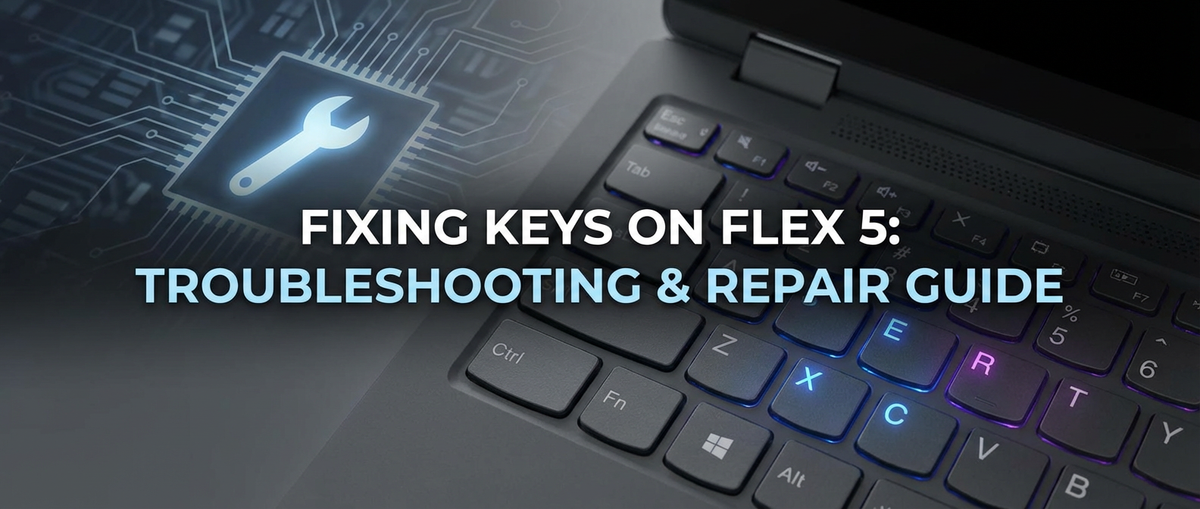


The Lenovo Flex 5, a versatile and popular 2-in-1 laptop, has earned its place as a reliable companion for students, professionals, and casual users alike. Its blend of performance, portability, and touchscreen functionality makes it an excellent choice for a wide array of tasks. However, even the most robust devices are susceptible to wear and tear, and few components bear the brunt of daily interaction quite like the keyboard. A malfunctioning keyboard, whether it’s a single unresponsive key, a sticky cluster, or an entire section gone silent, can transform your productivity powerhouse into a frustrating paperweight. The ability to type efficiently and accurately is fundamental to almost all computing tasks, making a compromised keyboard a significant impediment to your workflow and overall user experience.
Imagine you're deep into writing an important report, crafting a critical email, or immersed in a gaming session, and suddenly, a key refuses to respond, or worse, registers multiple presses. The rhythm of your work is broken, your thoughts interrupted, and a sense of growing annoyance takes over. This common scenario highlights the profound impact a keyboard issue can have. This comprehensive guide aims to arm you with the knowledge and practical steps necessary to diagnose, troubleshoot, and repair common keyboard problems on your Lenovo Flex 5. We will delve into everything from simple cleaning techniques to more advanced diagnostics, empowering you to potentially restore your keyboard's functionality and extend the life of your valuable device. Our goal is to demystify keyboard repair, making it accessible even for those with limited technical experience, all while providing the detailed insights that seasoned DIYers demand.
Understanding the Lenovo Flex 5 Keyboard Architecture and Common Vulnerabilities
Before diving into specific fixes, it's crucial to understand the fundamental design and common failure points of the Lenovo Flex 5's keyboard. The Flex 5 typically employs a chiclet-style keyboard, characterized by flat, square keys with rounded corners, spaced slightly apart. Beneath each keycap lies a intricate mechanism, usually a scissor-switch design, which provides the tactile feedback and registers the key press. This mechanism consists of two interlocking plastic pieces (resembling a scissor) that pivot to collapse and expand, guiding the keycap's vertical movement. At the very bottom, beneath the scissor mechanism, is a rubber dome. This dome, often with a conductive pad on its underside, provides the spring-back action and, when depressed, makes contact with a circuit trace on a membrane sheet, completing an electrical circuit and sending the signal to the laptop's motherboard.
This layered design, while efficient and relatively thin, presents several vulnerabilities. The small gaps between chiclet keys, for instance, are perfect entry points for dust, crumbs, pet hair, and other debris. Over time, these particles can accumulate beneath the keycaps, interfering with the smooth operation of the scissor mechanism or preventing the rubber dome from fully depressing or rebounding. Liquid spills are another major culprit. Even a small amount of liquid, such as water, coffee, or soda, can seep through the key gaps, reach the sensitive membrane circuits, and cause corrosion or short circuits. The sugary residues from soft drinks are particularly damaging, leading to sticky keys that either refuse to move or get stuck in the depressed position.
Physical damage, while less common for individual keys, can also occur. A forceful impact on a key, or accidental prying, can break the delicate plastic tabs on the keycap or the scissor mechanism's hinges, making the key loose or completely detached. Furthermore, continuous, repetitive typing can lead to wear and tear on the rubber domes, causing them to lose their springiness or conductive properties, resulting in unresponsive keys. Software glitches, though less frequent, can sometimes mimic hardware failures, where the operating system or specific drivers fail to correctly interpret keyboard inputs. Understanding these underlying structures and their susceptibility to damage is the first step towards accurate diagnosis and effective repair. This foundational knowledge will guide us through the troubleshooting process, allowing us to pinpoint the probable cause of the problem and apply the most appropriate solution.
Initial Troubleshooting: Software vs. Hardware Diagnosis
Before you even consider prying open your laptop or removing keycaps, it's absolutely essential to differentiate between a software-related issue and a genuine hardware malfunction. Many users jump straight to hardware remedies, only to discover the problem lay within their operating system or settings. This initial diagnostic phase is critical for saving time, effort, and avoiding unnecessary physical interventions.
1. The External Keyboard Test: Your First Line of Defense
This is arguably the simplest and most effective initial diagnostic. Connect an external USB keyboard to your Lenovo Flex 5. If the external keyboard works flawlessly while your internal keyboard continues to exhibit issues, you have strong evidence pointing towards a hardware problem with your laptop's internal keyboard. This test bypasses the internal keyboard's physical components and its dedicated ribbon cable connection to the motherboard, allowing you to isolate the problem. If the external keyboard also fails to work, then the issue might be deeper, perhaps related to the laptop's USB ports, operating system, or even the motherboard's input/output controller, though this is less common for a single-key failure. However, for an unresponsive internal keyboard, a working external keyboard is a clear indicator to proceed with internal keyboard troubleshooting.
2. Restart Your Laptop: The Universal Fix
It sounds cliché, but a simple restart can resolve a surprising number of temporary software glitches. Sometimes, background processes, driver conflicts, or system resources can momentarily interfere with keyboard functionality. A fresh boot can clear these transient issues and reload drivers, potentially restoring normal operation. This should always be your absolute first step.
3. Check for Driver Issues and Updates
Keyboard drivers are the software components that allow your operating system to communicate with your keyboard hardware. Outdated, corrupted, or incompatible drivers can lead to erratic behavior or complete unresponsiveness.
- Access Device Manager: Press
Windows key + Xand select "Device Manager" from the power user menu. - Locate Keyboard Section: Expand the "Keyboards" category. You should see "Standard PS/2 Keyboard" or a similar entry.
- Update Driver: Right-click on your keyboard entry and select "Update driver." Choose "Search automatically for updated driver software." If Windows finds a new driver, install it.
- Roll Back Driver: If the issue started after a recent update, you might consider rolling back the driver. In the driver properties (right-click on the driver and select "Properties"), navigate to the "Driver" tab and click "Roll Back Driver" if the option is available.
- Uninstall and Reinstall Driver: If updating or rolling back doesn't work, right-click and select "Uninstall device." Do NOT check the box to "Delete the driver software for this device" unless specifically instructed. Restart your laptop. Windows will typically automatically detect the keyboard and reinstall the driver upon reboot.
4. Adjust Ease of Access Settings: Sticky Keys, Filter Keys
Windows includes "Ease of Access" features designed to assist users with specific needs, but sometimes these settings can inadvertently affect normal keyboard operation.
- Access Ease of Access Settings: Go to
Settings > Ease of Access > Keyboard. - Check "Sticky Keys" and "Filter Keys": Ensure that "Sticky Keys" and "Filter Keys" are turned off unless you intentionally use them.
- Sticky Keys: Designed to make it easier to type key combinations (like
Ctrl+Alt+Del) by allowing you to press modifier keys (Ctrl,Alt,Shift,Windows Key) one at a time, instead of simultaneously. If accidentally enabled, it can lead to keys behaving strangely. - Filter Keys: Designed to ignore brief or repeated key presses, which can make a physically working key appear unresponsive or slow. If enabled, it can prevent quick multiple presses from registering.
- Sticky Keys: Designed to make it easier to type key combinations (like
5. Run a System Scan for Malware
Malware or viruses can sometimes interfere with system-level functions, including keyboard input. Run a full system scan using your preferred antivirus software to rule out any malicious interference.
6. Test in Safe Mode or BIOS
If your keyboard is still acting up after these steps, testing in Safe Mode or the BIOS environment can further narrow down the cause.
- Safe Mode: Booting into Safe Mode (which loads only essential drivers and services) can help determine if a third-party application or service is causing the conflict. If the keyboard works in Safe Mode but not in normal Windows, a software conflict is highly likely.
- BIOS/UEFI: Access your laptop's BIOS/UEFI settings (usually by pressing
F2,F12,Del, orEscimmediately after powering on, consult your Flex 5 manual for the exact key). If your keyboard functions correctly within the BIOS environment (e.g., you can navigate menus), then the hardware itself is likely fine, and the problem resides within Windows or its drivers. If it doesn't work in BIOS, it strongly suggests a hardware issue.
By systematically going through these software diagnostics, you can often identify and resolve keyboard problems without needing to physically manipulate any components, saving you time and potential headaches. Only once these avenues are exhausted should you confidently proceed to hardware-centric troubleshooting.
Common Keyboard Issues and DIY Fixes
Once you've ruled out software causes, it's time to roll up your sleeves and address potential hardware issues. Many common keyboard problems on your Flex 5 can be resolved with a bit of patience and the right approach.
1. Sticky Keys: The Residue Menace
Symptoms: Keys feel sluggish, don't fully spring back, or remain depressed after being pressed. This is often due to liquid spills (especially sugary ones) or excessive dirt and grime build-up.
DIY Fixes: * Power Down Immediately: If a liquid spill just occurred, immediately power off your laptop, disconnect the power adapter, and remove any external devices. Turn the laptop upside down (if possible) to let liquid drain away from internal components. Do not power it on for at least 24-48 hours to allow complete drying. * Compressed Air: For non-liquid stickiness (dust, crumbs), a can of compressed air is your best friend. Hold the can upright and spray short bursts around the affected key, holding the nozzle about an inch or two away. Angle the stream to get underneath the keycap, dislodging debris. Work systematically over the entire keyboard if unsure of the exact source. * Isopropyl Alcohol (IPA): For sticky residues from dried spills, IPA is highly effective. It evaporates quickly and leaves no residue. * Removal of Keycap: Carefully remove the affected keycap. Use a thin, non-metallic tool (like a guitar pick or a plastic spudger) to gently pry up from one edge. Be extremely cautious not to break the fragile plastic hinges beneath. Understand your key's specific hinge mechanism first (most Flex 5 keys use scissor switches). * Cleaning the Scissor Mechanism and Rubber Dome: Dip a cotton swab or a lint-free cloth in 90% or higher concentration isopropyl alcohol. Gently clean the scissor mechanism components, the top of the rubber dome, and the area around it on the keyboard base. Avoid saturating the area; just enough to dissolve the stickiness. Use a dry part of the swab or cloth to wipe away loosened residue. * Reassemble: Once completely dry, carefully reattach the keycap. Align the keycap with the scissor mechanism and press down firmly until it clicks into place.
2. Unresponsive Keys: When Nothing Happens
Symptoms: Pressing a key yields no response at all, or it only registers intermittently. This can be due to debris, a damaged rubber dome, or a faulty connection.
DIY Fixes: * Cleaning Underneath: This is similar to cleaning sticky keys. Carefully remove the unresponsive keycap. * Inspect for Debris: Use compressed air to blow out any dust, hair, or crumbs that might be obstructing the rubber dome. * Clean Contacts: Using a cotton swab lightly dampened with IPA, gently clean the underside of the rubber dome (the conductive pad) and the exposed circuit traces on the membrane below. Sometimes, a thin layer of grime or oxidation can prevent electrical contact. * Examine the Rubber Dome: Carefully inspect the rubber dome for tears, creases, or any signs of damage that might prevent it from making proper contact or springing back. If the dome is visibly damaged, it might need replacement, which can be challenging as individual domes are rarely sold separately and often require replacing the entire membrane or keyboard. * Reseating Keycap: Sometimes, an unresponsive key is simply not seated correctly, preventing the full depression of the rubber dome. After cleaning, ensure the keycap is perfectly aligned and firmly clicked back into its scissor mechanism.
3. Loose or Broken Keycaps: The Wobbly Woes
Symptoms: A keycap feels wobbly, pops off easily, or has completely detached from the keyboard base. This indicates damage to the keycap's mounting tabs or the underlying scissor mechanism.
DIY Fixes: * Identify the Damage: Carefully examine the detached keycap. Look for tiny plastic clips or posts that might be broken. Then, examine the scissor mechanism on the keyboard base for any broken pivot points or hinges. * Reattaching a Loose Keycap: If the keycap and the scissor mechanism are intact, simply re-align the keycap onto the mechanism. Ensure the orientation is correct (some keys have specific top/bottom alignments) and press down firmly until it snaps into place with an audible click. * Repairing a Broken Scissor Mechanism/Keycap: This is more challenging. * Scissor Mechanism Replacement: If the scissor mechanism is broken, you might be able to source a replacement from a specialized laptop parts dealer (like Laptop-Keys.com or eBay) that sells individual key repair kits. These kits typically include a new keycap and its corresponding scissor mechanism. You'll need to carefully remove the old broken mechanism (usually by gently prying it off its small anchor points) and snap the new one into place. * Keycap Replacement: If only the keycap tabs are broken but the scissor mechanism is fine, you'll need a new keycap. Again, these can be found on parts websites. Make sure to match the specific model of your Flex 5 and the exact key type, as hinge designs can vary slightly. * Adhesive (Last Resort for Minor Breaks): For very minor breaks where a keycap is just slightly loose and all other options fail, a tiny dab of super glue (cyanoacrylate adhesive) on a non-moving part of the keycap's underside (away from the functional mechanism) might temporarily hold it. However, this is risky, can make future repairs impossible, and is not recommended as a permanent solution. Use with extreme caution and only if the key's movement isn't compromised.
4. Missing Keycaps: The Gaps in Your Keyboard
Symptoms: A keycap is completely gone, leaving a visible hole on the keyboard.
DIY Fixes: * Sourcing Replacements: The best solution is to purchase a replacement keycap (often bundled with its scissor mechanism) from a specialized online vendor. You'll need to provide your laptop's exact model number (e.g., Lenovo Flex 5 14ARE05) and the specific key you need. These sites often have diagrams to help you identify the correct hinge type. * Salvaging from a Donor Keyboard: If you have an old, non-functional Flex 5 or a compatible Lenovo keyboard, you might be able to salvage the missing keycap and its mechanism from it. Ensure the hinge type is identical. * Temporary Solution: As a very temporary measure, you could place a small piece of tape over the exposed rubber dome to prevent dust ingress, but this won't provide typing functionality.
5. Entire Keyboard Not Working: The Silent Treatment
Symptoms: Multiple keys, an entire section of the keyboard, or the entire keyboard is unresponsive. This points to a more systemic issue, potentially with the keyboard's ribbon cable connection, the keyboard unit itself, or a motherboard component.
DIY Fixes (Requires Disassembly - Proceed with Extreme Caution): * Driver Reinstallation (Revisit): Ensure you've thoroughly tried driver uninstallation and reinstallation as described in the software troubleshooting section. * BIOS/UEFI Check (Revisit): Confirm the keyboard doesn't work even in the BIOS/UEFI settings. This strengthens the hardware diagnosis. * Check Keyboard Ribbon Cable Connection: This is the most common hardware culprit for widespread keyboard failure, apart from total keyboard unit failure. * Disclaimer: This step involves opening your laptop. This can void your warranty, damage components if done incorrectly, and requires specialized tools and a delicate touch. If you're uncomfortable, seek professional assistance. * Tools: You'll typically need a small Phillips head screwdriver, a plastic spudger, and possibly a fine-tipped set of tweezers. * Procedure (General Steps - Specifics Vary by Flex 5 Model): 1. Power Off and Disconnect: Absolutely ensure the laptop is powered off, unplugged from the AC adapter, and the battery is disconnected internally if possible (a crucial safety step to prevent short circuits). 2. Remove Bottom Cover: Carefully remove all visible screws from the bottom of the laptop. Use a plastic spudger to gently pry around the edges of the bottom cover, releasing the plastic clips. 3. Locate Keyboard Ribbon Cable: Once the bottom cover is off, carefully locate the keyboard's ribbon cable. This is a flat, flexible, often brown or blue cable that runs from the keyboard unit and connects to a ZIF (Zero Insertion Force) connector on the motherboard. There might be multiple ribbon cables; identify the wider one associated with the main keyboard. 4. Reseat the Cable: The ZIF connector usually has a small latch (black or white) that flips up or slides out to release the cable. Gently flip or slide the latch, carefully pull the ribbon cable out, inspect both ends for damage or corrosion, and then reinsert it firmly and squarely into the connector. Ensure it's fully seated and then close the latch. Do not force anything. 5. Inspect for Damage: While the laptop is open, quickly inspect the ribbon cable itself for any visible tears, creases, or burnt areas. If damaged, the cable will need replacement, or more likely, the entire keyboard unit as the cable is often integrated. 6. Reassemble and Test: Carefully reassemble the laptop, ensuring all cables are connected and the bottom cover snaps back into place. Power on and test the keyboard.
Remember, patience and precision are paramount when performing any DIY repair. Always work in a clean, well-lit area, and keep track of all screws and small parts. If at any point you feel uncertain or uncomfortable, it's always best to stop and consider professional help.
Advanced Troubleshooting & Keyboard Replacement Considerations
When the common DIY fixes fail to resolve the keyboard issue on your Lenovo Flex 5, and especially if an entire section or the whole keyboard remains unresponsive even after checking the ribbon cable, it's highly probable that the entire keyboard unit needs replacement. This is considered an advanced repair, primarily because the keyboard on many modern laptops, including the Flex 5, is often integrated into the top case (palm rest assembly). This means replacing the keyboard isn't just a matter of swapping a single component; it often involves a significant teardown of the laptop.
Understanding the Integrated Keyboard Design
On numerous Lenovo Flex 5 models, the keyboard is not a standalone component that can be easily unscrewed from the top. Instead, it is either riveted, heat-staked, or otherwise permanently bonded to the palm rest assembly. This design choice contributes to the laptop's thin profile and rigidity but makes keyboard replacement a much more laborious and costly affair. To replace the keyboard, you typically need to:
- Completely Disassemble the Laptop: This involves removing the bottom cover, disconnecting the battery, optical drive (if any), hard drive/SSD, RAM modules, Wi-Fi card, cooling fan, heatsink, and finally, the motherboard itself. Every single component residing on or connected to the top case must be carefully detached.
- Separate the Motherboard from the Top Case: Once all components are disconnected, the motherboard can be lifted out, leaving the top case (with the old keyboard) exposed.
- Replace the Top Case Assembly (or Delicately Replace Keyboard Only):
- Option A: Replace the entire top case assembly: This is often the recommended and sometimes the only practical solution for bonded keyboards. You purchase a new top case that comes with a new, pre-installed keyboard. While more expensive, it guarantees a factory-new keyboard and simplifies the reassembly process as you don't have to deal with intricate keyboard bonding.
- Option B: "Refurbish" the existing top case by replacing only the keyboard: This is an extremely delicate and time-consuming process. It involves carefully drilling out or melting the plastic rivets/heat stakes that hold the old keyboard to the palm rest, installing a new keyboard unit, and then using small screws, plastic welding, or strong adhesive to secure the new keyboard in place. This method is generally only attempted by experienced technicians or if a full top case assembly is unavailable or prohibitively expensive. It carries a high risk of damaging the new keyboard or the top case itself.
Tools Required for Advanced Disassembly
If you choose to proceed with a full disassembly for keyboard replacement, you will need a specific set of tools:
- Precision Screwdriver Set: Including small Phillips head (
PH00,PH000) and possibly Torx bits. - Plastic Spudgers: Essential for safely prying open plastic clips and disconnecting ribbon cables without scratching the casing.
- Anti-static Wrist Strap: To prevent electrostatic discharge (ESD) damage to sensitive electronic components.
- Fine-tipped Tweezers: For manipulating tiny connectors and screws.
- Magnifying Glass/Headband Magnifier: For inspecting small components and connections.
- Parts Organizer Tray: To keep track of screws and components, often labeled by their removal step.
- Heat Gun (for some stubborn adhesive): Used with extreme caution, and usually only by professionals.
Step-by-Step Disassembly (General Outline - Always Refer to a Specific Service Manual or Teardown Video for Your Exact Flex 5 Model)
- Preparation: Power off, disconnect AC, wear anti-static strap. Work on a clean, well-lit surface.
- Remove Bottom Cover: Unscrew all bottom panel screws. Use a plastic spudger to carefully release retaining clips.
- Disconnect Battery: This is a crucial safety step. Locate the battery connector on the motherboard and gently disconnect it.
- Remove Storage Devices & RAM: Disconnect M.2 SSDs, 2.5-inch drives, and remove RAM modules if they are obstructing access to the motherboard.
- Disconnect All Ribbon Cables and Wires: This includes the keyboard backlight cable, trackpad cable, speaker wires, display cable, Wi-Fi antenna cables, USB port cables, etc. Photograph each connection before disconnecting to aid reassembly.
- Remove Cooling System: Unscrew and remove the cooling fan and heatsink assembly.
- Remove Motherboard: Unscrew all screws securing the motherboard to the top case. Carefully lift the motherboard out, ensuring no cables are still attached.
- Keyboard Access: Once the motherboard is removed, you will have access to the old keyboard on the top case. Now you decide if you're replacing the whole top case or attempting the delicate keyboard-only replacement.
- Reverse the Process: Reassemble by following the steps in reverse order, ensuring all connections are secure and screws are tightened appropriately.
Important Considerations and Risks
- Warranty: Opening your laptop will almost certainly void its warranty.
- Damage Risk: Disassembly carries a significant risk of damaging delicate components, connectors, or cables if not done carefully. Broken clips, stripped screw heads, and torn ribbon cables are common amateur mistakes.
- Cost vs. Benefit: For integrated keyboards, the cost of a new top case assembly can be substantial, sometimes approaching a significant percentage of the laptop's original value. Weigh this against the cost of a new laptop or professional repair.
- Professional Help: If the idea of a full laptop teardown is daunting, or if you encounter issues beyond a simple keycap replacement, it is strongly recommended to seek professional repair services. They have the expertise, specialized tools, and often access to specific replacement parts that aren't readily available to consumers.
Remember, advanced troubleshooting and replacement are not for the faint of heart. Proceed only if you are confident in your technical abilities and understand the inherent risks involved. In many cases, for a truly integrated keyboard, professional intervention is the most reliable path to a fully functional Flex 5.
APIPark is a high-performance AI gateway that allows you to securely access the most comprehensive LLM APIs globally on the APIPark platform, including OpenAI, Anthropic, Mistral, Llama2, Google Gemini, and more.Try APIPark now! 👇👇👇
Deep Dive into Specific Key Repair: Anatomy of a Key and Targeted Solutions
Understanding the granular components of a single key on your Lenovo Flex 5 keyboard is paramount for precise and effective repair. Each keycap, despite its apparent simplicity, is part of a complex mechanical and electrical system that enables typing.
Anatomy of a Single Key
- Keycap: The visible plastic cap you press. It has specific molded tabs or posts on its underside designed to connect to the scissor mechanism. The legends (letters, numbers, symbols) are either printed on, laser-etched, or double-shot molded into the keycap.
- Scissor Mechanism (Retainer Clips/Hinges): Located directly under the keycap, this is a two-piece plastic structure that typically interlocks and pivots. It provides stability to the keycap, guiding its vertical movement, and ensures even pressure distribution over the rubber dome. These mechanisms are surprisingly fragile and come in various designs (e.g., cross-mount, side-mount), making exact replacements crucial.
- Rubber Dome (Spring/Actuator): Beneath the scissor mechanism lies a small, hemispherical rubber dome. This dome serves two primary functions:
- Spring-back Action: It provides the tactile resistance and springiness that pushes the keycap back up after it's pressed.
- Actuation: The underside of the rubber dome usually has a small, conductive carbon pad. When the key is fully depressed, this pad makes contact with the circuit traces on the membrane below, completing an electrical circuit.
- Membrane Circuit Sheet: This is a thin, flexible sheet containing conductive traces and contact points. When the rubber dome's conductive pad touches the traces, it closes the circuit, sending an electrical signal to the keyboard controller (which is usually part of the main keyboard PCB, or integrated onto the motherboard). There are typically multiple layers of membrane, separated by a spacer layer with holes for the domes, to prevent accidental contact.
Targeted Solutions for Specific Key Failures
1. Individual Keycap Replacement
- Scenario: The keycap is lost, cracked, or its mounting tabs are broken, but the scissor mechanism underneath is perfectly intact.
- Procedure:
- Source Correct Keycap: This is the most critical step. Keycaps vary not only in size and legend but also in the design of their underside mounting tabs to match specific scissor mechanisms. You must order a keycap that is compatible with your Flex 5 model and the specific key you're replacing (e.g., a "Left Shift" keycap might have a different mount than a "Q" keycap). Online retailers specializing in laptop key replacements (like Laptop-Keys.com, replacementlaptopkeys.com, or sellers on eBay) often require you to identify the specific hinge type via photos on their websites.
- Installation: Align the new keycap directly over the existing, intact scissor mechanism. Apply firm, even pressure to the center of the keycap. You should hear a soft click as the keycap snaps into place on the scissor mechanism's mounting points. Gently test its movement to ensure it's not wobbly and depresses smoothly.
2. Scissor Mechanism Replacement
- Scenario: The keycap is fine, but the underlying plastic scissor mechanism is broken, causing the keycap to wobble or detach.
- Procedure:
- Source Correct Mechanism: Like keycaps, scissor mechanisms are highly specific to laptop models and even individual keys. You'll need a replacement kit that includes the appropriate scissor hinge components for your Flex 5.
- Remove Old Mechanism: Use a pair of fine-tipped tweezers or a plastic spudger to very gently pry off the broken scissor mechanism from its anchor points on the keyboard base. Be extremely careful not to damage the rubber dome or the membrane underneath. Observe how the old mechanism was attached.
- Install New Mechanism: Position the new scissor mechanism over the rubber dome, aligning its small pivot points or clips with the corresponding anchor points on the keyboard base. Gently press down until it snaps securely into place. Test its movement.
- Attach Keycap: Once the new scissor mechanism is secure and moves freely, snap the original (or a new) keycap onto it as described above.
3. Rubber Dome or Membrane Circuit Repair (Extremely Advanced/Often Not Feasible for DIY)
- Scenario: The keycap and scissor mechanism are fine, but the key is unresponsive due to a damaged rubber dome or a problem with the conductive pad, or a localized issue with the membrane circuit.
- Challenges:
- Accessibility: The rubber domes are typically beneath the scissor mechanism, which itself is often bonded to the membrane sheet. Accessing just one dome without damaging the surrounding structure is very difficult.
- Replacement Parts: Individual rubber domes or small sections of the membrane circuit are almost never sold as standalone replacement parts for consumer laptops.
- Precision: Repairing a membrane circuit requires micro-soldering skills, conductive paint, and extreme precision that is beyond the scope of typical DIYers.
- Limited DIY Options:
- Conductive Paint/Adhesive (Risky): In very rare cases, if the conductive pad on the underside of the rubber dome is worn, a tiny dab of conductive paint or glue might temporarily restore contact. This is a very delicate operation, and applying too much or in the wrong place can permanently damage the membrane. This is generally not recommended.
- Replacing the Entire Keyboard/Top Case: If the issue is a damaged rubber dome or membrane circuit, the most reliable (and often only) solution is to replace the entire keyboard unit, which, as discussed, often means replacing the entire top case assembly for modern Flex 5 models.
4. Backlight Issues Related to Keys
- Scenario: The keyboard backlight is uneven, some keys don't light up, or the entire backlight is non-functional.
- Troubleshooting:
- Software Settings: First, check your Flex 5's backlight settings. Use the function keys (e.g.,
Fn + SpacebarorFn + F11/F12, consult your manual) to adjust brightness. Also, check in Windows Mobility Center or Lenovo Vantage software. - Ribbon Cable: A loose or damaged backlight ribbon cable (separate from the main keyboard data cable, though often adjacent) can cause this. Accessing it requires opening the laptop. This cable connects the keyboard's backlight LEDs to the motherboard.
- Keyboard Unit Failure: If only certain keys' backlights are out, it could indicate a localized LED failure within the keyboard unit itself, necessitating a full keyboard replacement. If the entire backlight fails after ruling out software and cable issues, the keyboard unit is likely faulty.
- Software Settings: First, check your Flex 5's backlight settings. Use the function keys (e.g.,
Targeted repair requires meticulous attention to detail and a steady hand. Always proceed with caution, consult specific guides for your exact Flex 5 model, and remember that for deeper issues involving the membrane or multiple non-functional keys, a full keyboard replacement (often involving the top case assembly) is usually the most robust and lasting solution.
When to Seek Professional Help
While this guide empowers you to tackle many common keyboard issues on your Lenovo Flex 5, there comes a point where DIY efforts reach their limit. Recognizing when to put down your tools and consult a professional can save you further frustration, potential damage to your device, and ultimately, money.
Here are the key indicators that it's time to seek expert assistance:
- Entire Keyboard Unresponsive Despite Basic Troubleshooting: If, after meticulously performing all software troubleshooting steps (drivers, Ease of Access, BIOS check) and physically reseating the keyboard ribbon cable, your entire keyboard or a large section of it remains unresponsive, the problem is likely a deeper hardware failure within the keyboard unit itself or, less commonly, on the motherboard. Replacing an integrated keyboard (which often means the entire top case assembly) is a complex, time-consuming, and potentially risky endeavor that is best left to experienced technicians.
- Discomfort with Disassembly: Opening your laptop always carries risks. If you feel uneasy, lack the proper precision tools, or are concerned about damaging fragile internal components (such as delicate ribbon cable connectors, plastic clips, or even the motherboard), do not proceed with internal access. A professional repair shop has the right tools, knowledge, and experience to perform these operations safely.
- Visible Damage to Motherboard Components: While investigating a keyboard issue, you might accidentally uncover signs of more severe damage, such as liquid residue on the motherboard, burnt components, or corroded traces. These issues are well beyond typical DIY repair and require specialized diagnostic tools and micro-soldering skills that only a professional service center possesses.
- Persistent Backlight Issues: If specific keys' backlights are out, or the entire keyboard backlight isn't functioning despite checking software settings and the backlight ribbon cable, it likely indicates an issue with the LED array within the keyboard unit, which necessitates a full keyboard replacement, often bundled with the top case.
- Warranty Concerns: If your Lenovo Flex 5 is still under warranty, attempting any internal repair will almost certainly void it. In such cases, it is always advisable to contact Lenovo's official support or an authorized service center first. They can diagnose the issue and perform the repair under warranty, saving you potential costs.
- Time and Cost-Benefit Analysis: Consider the value of your time and the potential cost of replacement parts. Sometimes, purchasing an entire top case assembly (which includes the keyboard) and the time spent on a full laptop teardown might approach the cost of professional repair. Furthermore, if you accidentally damage other components during a DIY repair, the overall cost can skyrocket. A professional can often source parts at better prices and complete the repair more efficiently.
- Specific Key Mechanisms are Broken Beyond Repair: If you've identified that the delicate scissor mechanism under a key is broken, and you're unable to source a compatible replacement, or you find the task of replacing it too fiddly, a professional can often provide a solution or advise on the next best steps.
What to Expect from Professional Repair
When you take your Flex 5 to a professional, you can typically expect:
- Diagnosis: They will perform a thorough diagnostic to accurately identify the root cause of the keyboard problem.
- Quotation: You'll receive a repair quote outlining the parts needed, labor costs, and an estimated timeframe.
- Expert Repair: Technicians use specialized tools and follow established procedures to ensure a high-quality repair.
- Post-Repair Testing: Your laptop will undergo rigorous testing to confirm full functionality before being returned to you.
- Warranty: Reputable repair shops often provide a warranty on their parts and labor.
Making the decision to seek professional help is a smart one when facing complex technical challenges. It ensures your valuable Flex 5 is in capable hands, minimizing further damage and maximizing the chances of a successful, lasting repair.
Preventive Measures for Keyboard Longevity
An ounce of prevention is worth a pound of cure, especially when it comes to laptop keyboards. Adopting a few simple habits and preventative measures can significantly extend the life of your Lenovo Flex 5's keyboard and spare you the headaches of troubleshooting and repair.
- Invest in a Keyboard Protector: This is arguably the most effective and affordable preventative measure. A thin, transparent silicone or TPU keyboard cover molds perfectly over your keys, creating a barrier against liquid spills, dust, crumbs, and other debris. While it might slightly alter the typing feel, the protection it offers is invaluable, especially if you frequently eat or drink near your laptop. Ensure you get one specifically designed for your Flex 5 model for a snug fit.
- Maintain a Clean Workspace: A cluttered and dusty environment is a breeding ground for keyboard issues. Regularly dust your desk and keep your laptop away from food and drinks. The less debris there is in your immediate vicinity, the less likely it is to find its way under your keys.
- Regular Cleaning Routine: Even with a keyboard protector, some dust and grime will inevitably accumulate.
- Compressed Air: Periodically (e.g., once a month or every few weeks), use a can of compressed air to blast away loose debris from between and under the keys. Hold the can upright and spray in short bursts, moving across the keyboard from different angles. This prevents build-up from becoming compacted.
- Microfiber Cloth: Gently wipe the keycaps and surrounding palm rest with a clean, damp (not wet) microfiber cloth to remove finger oils and smudges. For stubborn grime, a very lightly dampened cloth with a small amount of mild electronic screen cleaner or diluted isopropyl alcohol (70% or higher) can be used, ensuring no liquid seeps into the key gaps.
- Avoid Harsh Chemicals: Never use abrasive cleaners, window cleaner, or harsh solvents like acetone, benzene, or paint thinner, as these can damage the keycap legends or plastic finish.
- Eat and Drink Away from Your Laptop: This cannot be stressed enough. Liquid spills are among the most destructive and common causes of keyboard failure. Even small drips of coffee, soda, or water can short out circuits and leave sticky residues. Develop a habit of stepping away from your laptop when consuming food or beverages. If you must have them nearby, ensure they are in spill-proof containers and kept at a safe distance.
- Handle with Care: Physical impacts can dislodge keycaps or damage the delicate scissor mechanisms.
- Avoid Forceful Typing: While modern keyboards are designed for millions of keystrokes, excessively forceful typing can accelerate wear on rubber domes and scissor mechanisms.
- Protect During Transport: When carrying your Flex 5, use a padded laptop sleeve or bag to protect it from bumps and drops. Avoid placing heavy objects on top of the closed laptop, as this can put undue pressure on the keyboard.
- Do Not Pry Keys Unnecessarily: Only remove keycaps if absolutely necessary for cleaning or repair, and always do so with extreme gentleness, using appropriate tools.
- Keep Pets Away: Pet hair, especially from long-haired animals, can easily get trapped under keys, causing stickiness or unresponsiveness. Keep your Flex 5 on a surface away from shedding pets or consider using a keyboard protector when pets are around.
- Software Maintenance: While not directly hardware prevention, keeping your operating system and drivers updated helps prevent software glitches that might mimic hardware keyboard issues, avoiding unnecessary physical intervention.
By integrating these simple yet effective preventative measures into your routine, you can significantly reduce the likelihood of encountering keyboard problems with your Lenovo Flex 5, ensuring a smooth and uninterrupted typing experience for years to come.
The Digital Undercurrent: How Technology Intersects with Repair & Management
In a world increasingly shaped by digital innovation, where artificial intelligence and interconnected software services dictate the pace of progress, it might seem paradoxical to dedicate such extensive focus to the tangible, mechanical intricacies of a laptop keyboard. Yet, the systematic approach we apply to diagnosing and repairing a physical device like the Lenovo Flex 5 keyboard—isolating the problem, understanding its root cause, and implementing a precise solution—mirrors the fundamental principles of managing complex digital ecosystems. Just as a broken key can disrupt productivity, an inefficient or poorly managed software service can cripple an entire enterprise.
The digital landscape of today is fundamentally built upon the concept of Application Programming Interfaces (APIs). These are the unsung heroes that allow different software applications to communicate with each other, exchange data, and leverage functionalities without needing to understand each other's internal workings. From ordering food online to checking weather forecasts, virtually every digital interaction relies on a web of interconnected APIs performing specific tasks. In this vast and intricate network, the reliability and performance of each API are crucial, much like the functionality of every single key on your keyboard.
As businesses integrate more sophisticated services, including those powered by artificial intelligence, the complexity of managing these APIs multiplies exponentially. Imagine an enterprise attempting to leverage dozens, if not hundreds, of AI models for various applications – sentiment analysis, language translation, data prediction, image recognition – each potentially with its own unique invocation format, authentication method, and cost structure. Without a unified system, this fragmented approach quickly becomes unmanageable, leading to operational inefficiencies, security vulnerabilities, and exorbitant maintenance costs.
This is precisely where the concept of an API Gateway becomes indispensable, acting as a critical control point for all inbound and outbound API traffic. An API Gateway centralizes vital functions such as authentication, authorization, rate limiting, traffic management, monitoring, and logging. It transforms a chaotic mesh of individual service calls into an organized, secure, and performant system. For businesses looking to harness the power of AI, a specialized AI Gateway takes this concept further, specifically designed to streamline the integration and management of diverse AI models. It provides a single, standardized interface for invoking AI services, abstracts away the underlying complexities of different AI model providers, and ensures consistent security and cost tracking.
Consider APIPark, an open-source AI Gateway and API management platform launched by Eolink. APIPark exemplifies how modern technology brings order to digital chaos, much like our methodical approach brings order back to a malfunctioning Flex 5 keyboard. It's an all-in-one solution designed for developers and enterprises to manage, integrate, and deploy AI and REST services with unparalleled ease. Just as we meticulously identify whether a keyboard issue is software or hardware, APIPark provides the tools for end-to-end API lifecycle management, from design and publication to invocation and decommission, helping to regulate and standardize processes.
APIPark's capabilities highlight the parallels between robust hardware repair and sophisticated software management:
- Systematic Integration: APIPark offers quick integration of over 100 AI models with a unified management system for authentication and cost tracking. This reflects the methodical replacement of a specific key component, ensuring it fits seamlessly into the larger system.
- Standardization and Efficiency: It provides a unified API format for AI invocation, meaning changes in AI models or prompts do not affect the application or microservices. This is akin to ensuring all keycaps and mechanisms are designed to a standard that allows for interchangeability and consistent performance.
- Problem Identification and Resolution: APIPark's detailed API call logging records every detail of each API call, enabling businesses to quickly trace and troubleshoot issues. This mirrors our diagnostic process for the Flex 5, where detailed observation helps pinpoint the exact cause of a keyboard malfunction.
- Predictive Maintenance: The platform's powerful data analysis capabilities track historical call data to display long-term trends and performance changes, assisting with preventive maintenance before issues occur. This resonates with our advice on preventative measures for keyboard longevity, understanding wear patterns to avoid future problems.
- Scalability and Resilience: With performance rivaling Nginx and support for cluster deployment, APIPark can handle large-scale traffic, ensuring stability. This echoes the robust engineering of a laptop keyboard designed for millions of keystrokes, providing reliable input under heavy usage.
In essence, whether we are meticulously fixing a physical key on a Lenovo Flex 5 or orchestrating a complex array of AI-powered services through an AI Gateway like APIPark, the underlying principles of systematic problem-solving, detailed diagnosis, efficient management, and proactive maintenance remain constant. Both realms demand a structured approach to ensure optimal performance, reliability, and security, allowing users to interact seamlessly with their tools, whether they are tangible hardware or intricate digital services. The existence of platforms like APIPark underscores that in our increasingly digital world, robust infrastructure and intelligent management are as crucial for software ecosystems as physical integrity is for our hardware devices.
Conclusion
Navigating the frustrations of a malfunctioning keyboard on your Lenovo Flex 5 can be a daunting experience, transforming a powerful, versatile machine into a source of constant irritation. However, as this comprehensive guide has demonstrated, many common keyboard issues are not insurmountable. By methodically approaching the problem, starting with crucial software diagnostics and progressing to detailed hardware troubleshooting, you can often pinpoint the root cause and implement effective DIY solutions.
We've explored the intricate anatomy of the Flex 5 keyboard, from its chiclet keycaps and scissor mechanisms to the sensitive rubber domes and membrane circuits, understanding their vulnerabilities to dust, spills, and wear. From simple cleaning techniques for sticky keys to carefully replacing a broken keycap or scissor mechanism, we've provided step-by-step instructions designed to empower you with the practical skills needed for self-repair. We also delved into more advanced scenarios, such as the complete unresponsiveness of the keyboard, highlighting the importance of checking the internal ribbon cable and understanding when a full keyboard (or top case) replacement might be necessary. Crucially, we emphasized the critical decision point: knowing when to gracefully step back and seek professional assistance to avoid further damage and ensure a lasting fix.
Beyond repair, prevention remains paramount. Implementing simple habits like using a keyboard protector, maintaining a clean workspace, avoiding food and drinks near your laptop, and regular cleaning can significantly extend your keyboard's lifespan and save you from future headaches. These preventative measures are investments in the longevity and reliability of your device.
Ultimately, mastering these troubleshooting and repair techniques not only restores functionality to your Lenovo Flex 5 but also instills a greater understanding and appreciation for the technology you use daily. In a world increasingly driven by sophisticated digital solutions, from API-driven services to advanced AI Gateway platforms like APIPark, the foundational principles of systematic problem-solving and meticulous maintenance remain universally applicable. Whether you're fixing a physical key or managing complex software integrations via an api gateway, the ability to diagnose, understand, and resolve issues methodically is a valuable skill that bridges the gap between the tangible and digital realms of our technological landscape. Empowered with this knowledge, you can approach your Flex 5 keyboard issues with confidence, ensuring your device remains a productive and reliable tool for years to come.
FAQ
Q1: My Lenovo Flex 5 keyboard has some sticky keys, but I haven't spilled anything. What could be the cause, and how do I fix it? A1: Non-liquid sticky keys are most commonly caused by an accumulation of dust, crumbs, pet hair, or other tiny debris that has worked its way under the keycaps and is interfering with the scissor mechanism or rubber dome. To fix this, first, power off your laptop. Then, use a can of compressed air to spray short bursts around and under the affected keys from various angles to dislodge the debris. If that doesn't work, you may need to carefully remove the sticky keycap(s) using a plastic spudger, clean the scissor mechanism and the area around the rubber dome with a cotton swab lightly dampened with high-concentration isopropyl alcohol (90% or higher), and then reattach the keycap once completely dry.
Q2: I've tried all software troubleshooting, and my entire Flex 5 keyboard is still unresponsive. What's the next likely hardware problem? A2: If all software solutions (driver updates, safe mode, BIOS check) fail, and your entire keyboard remains unresponsive, the most likely hardware culprit is a loose or damaged keyboard ribbon cable connection to the motherboard. This requires opening your laptop. After powering off and disconnecting the battery, locate the ribbon cable that connects the keyboard to the motherboard, gently open its ZIF (Zero Insertion Force) latch, remove and inspect the cable, then reinsert it firmly and close the latch. If reseating doesn't work, the keyboard unit itself might be faulty, or the ribbon cable could be damaged, necessitating a keyboard replacement (often involving the top case assembly).
Q3: Is it safe to use water or general cleaning sprays to clean my Flex 5 keyboard? A3: Absolutely not. You should never use plain water, window cleaner, or general household cleaning sprays directly on or near your laptop keyboard. Water can easily seep into the internal components, causing short circuits, corrosion, and permanent damage. Harsh chemicals or ammonia-based cleaners can damage the keycap legends or plastic finish. The safest and most recommended cleaning agent for keyboard components is high-concentration isopropyl alcohol (90% or higher), as it evaporates quickly and leaves no residue. Always apply it to a cloth or cotton swab, never directly to the keyboard, and ensure the laptop is powered off.
Q4: My Flex 5 is under warranty, but a few keys are not working. Should I try to fix them myself? A4: If your Lenovo Flex 5 is still under warranty, it is strongly advised not to attempt any internal repairs yourself, including removing keycaps or opening the laptop. Doing so will almost certainly void your warranty. Instead, contact Lenovo's official customer support or an authorized service center. Explain the issue, and they should be able to diagnose and repair the keyboard under warranty terms, free of charge, or at a reduced cost depending on the nature of the damage.
Q5: Where can I find replacement keycaps or scissor mechanisms for my specific Lenovo Flex 5 model? A5: Finding specific replacement keycaps and scissor mechanisms often requires specialized online vendors. Websites like Laptop-Keys.com, replacementlaptopkeys.com, or sellers on eBay specialize in individual laptop key parts. When ordering, it's crucial to know your exact Lenovo Flex 5 model number (e.g., Flex 5-14ARE05) and to accurately identify the specific key you need. These sites often provide diagrams or photos to help you match your keycap and, more importantly, the underlying scissor hinge mechanism, as designs can vary even within the same laptop model for different keys.
🚀You can securely and efficiently call the OpenAI API on APIPark in just two steps:
Step 1: Deploy the APIPark AI gateway in 5 minutes.
APIPark is developed based on Golang, offering strong product performance and low development and maintenance costs. You can deploy APIPark with a single command line.
curl -sSO https://download.apipark.com/install/quick-start.sh; bash quick-start.sh

In my experience, you can see the successful deployment interface within 5 to 10 minutes. Then, you can log in to APIPark using your account.

Step 2: Call the OpenAI API.